
1. Uvod
This manual provides comprehensive instructions for the installation, operation, and maintenance of your TAFFIO 10.25-inch Touchscreen Android Navigation System. This system is designed to integrate seamlessly into Volvo S40, C30, C70, and V50 models from 2004-2013, offering advanced navigation, entertainment, and communication features.
Please read this manual thoroughly before installation and use to ensure proper function and to maximize your experience with the device. Keep this manual for future reference.
2. Varnostne informacije
- Always prioritize safe driving. Do not operate the system in a way that distracts you from the road.
- Ensure all connections are secure and correctly installed to prevent electrical hazards or damage to the vehicle's systems.
- Ne poskušajte razstavljati ali spreminjati enote. To lahko razveljavi garancijo in povzroči škodo.
- Če niste prepričani o katerem koli koraku, se za namestitev posvetujte s strokovnjakom.
- Zaslon naj bo čist in brez ovir, da bo ohranjena jasna vidljivost.
3. Nastavitev
3.1 Vsebina paketa
Pred začetkom namestitve preverite, ali so v paketu prisotne vse komponente:
- 1x Android multimedia system
- 1x napajalni kabel
- 1x CAN-BUS Decoder
- 2x USB kabel
- 1x RCA Plugs & Sim Card Slot cable
- 1x Rear camera input cable
- 1x GPS antena
- 1x 4G antena

Figure 3.1: Included components of the TAFFIO Android multimedia system.
3.2 Namestitev
The TAFFIO Android multimedia system is designed for Plug & Play installation, minimizing the need for additional adapters or mounting frames. However, careful attention to connections is required.
- Priprava: Pred začetkom namestitve se prepričajte, da je kontakt vozila izklopljen in da je akumulator odklopljen.
- Odstrani originalno enoto: Carefully remove the existing car radio or display unit from your Volvo dashboard. Refer to your vehicle's service manual for specific instructions on removing dashboard components.
- Priključite glavno enoto: Connect the main power cable (B) from the TAFFIO system to the original main unit's wiring harness.
- Connect to TAFFIO Radio: Connect the appropriate cable (A) to the TAFFIO Android multimedia system.
- LCD Plug Connection: Connect the original LCD plug (C) to the designated port on the TAFFIO system.
- Reža za kartico SIM: Insert your 4G LTE SIM card into the provided slot (D) if you intend to use mobile internet without Wi-Fi.
- Dodatne povezave: Connect the GPS antenna, 4G antenna, USB cables, RCA plugs, and rear camera input cable to their respective ports on the TAFFIO system. Ensure the CAN-BUS decoder is correctly integrated into the wiring harness (E) to support steering wheel controls and vehicle settings.
- AUX Input Verification: It is crucial to determine if your original Volvo radio has an AUX (Auxiliary Audio Input). This information may be necessary for proper audio integration.
- Testna funkcionalnost: Before fully reassembling the dashboard, reconnect the battery and test the system's basic functions, including power on/off, audio, touchscreen response, and steering wheel controls.
- Končna montaža: Once functionality is confirmed, carefully reassemble the dashboard components, ensuring no wires are pinched.
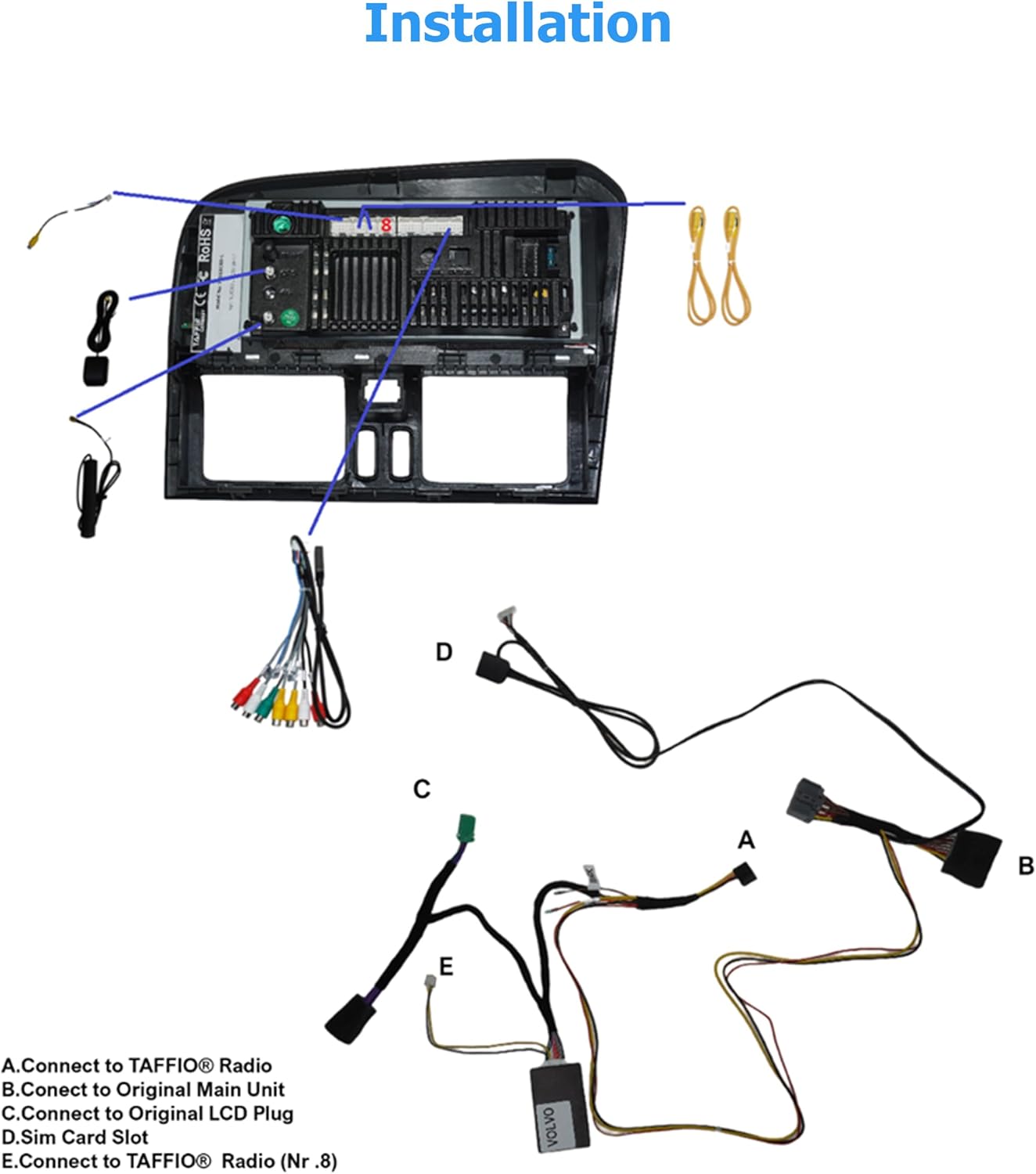
Figure 3.2: Installation diagram for the TAFFIO Android multimedia system.
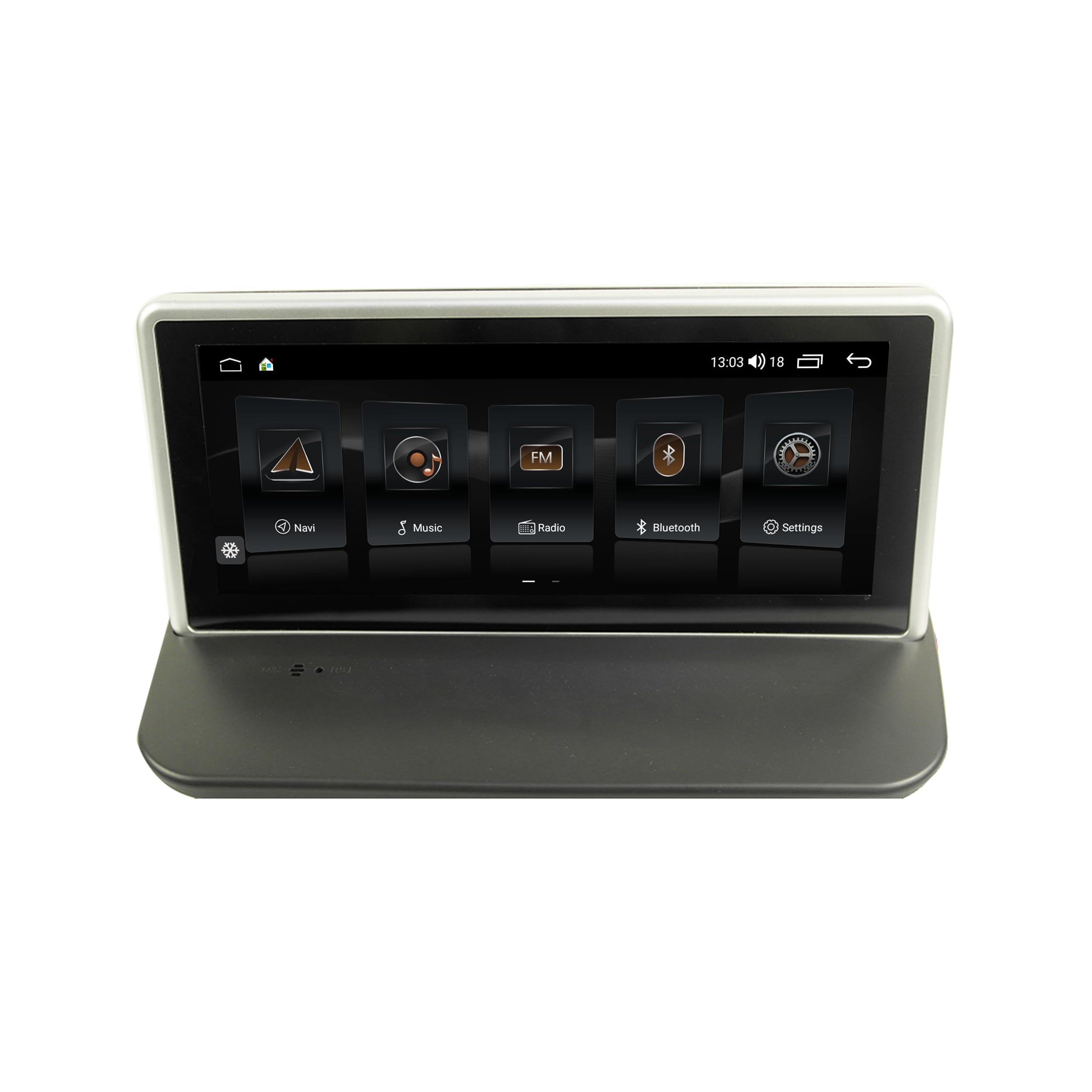
Figure 3.3: TAFFIO system installed in a Volvo dashboard, showing the main interface and rearview fotoaparat view.
4. Navodila za uporabo
4.1 Vklop in začetna nastavitev
After installation, turn on your vehicle's ignition. The system will boot up, displaying the TAFFIO logo. The initial boot may take slightly longer. Follow any on-screen prompts for language selection and basic Android setup.
4.2 Uporabniški vmesnik in navigacija
The system features an intuitive user interface with a 3D graphical display. Control is primarily via the capacitive multitouch screen. You can also use the vehicle's original steering wheel controls, which are supported by the system.

Figure 4.1: Main menu of the TAFFIO Android system.

Figure 4.2: Android applications screen.
4.3 Povezljivost
- Wi-Fi: Connect to available WLAN hotspots or your smartphone's hotspot for internet access. Navigate to Settings > Network & Internet > Wi-Fi.
- 4G LTE: If a SIM card is installed, the system will automatically connect to the mobile network for internet access.
- Bluetooth: Pair your mobile phone for hands-free calling and A2DP music streaming. Go to Settings > Connected devices > Pair new device. The system supports synchronization of phone book contacts.
- USB: Use the provided USB cables to connect external storage devices for music, pictures, and videos.
4.4 Navigacija
The system comes with pre-installed GPS navigation map material and offers free lifetime updates. Access navigation through the dedicated 'Maps' or 'Navigation' app icon. The system supports 2-Zone function, allowing you to listen to radio or music while navigating.

Figure 4.3: Wireless Carplay navigation interface.
4.5 CarPlay in Android Auto
The system features integrated CarPlay and Android Auto functionality without requiring an additional adapter. Connect your compatible smartphone via USB or wirelessly (if supported by your phone and the system) to access these features.

Slika 4.4: Vmesnik Android Auto.
4.6 Večpredstavnostne funkcije
- Radio: FM/AM tuner with RDS (Radio Data System) for displaying station names.
- Predvajanje medijev: Predvajajte glasbo, videe in view pictures from USB drives or internal storage.
- Izenačevalnik: Customize audio settings with preset EQ modes (Pop, Classic, Rock, Jazz) or user-defined Bass/Treble/Balance controls.
- Back-Zone Function: Allows navigation on the front screen while passengers in the back can watch TV or video (requires additional rear displays).
4.7 Vehicle Integration
The system supports various vehicle-specific functions:
- Kontrole na volanu: Retains original steering wheel control functionality.
- Nastavitve vozila: Access and adjust certain vehicle settings through the system interface.
- Zadajview Kamera: Automatic switching to the rearview prikaz kamere pri vzvratni vožnji.
- Dnevni in nočni prikaz: Automatic or manual adjustment of screen brightness for optimal visibility.

Figure 4.5: Vehicle personalization settings.
5. Vzdrževanje
- Čiščenje zaslona: Use a soft, lint-free cloth to clean the touchscreen. For stubborn marks, lightly dampKrpo obrišite z vodo ali čistilom za zaslone. Izogibajte se abrazivnim materialom ali močnim kemikalijam.
- Posodobitve programske opreme: Periodically check for software updates to ensure optimal performance and access to new features. Updates can typically be found through the system's settings or TAFFIO's official support channels.
- Splošna nega: Izogibajte se izpostavljanju enote ekstremnim temperaturam, neposredni sončni svetlobi dlje časa ali prekomerni vlagi.
6. Odpravljanje težav
This section addresses common issues you might encounter with your TAFFIO Android Navigation System.
| Težava | Možen vzrok | rešitev |
|---|---|---|
| Ni napajanja / Sistem se ne vklopi | Nepravilno ožičenje; Pregorela varovalka; Težava z akumulatorjem vozila | Check all power connections. Verify vehicle fuses. Ensure vehicle battery is charged. |
| Brez zvoka | Volume too low; Mute activated; Incorrect audio output settings; Wiring issue | Increase volume. Check if mute is active. Verify audio settings. Inspect speaker wiring. Ensure AUX input is correctly configured if applicable. |
| Touchscreen unresponsive or inaccurate | Software glitch; Screen dirty; Physical damage | Restart the system. Clean the screen. If issue persists, contact support. |
| GPS signal izgubljen ali netočen | GPS antenna obstructed or disconnected; Environmental interference | Prepričajte se, da je antena GPS pravilno priključena in ima neoviran signal. view neba. Premaknite se na odprto območje. |
| Težave s povezavo Bluetooth | Device not in pairing mode; Interference; Software issue | Ensure both devices are in pairing mode. Restart both devices. Clear Bluetooth cache on phone. |
| CarPlay/Android Auto se ne povezuje | Incorrect USB cable; Phone software issue; System software issue | Use a high-quality USB data cable. Ensure phone's CarPlay/Android Auto settings are correct. Restart phone and system. |
| Upravljanje na volanu ne deluje | CAN-BUS decoder not connected; Incorrect settings | Verify CAN-BUS decoder connection. Check system settings for steering wheel control configuration. |
If you encounter an issue not listed here or if the suggested solutions do not resolve the problem, please contact TAFFIO customer support for further assistance.
7. Specifikacije
| Funkcija | Podrobnost |
|---|---|
| Ime modela | TJ-S40 |
| Velikost zaslona | 10.25 palcev |
| Operacijski sistem | Android 10 |
| Procesor | Octa-Core 1.8Ghz CPU |
| RAM | 4 GB |
| Notranji pomnilnik | 64 GB Flash |
| Povezljivost | Bluetooth, USB, Wi-Fi, 4G LTE (SIM card slot) |
| Posebne lastnosti | Touchscreen, Integrated CarPlay & Android Auto, GPS Navigation, RDS Radio, Rear Camera Input |
| Vrsta zemljevida | Po vsem svetu (z brezplačnimi doživljenjskimi posodobitvami) |
| Način avdio izhoda | Stereo |
| Vrsta namestitve | Nosilec armaturne plošče |
| Združljiva vozila | Volvo S40, C30, C70, V50 (2004-2013) |
8. Garancija in podpora
8.1 Informacije o garanciji
Your TAFFIO 10.25-inch Touchscreen Android Navigation System comes with a 2-letna garancija proizvajalca. This warranty covers defects in materials and workmanship under normal use. Please retain your purchase invoice as proof of purchase for warranty claims.
Garancija ne krije škode, ki jo povzročijo nepravilna namestitev, zloraba, nesreče, nepooblaščene spremembe ali običajna obraba.
8.2 Podpora strankam
For technical assistance, warranty claims, or any questions regarding your TAFFIO product, please contact TAFFIO customer support through the retailer where you purchased the device or visit the official TAFFIO webspletno mesto za kontaktne podatke.