
Uvod
This manual provides detailed instructions for the setup, operation, and maintenance of your Prechen 10.1 inch Portable Touchscreen Monitor, Model HD-101. Please read this manual thoroughly before using the device to ensure proper functionality and to prevent damage.
Lastnosti izdelka
- Portable Touchscreen: This 10.1-inch monitor is compact and lightweight, designed for portability. The touchscreen functionality allows for intuitive navigation and interaction, enhancing productivity on the go.
- High-Resolution IPS Display: Features a 1920x1200 resolution with a 16:10 aspect ratio, delivering clear and vibrant visuals. IPS technology provides wide viewing angles and accurate color reproduction, suitable for various applications.
- Vsestranska povezljivost: Equipped with HDMI and USB-C ports, offering flexible connection options. It can be easily connected to Windows PCs, laptops, and gaming consoles like Xbox. Note: USB-C is for touch functionality and power.
- Integrirani zvočniki: Built-in speakers provide clear and dynamic audio, eliminating the need for external speakers during media consumption, gaming, or virtual meetings.
- Združljivo z nosilcem VESA: The monitor supports VESA mounting standards, allowing for attachment to compatible stands or arms for customized workspace setups and comfortable viewing kotov.
Nastavitev
Vsebina paketa
Preverite, ali so v paketu prisotni vsi elementi:
- Prechen 10.1 inch Portable Touchscreen Monitor
- HDMI kabel
- Kabel USB-C v USB-C
- USB-A to USB-C Cable (for power/touch)
- Napajalni adapter
- Uporabniški priročnik (ta dokument)
Priključitev monitorja
- Napajalni priključek: Connect the provided power adapter to the DC Power Port on the monitor and plug it into a power outlet. Alternatively, if your device supports power delivery, connect a USB-C to USB-C cable to the USB-C (Power & Touch) port for both power and signal.
- Video povezava:
- HDMI: Connect one end of the HDMI cable to the HDMI port on the monitor and the other end to the HDMI output of your computer or device.
- USB-C (DisplayPort Alternate Mode): If your device supports DisplayPort Alternate Mode over USB-C, connect a USB-C to USB-C cable to the USB-C (Power & Touch) port on the monitor and your device. This single cable can provide video, power, and touch functionality.
- Funkcionalnost dotika: For touch functionality, ensure the USB-C (Power & Touch) port is connected to your device. If using HDMI for video, you will also need to connect a USB-A to USB-C cable from your device's USB-A port to the monitor's USB-C (Power & Touch) port.
- Avdio izhod: If you wish to use external headphones or speakers, connect them to the 3.5mm Audio Port on the monitor.
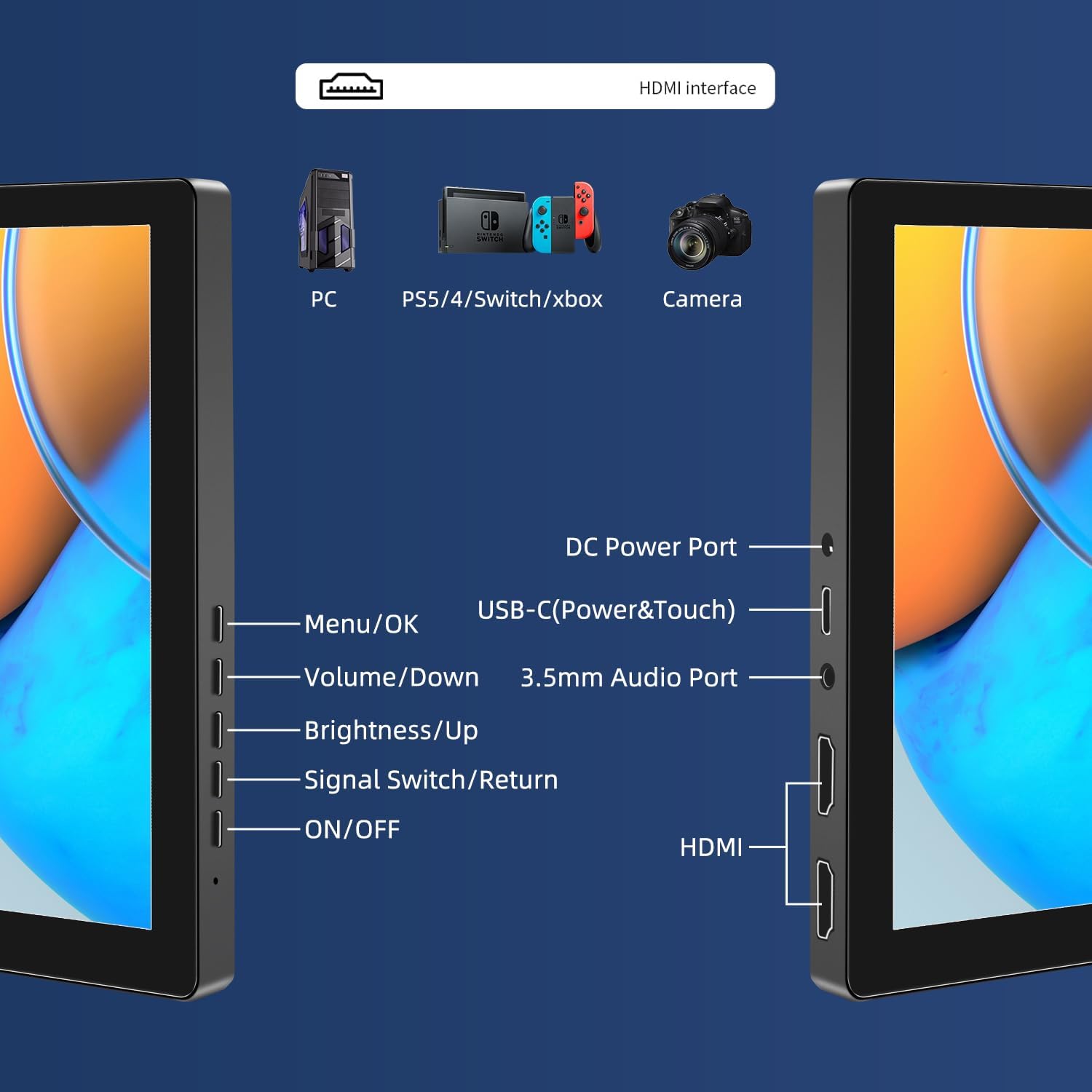
Slika: Konecview of the monitor's ports including DC Power, USB-C (Power & Touch), 3.5mm Audio, HDMI, and control buttons.
Navodila za uporabo
Vklop/izklop
- To power on the monitor, press the VKLOP/IZKLOP gumb.
- Za izklop pritisnite in držite tipko VKLOP/IZKLOP button for a few seconds until the screen turns off.
Uporaba zaslonskega menija (OSD)
V zaslonskem meniju lahko prilagodite različne nastavitve zaslona.
- Pritisnite Meni / V redu gumb za odpiranje zaslonskega menija.
- Uporabite Znižaj glasnost in Svetlost/Dr gumbe za navigacijo po možnostih menija.
- Pritisnite Meni / V redu za izbiro možnosti ali potrditev nastavitve.
- Pritisnite Signal Switch/Return gumb za vrnitev v prejšnji meni ali izhod iz zaslonskega menija.
Adjusting Display Modes
The monitor supports multiple display modes when connected to a computer:
- Način podvajanja: Displays the same content on both your primary screen and the portable monitor.
- Razširjeni način: Razširi namizje na oba zaslona in tako zagotovi več delovnega prostora.
- Drugi način zaslona: Kot zaslon uporablja samo prenosni monitor.
These modes are typically configured through your operating system's display settings (e.g., Windows Display Settings, macOS System Preferences).
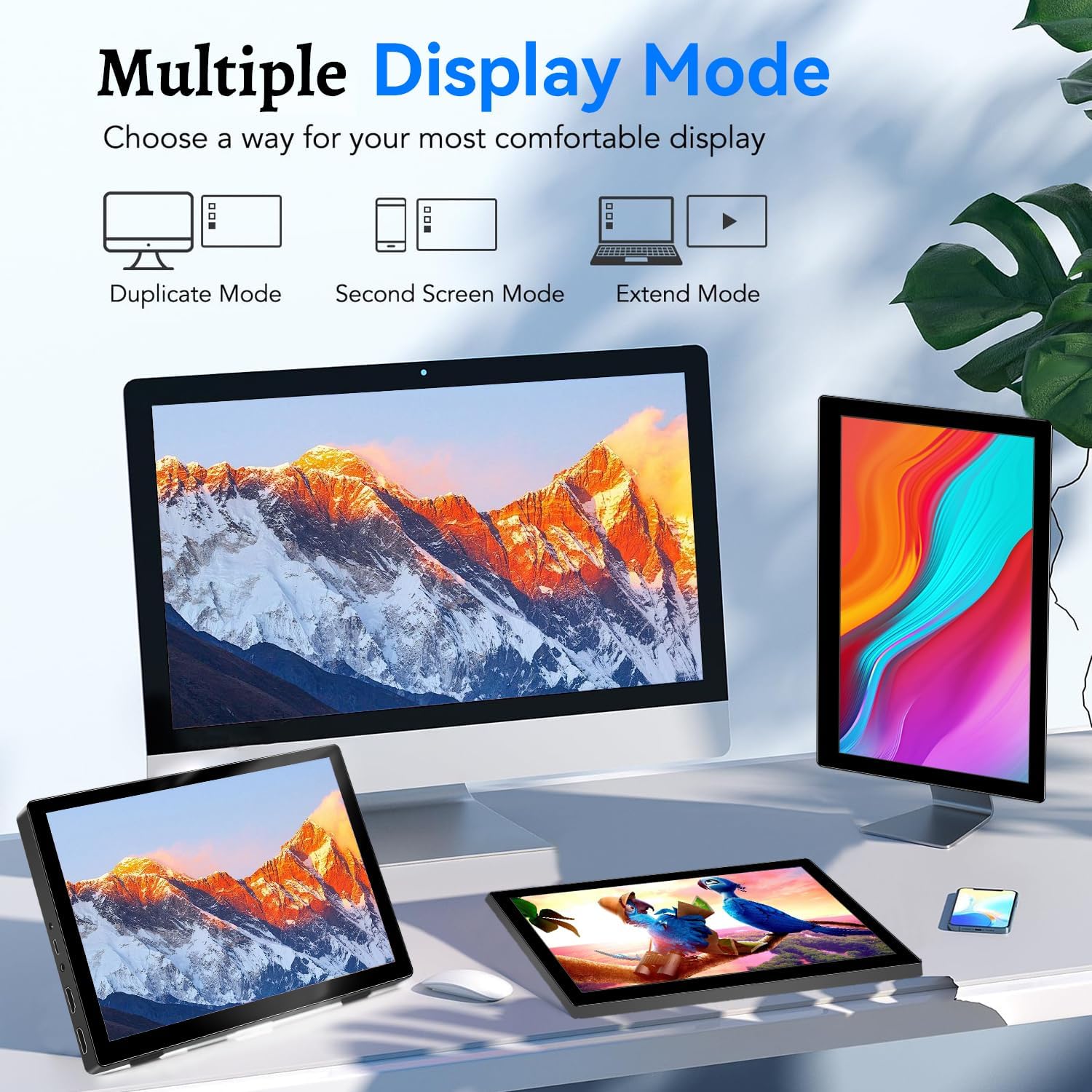
Image: Visual representation of Duplicate, Second Screen, and Extend display modes.
Using Touchscreen Functionality
The monitor supports 10-point touchscreen technology. Ensure the USB-C (Power & Touch) port is correctly connected to your device for touch input to function.

Slika: npramples of 10-point touchscreen gestures for interaction.
Vzdrževanje
- Čiščenje zaslona: Uporabite mehko krpo, ki ne pušča vlaken, dampened with water or a non-abrasive screen cleaner. Do not spray cleaner directly onto the screen.
- Čiščenje C-jaasing: Obrišite monitor casinz mehko, suho krpo. Izogibajte se uporabi močnih detergentov ali topil.
- Shranjevanje: Ko monitorja ne uporabljate, ga shranjujte na hladnem in suhem mestu, stran od neposredne sončne svetlobe in ekstremnih temperatur.
- Ravnanje: Avoid dropping or subjecting the monitor to strong impacts. Do not place heavy objects on top of the monitor.
Odpravljanje težav
| Težava | Možen vzrok | rešitev |
|---|---|---|
| Brez prikaza/črni zaslon |
|
|
| Zaslon na dotik se ne odziva |
|
|
| Ni zvoka iz zvočnikov |
|
|
| Image quality issues (blurry, distorted) |
|
|
Specifikacije
| Funkcija | Podrobnost |
|---|---|
| Znamka | Prechen |
| Številka modela | HD-101 |
| Velikost zaslona | 10.1 palcev |
| Resolucija | 1920 x 1200 (UXGA Wide) |
| Razmerje stranic | 16:10 |
| Vrsta plošče | IPS |
| Hitrost osveževanja | 60 Hz |
| Odzivni čas | 1 ms |
| Povezljivost | 1x HDMI, 1x USB-C (Power & Touch), 1x 3.5mm Audio Jack, 1x DC Power Port |
| Dimenzije (D x Š x V) | 21.8 x 15.8 x 1.4 cm |
| Teža | 990 gramov |
| Proizvajalec | Shenzhen Kenowa Electronics Co., LTD |
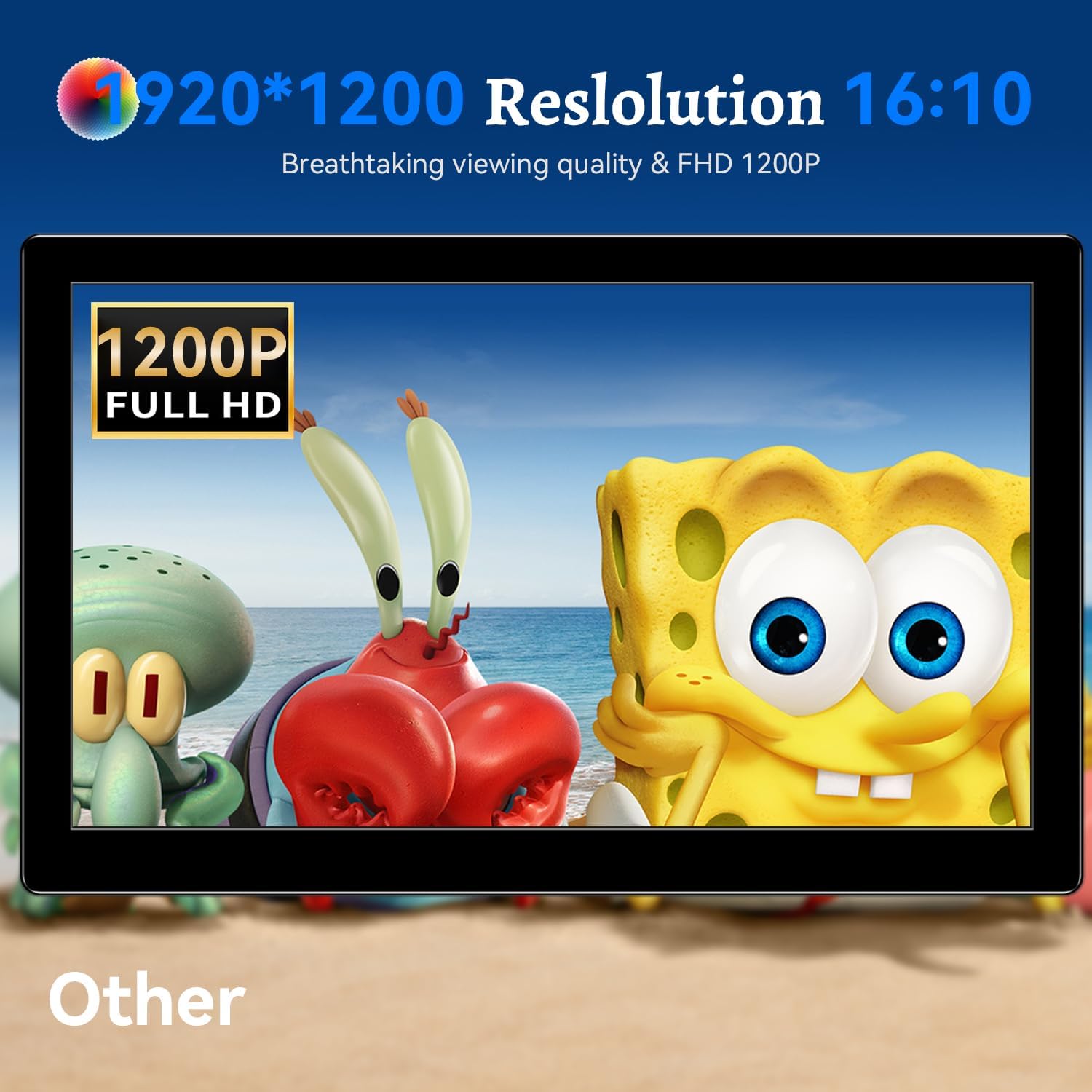
Slika: Razstava na monitorjuasing its 1920x1200 Full HD resolution.

Image: The monitor's IPS panel offering wide viewing angles and rich colors.
Garancija in podpora
For warranty information and technical support, please refer to the warranty card included with your product or contact Prechen customer service through their official website. Please have your model number (HD-101) and purchase details ready when contacting support.