
1. Uvod
The Crestron HD-CONV-USB-300 is a versatile USB converter designed to seamlessly integrate HDMI and analog audio sources into a USB stream. This device facilitates the capture and conversion of high-definition video and audio signals for various applications, including conferencing, streaming, and recording. This manual provides essential information for the proper installation, operation, and maintenance of your HD-CONV-USB-300 converter.
2. Varnostne informacije
Please read and understand all safety instructions before operating this device to prevent injury or damage.
- moč: Use only the power adapter supplied with the unit. Ensure the power source matches the voltage zahteve.
- Prezračevanje: Do not block ventilation openings. Install the device in a location with adequate airflow.
- Vlaga: Naprave ne izpostavljajte dežju, vlagi in je ne potapljajte v vodo.
- Toplota: Napravo hranite stran od virov toplote, kot so radiatorji, grelniki, štedilniki ali druge naprave, ki proizvajajo toploto.
- Čiščenje: Disconnect power before cleaning. Use a dry cloth only. Do not use liquid cleaners or aerosol sprays.
- Servisiranje: Tega izdelka ne poskušajte servisirati sami. Vsa servisna dela prepustite usposobljenemu servisnemu osebju.
3. Vsebina paketa
Preverite, ali so v paketu vsi elementi:
- 1x Crestron HD-CONV-USB-300 USB Converter
- 1x napajalnik
- 1x USB Cable (Type A to Type B)
- 1x Quick Start Guide (or similar documentation)
4. Izdelek je končanview
The HD-CONV-USB-300 features multiple input and output ports for flexible connectivity.
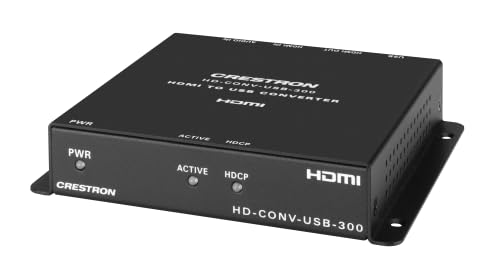
Slika 1: Spredaj view of the Crestron HD-CONV-USB-300 USB Converter. This image shows the compact design and the Crestron branding on the device.
4.1. Sprednja plošča
- LED stanja: Prikazuje napajanje in stanje delovanja.
- Gumb za izbiro vhoda: Toggles between HDMI and Analog audio inputs.
4.2. Zadnja plošča
- Vhod HDMI: Connect your HDMI video and audio source here.
- Analog Audio Input (3.5mm): Priključite analogne avdio vire.
- USB Output (Type B): Connect to your computer for data transfer.
- Vhodna moč (DC 5V): Priključite priloženi napajalnik.
5. Nastavitev
Follow these steps to set up your Crestron HD-CONV-USB-300 converter:
- Priključitev vira HDMI: Connect an HDMI cable from your video source (e.g., camera, media player) to the Vhod HDMI port on the HD-CONV-USB-300.
- Connect Analog Audio Source (Optional): If using an analog audio source, connect a 3.5mm audio cable from your audio device to the Analogni avdio vhod pristanišče.
- Povežite se z računalnikom: Connect the supplied USB cable from the USB Output (Type B) port on the converter to an available USB port on your computer.
- Priključite napajanje: Plug the supplied power adapter into the Vhodna moč (DC 5V) port on the converter, then plug the adapter into a power outlet. The Status LED should illuminate.
- Namestitev gonilnika: The HD-CONV-USB-300 is typically plug-and-play and does not require specific drivers for most operating systems (Windows, macOS, Linux). It will be recognized as a standard USB Video Class (UVC) and USB Audio Class (UAC) device.
- Konfiguracija programske opreme: Open your preferred video conferencing, streaming, or recording software (e.g., OBS Studio, Zoom, Microsoft Teams). In the software's settings, select the Crestron HD-CONV-USB-300 as your video and audio input device.
6. Navodila za uporabo
Once the device is set up, follow these steps for operation:
- Vklop: Ensure the converter is powered on and connected to your computer. The Status LED should be solid green.
- Izberite vnos: Pritisnite Gumb za izbiro vnosa on the front panel to switch between HDMI and Analog audio inputs. The Status LED may change color or blink to indicate the active input (refer to specific model documentation for LED behavior).
- Verify Input in Software: In your chosen software, confirm that the video and audio from your selected source are being received. Adjust any necessary settings within the software, such as resolution, frame rate, or audio levels.
- Start Application: Begin your video conference, streaming session, or recording.
Opomba: The quality of the captured video and audio will depend on the source device and the capabilities of your computer and software.
7. Vzdrževanje
Proper maintenance ensures the longevity and optimal performance of your HD-CONV-USB-300.
- Čiščenje: Disconnect the power before cleaning. Use a soft, dry, lint-free cloth to wipe the exterior of the device. Do not use abrasive cleaners, solvents, or chemical sprays.
- Shranjevanje: If storing the device for an extended period, disconnect all cables and store it in a cool, dry place away from direct sunlight and extreme temperatures.
- Upravljanje kablov: Ensure all cables are routed neatly and are not under strain or sharply bent to prevent damage.
8. Odpravljanje težav
If you encounter issues with your HD-CONV-USB-300, refer to the following common problems and solutions:
| Težava | Možen vzrok | rešitev |
|---|---|---|
| No power / Status LED off | Napajalnik ni priključen ali je pokvarjen. | Ensure the power adapter is securely connected to the converter and a working power outlet. Try a different outlet. |
| No video output in software | Incorrect input selected; HDMI cable issue; Software not configured correctly. |
|
| No audio output in software | Incorrect input selected; Audio cable issue; Software not configured correctly; Source audio settings. |
|
| Computer does not recognize device | USB cable issue; USB port issue; Driver conflict. |
|
9. Specifikacije
| Številka modela | 6512272 |
| Znamka | Crestron |
| Vmesniki | HDMI, USB, Analog Audio (3.5mm) |
| Dimenzije (D x Š x V) | 10.69 x 25.9 x 29.4 cm |
| Teža | 730 gramov |
| Proizvajalec | Crestron |
| Datum razpoložljivosti | 18. maj 2023 |
10. Informacije o garanciji
Crestron products are typically covered by a limited manufacturer's warranty. The specific terms and duration of the warranty may vary by region and product type. For detailed warranty information, please refer to the warranty card included with your product or visit the official Crestron webmesto.
Opomba: Shranite dokazilo o nakupu za garancijske zahtevke.
11. Informacije o podpori
For technical support, product updates, or additional resources, please visit the official Crestron webspletno mesto:
You may also find FAQs and community forums on their support pages.