
Uvod
This manual provides comprehensive instructions for the setup, operation, and maintenance of your XtremeMac Bluetooth Wireless Keyboard and Mouse. Please read this manual thoroughly before using the product to ensure optimal performance and longevity.
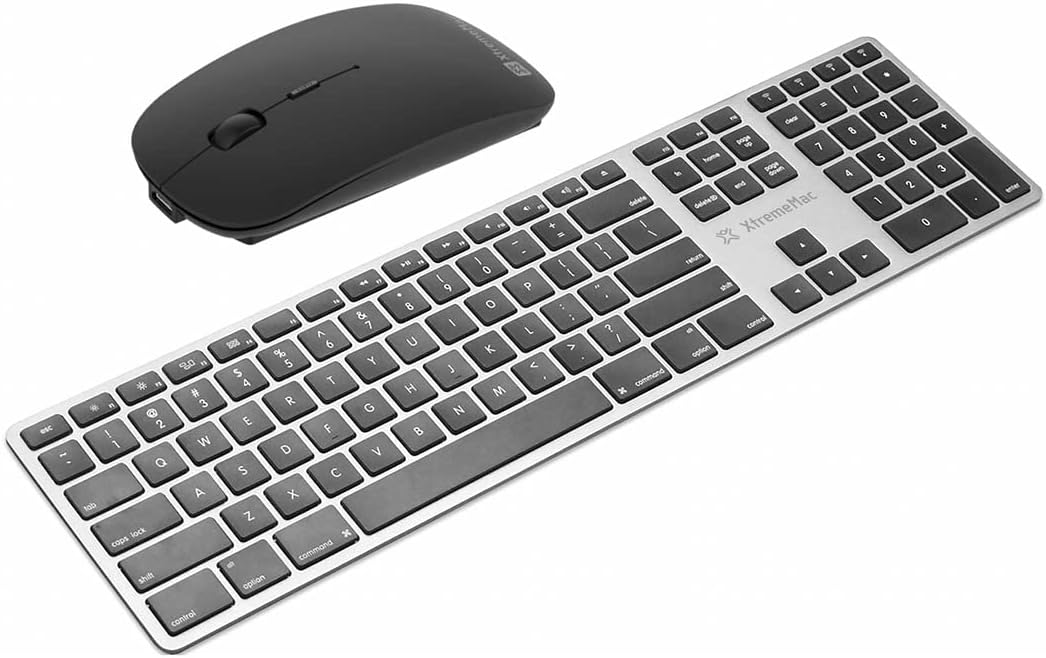
Režija view of the XtremeMac Bluetooth wireless keyboard and mouse. The keyboard is silver with black keys, featuring a full layout including a numeric keypad. The mouse is black and has a sleek, ergonomic design.
Vsebina paketa
Preverite, ali so v paketu prisotni vsi elementi:
- XtremeMac Bluetooth Wireless Keyboard
- XtremeMac Bluetooth Wireless Mouse
Navodila za namestitev
1. Vklop
Tipkovnica: Locate the power switch, usually on the top edge or underside of the keyboard. Slide it to the "ON" position. An indicator light may briefly illuminate.
Miška: Locate the power switch on the underside of the mouse. Slide it to the "ON" position. An optical sensor light may activate.
2. Bluetooth seznanjanje
Ensure your Mac's Bluetooth is enabled. Navigate to Sistemske nastavitve (oz Sistemske nastavitve v starejših različicah macOS) > Bluetooth.
Seznanjanje tipkovnice:
- With the keyboard powered on, press and hold the Bluetooth pairing button (often located on the underside or top edge, sometimes combined with a function key) until the indicator light begins to flash, indicating it is in pairing mode.
- On your Mac, look for "XtremeMac Keyboard" or a similar name in the list of nearby Bluetooth devices.
- Click "Connect" or "Pair." Follow any on-screen prompts, such as typing a code on the keyboard and pressing Enter.
- Once connected, the indicator light on the keyboard will stop flashing and remain solid or turn off.
Seznanjanje miške:
- With the mouse powered on, press and hold the Bluetooth pairing button (usually on the underside) until the indicator light begins to flash.
- On your Mac, look for "XtremeMac Mouse" or a similar name in the list of nearby Bluetooth devices.
- Click "Connect" or "Pair."
- Once connected, the indicator light on the mouse will stop flashing and remain solid or turn off.
Opomba: The XtremeMac keyboard and mouse are designed for use with Mac OS. Compatibility with other operating systems may vary.
Navodila za uporabo
Uporaba tipkovnice
- Standardno tipkanje: Use the keys as you would a standard keyboard.
- Funkcijske tipke: The top row of keys typically includes media controls and system functions. These may require pressing the "Fn" key simultaneously for their secondary function, depending on your Mac's settings.
- Mac-Specific Keys: Utilize the Command (⌘) and Option (⌥) keys for macOS shortcuts.
- Numerična tipkovnica: The dedicated numeric keypad allows for efficient data entry.
Uporaba miške
- Levi klik: Primarno dejanje, izbira.
- Desni klik: Kontekstni meni.
- Kolesce za pomikanje: Pomikajte se po dokumentih in web strani.
- Optično sledenje: The mouse uses optical technology for precise cursor movement on most surfaces.
Vzdrževanje
- Čiščenje: Uporabite mehko krpo, ki ne pušča vlaken, dampened with water or a mild cleaning solution to clean the surfaces of the keyboard and mouse. Avoid excessive moisture.
- Zamenjava baterije: If the devices become unresponsive or the indicator lights dim, it may be time to replace the batteries. Refer to the battery compartment on the underside of each device for battery type and replacement instructions.
- Shranjevanje: When not in use for extended periods, turn off both devices to conserve battery life. Store them in a cool, dry place.
Odpravljanje težav
Device Not Connecting or Unresponsive
- Preverite moč: Ensure both the keyboard and mouse are powered on and have sufficient battery charge. Replace batteries if necessary.
- Popravilo seznanjanja naprav: Go to your Mac's Bluetooth settings, remove the XtremeMac keyboard and mouse from the list of devices, and then repeat the pairing process as described in the "Setup Instructions" section.
- Bluetooth on Mac: Verify that Bluetooth is enabled on your Mac and that it is not in Airplane Mode.
- Znova zaženite naprave: Turn off and then turn on both the keyboard, mouse, and your Mac.
- Motnje: Move the devices closer to your Mac and away from other wireless devices that might cause interference (e.g., Wi-Fi routers, cordless phones).
Cursor Jumps or Lagging (Mouse)
- Površina: Ensure the mouse is used on a clean, non-reflective, and opaque surface.
- Baterija: Replace the mouse batteries.
- Optični senzor: Check the optical sensor on the underside of the mouse for any obstructions or dirt.
Specifikacije
| Znamka: | Xtrememac |
| Številka modela: | XWH-BBT-13 |
| Tehnologija povezljivosti: | Bluetooth |
| Združljive naprave: | Laptop, Personal Computer (Mac OS) |
| Mouse Tracking Technology: | Optični |
| Približne dimenzije (paket): | 54.5 x 14.4 x 3.4 cm |
| Approximate Weight (Package): | 690 g |
Garancija in podpora
XtremeMac products are covered by a limited warranty. For detailed warranty information, product registration, or technical support, please visit the official XtremeMac webspletno mesto ali se obrnite na njihovo službo za stranke. Shranite dokazilo o nakupu za uveljavljanje garancije.
Proizvajalec: XTREMEMAC


