
1. Izdelek je končanview
The GIGABYTE G24F 2 is a 23.8-inch gaming monitor designed for an immersive visual experience. It features a Super Speed IPS panel, Full HD (1920 x 1080) resolution, and a high refresh rate for smooth gameplay.

Slika 1.1: Spredaj view of the GIGABYTE G24F 2 gaming monitor.
Ključne značilnosti:
- Velikost plošče: 23.8-inch SS IPS display
- Resolucija: 1920 x 1080 (FHD)
- Odzivni čas: 1ms MPRT
- Hitrost osveževanja: 165 Hz (možnost overclockinga na 180 Hz)
- Barvna zasičenost: 95 % DCI-P3, 125 % sRGB
- Svetlost: 300 cd/m2 (TYP)
- Kontrastno razmerje: 1100:1
- Povezljivost: 2 x HDMI 2.0, 1 x DisplayPort 1.2 (HDR capable), 2 x USB 3.2 Gen 1 Downstream, 1 x USB 3.2 Gen 1 Upstream, 1 x Earphone Jack
- Posebne lastnosti: OSD Sidekick, Aim Stabilizer, Black Equalizer, Dashboard, Crosshair, Timer, Counter, Auto-Update, Smart OD, HDR Ready, Flicker-free, Kensington lock
2. Varnostne informacije
Pred uporabo monitorja natančno preberite vsa navodila. Ta priročnik shranite za poznejšo uporabo.
- Monitorja ne izpostavljajte dežju ali vlagi, da preprečite nevarnost požara ali električnega udara.
- Ne odpirajte monitorja casing. V notranjosti ni delov, ki bi jih lahko uporabnik popravil. Vsa servisna dela prepustite usposobljenemu osebju.
- Monitor postavite na stabilno, ravno površino, da preprečite njegov padec.
- Zagotovite ustrezno prezračevanje okoli monitorja. Ne blokirajte prezračevalnih odprtin.
- Uporabljajte samo napajalnik in kable, ki jih je priložil proizvajalec.
- Med nevihtami ali če monitorja dalj časa ne uporabljate, ga izključite iz električne vtičnice.
- Clean the screen with a soft, lint-free cloth. Avoid using liquid cleaners directly on the screen.
3. Vsebina paketa
Preverite, ali so v paketu vsi elementi:
- GIGABYTE G24F 2 Monitor
- Stojalo za monitor (podstavek in vrat)
- Napajalni kabel
- HDMI kabel
- USB Cable (Upstream)
- Navodila za hiter začetek (QSG)
- Garancijska kartica

Slika 3.1: Zadaj view of the monitor, illustrating the stand attachment area.
4. Nastavitev
4.1 Sestavljanje stojala
- Previdno vzemite komponente monitorja in stojala iz embalaže.
- Pritrdite vrat stojala na ploščo monitorja. Prepričajte se, da se varno zaskoči ali da je pritrjen z vijaki, če so priloženi.
- Pritrdite podstavek stojala na vrat stojala. Privijte palčni vijak ali vijake na dnu podstavka.
- Sestavljeni monitor postavite na stabilno, ravno površino.
4.2 Priključitev monitorja
Connect the monitor to your computer and other devices using the appropriate cables.

Slika 4.1: Vrata za povezljivost monitorja.
- Napajalni priključek: Napajalni kabel priključite na vhod za napajanje monitorja in nato na električno vtičnico.
- Video povezava:
- For optimal performance, use the DisplayPort 1.2 cable to connect to your computer's graphics card.
- Alternatively, use one of the two HDMI 2.0 ports.
- Povezava USB za prenos podatkov: Connect the provided USB 3.2 Gen 1 Upstream cable from your computer to the monitor's upstream USB port to enable the monitor's downstream USB ports.
- USB Downstream Connections: Connect USB devices (e.g., keyboard, mouse) to the monitor's two USB 3.2 Gen 1 Downstream ports.
- Avdio izhod: Priključite slušalke ali zunanje zvočnike v priključek za slušalke.
5. Upravljanje monitorja
5.1 Vklop/izklop
Press the power button, usually located on the bottom or rear of the monitor, to turn the monitor on or off. The power indicator light will show the monitor's status.
5.2 Zaslonski meni (OSD)
The OSD menu allows you to adjust various monitor settings. Navigate the OSD using the joystick or buttons typically found on the rear of the monitor.

Figure 5.1: OSD Sidekick software for convenient monitor control.
For advanced control, install the OSD Sidekick software on your PC. This utility allows you to adjust monitor settings directly from your desktop.
5.3 Igralne funkcije
The GIGABYTE G24F 2 includes several features to enhance your gaming experience:
- Stabilizator cilja: Reduces motion blur and improves visual clarity in fast-paced games.
- Črni izenačevalnik: Enhances visibility in dark areas of the game without overexposing bright areas.

Figure 5.2: Black Equalizer in action.
- Nadzorna plošča: Displays real-time hardware information (e.g., CPU/GPU temperature, usage) directly on the screen.

Figure 5.3: Dashboard displaying system metrics.
- Nitni križec: Provides a customizable on-screen crosshair to assist with aiming.

Figure 5.4: On-screen Crosshair.
- Časovnik/števec: On-screen timers and counters for in-game tracking.
- Smart OD: Optimizes overdrive settings for the best response time.
- Samodejna posodobitev: Ensures the monitor's firmware and OSD Sidekick software are up-to-date.
5.4 Nastavitve zaslona
- Hitrost osveževanja: The monitor supports up to 165Hz, with an overclock option to 180Hz, for fluid motion.
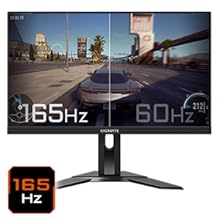
Figure 5.5: Visual comparison of 165Hz vs. 60Hz refresh rate.
- Odzivni čas: Enjoy a 1ms MPRT (Moving Picture Response Time) for minimal ghosting.
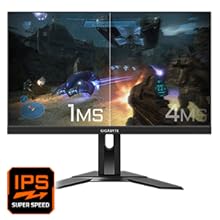
Figure 5.6: Visual comparison of 1ms vs. 4ms response time.
- Barvna lestvica: The monitor covers 95% DCI-P3 and 125% sRGB for vibrant and accurate colors.
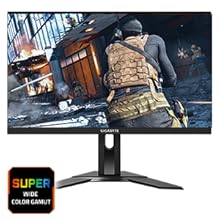
Figure 5.7: Wide color gamut for rich visuals.
- Nizka modra svetloba: Reduces blue light emissions to protect your eyes during extended use.
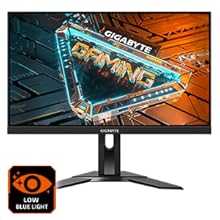
Figure 5.8: Low Blue Light feature for reduced eye strain.
- Brez utripanja: Odpravlja utripanje zaslona za udobnejše viewizkušnje.

Figure 5.9: Flicker-Free technology for comfortable viewing.
5.5 Videoposnetek o značilnostih izdelka
Video 5.1: Overview of the GIGABYTE G24F 2 monitor's features and specifications.
6. Vzdrževanje
Proper maintenance ensures the longevity of your monitor.
- Čiščenje zaslona: Zaslon nežno obrišite z mehko, suho krpo, ki ne pušča vlaken. Za trdovratne madeže rahlo obrišiteampKrpo obrišite z vodo ali specializiranim čistilom za zaslone (nanesite na krpo, ne neposredno na zaslon).
- Čiščenje C-jaasing: Za brisanje monitorja uporabite mehko, suho krpo.asing. Izogibajte se abrazivnim čistilom.
- Prezračevanje: Prepričajte se, da so prezračevalne odprtine na monitorju brez prahu in ovir.
- Ugasniti: Turn off and unplug the monitor when not in use for extended periods.
7. Odpravljanje težav
Če imate težave z monitorjem, si oglejte naslednjo tabelo za pogoste težave in rešitve.
| Težava | Možen vzrok | rešitev |
|---|---|---|
| Na zaslonu ni slike | Power cable not connected; Video cable not connected; Incorrect input source selected | Check power and video cable connections; Select correct input source via OSD. |
| Slika je zamegljena ali popačena | Incorrect resolution; Loose video cable | Nastavite ločljivost zaslona na 1920 x 1080; Prepričajte se, da je video kabel varno priključen. |
| Ni zvoka iz slušalk/zvočnikov | Audio cable not connected; Volume too low; Incorrect audio output selected on PC | Check audio cable connection; Adjust volume; Select monitor as audio output on PC. |
| Vrata USB ne delujejo | USB upstream cable not connected | Connect the USB 3.2 Gen 1 Upstream cable from the monitor to your PC. |
| Utripajoči zaslon | Refresh rate issue; Faulty cable | Ensure refresh rate is set correctly; Try a different video cable. |
8. Specifikacije
Detailed technical specifications for the GIGABYTE G24F 2 monitor.

Slika 8.1: Dimenzije monitorja.
| Funkcija | Podrobnost |
|---|---|
| Znamka | GIGABYTE |
| Ime modela | G24F 2 |
| Številka modela | 9DG24F2-00-1ABIN |
| Velikost zaslona | 23.8 palcev |
| Resolucija | 1920 x 1080 slikovnih pik (FHD 1080p) |
| Razmerje stranic | 16:9 |
| Vrsta zaslona | LCD (SS IPS Panel) |
| Hitrost osveževanja | 165 Hz (180Hz OC) |
| Odzivni čas | 1 Milliseconds (MPRT) |
| Svetlost | 300 candela_per_square_meter (TYP) |
| Kontrastno razmerje | 1100:1 |
| Barvna nasičenost | 95 % DCI-P3, 125 % sRGB |
| Viewkota | 178 stopinj |
| Povezljivost | 2 x HDMI 2.0, 1 x DisplayPort 1.2, 2 x USB 3.2 Gen 1 Downstream, 1 x USB 3.2 Gen 1 Upstream, 1 x Earphone Jack |
| Prilagodljiva sinhronizacija | FreeSync Premium |
| Poraba energije | 17.5 vatov |
| Teža predmeta | 3.2 kilogramov |
| Mere predmeta (D x Š x V) | 5.3 G x 54.1 Š x 32.6 V centimetrov |
| Vrsta namestitve | Stenski nosilec |
| Lastnosti izdelka | Flicker-Free, Height Adjustment, High Dynamic Range, Tilt Adjustment |
9. Garancija in podpora
The GIGABYTE G24F 2 monitor comes with a 3-letna garancija od proizvajalca.
For technical support, warranty claims, or further inquiries, please contact GIGABYTE customer service:
- Proizvajalec: GIGABYTE Technology (India) Pvt Ltd
- Naslov: B-808, Naman Midtown, Elphinstone Road, Mumbai – 400013 – INDIA
- telefon: +91-22-40633222
Prosimo, shranite dokazilo o nakupu za garancijski servis.