
1. Uvod
This manual provides detailed instructions for the installation, operation, and maintenance of your Avision FB25 Flatbed Scanner. The FB25 is a high-resolution A4 color flatbed scanner designed for efficient document and ID card scanning. It features a 1200dpi Contact Image Sensor (CIS) and USB 2.0 connectivity, making it suitable for various scanning tasks. Please read this manual thoroughly before using the scanner to ensure proper operation and to maximize its performance.
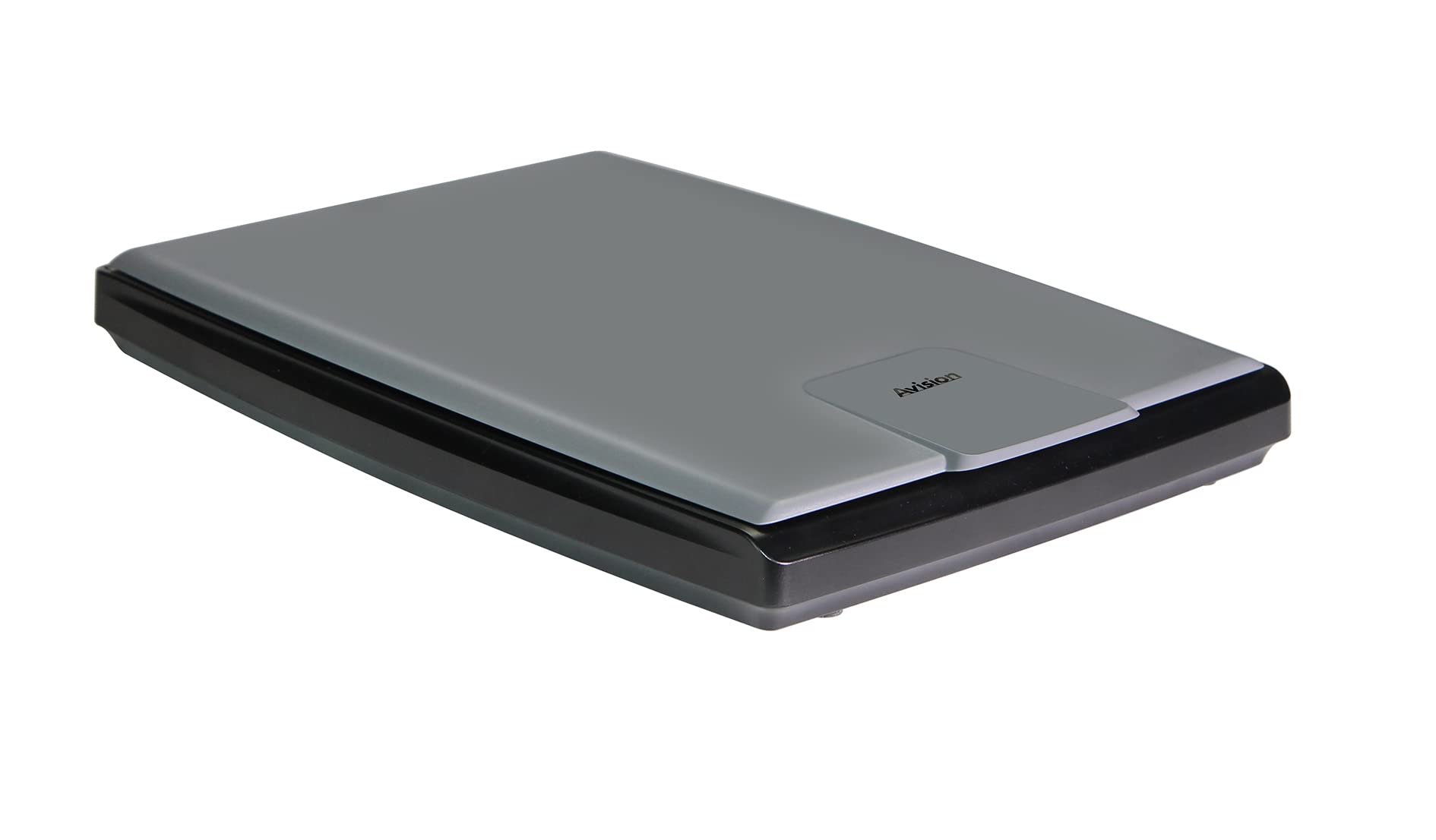
Slika 1.1: Od zgoraj navzdol view of the Avision FB25 Flatbed Scanner. The scanner features a dark gray base with a lighter gray lid, displaying the 'Avision' logo prominently on the lid's front section.
2. Varnostne informacije
- Do not expose the scanner to water or moisture.
- Ne poskušajte razstavljati ali spreminjati skenerja. Vsa servisna dela prepustite usposobljenemu osebju.
- Uporabljajte samo napajalnik, ki je priložen skenerju.
- Place the scanner on a stable, level surface to prevent damage from falling.
- Skener hranite stran od neposredne sončne svetlobe in virov toplote.
- Zagotovite ustrezno prezračevanje okoli skenerja, da preprečite pregrevanje.
3. Vsebina paketa
Preverite, ali so v paketu prisotni vsi elementi:
- Avision FB25 Flatbed Scanner Unit
- USB 2.0 kabel
- Napajalni adapter
- Vodnik za hiter začetek
- Software CD (or download instructions for TWAIN Driver and PaperPort SE14)
4. Izdelek je končanview
The Avision FB25 is a compact flatbed scanner. Its design includes a scanning bed for documents up to A4 size, a hinged lid, and a power/data interface.

Image 4.1: The Avision FB25 Flatbed Scanner shown with its approximate dimensions: 16.77 inches in length, 13.65 inches in width, and 3.12 inches in height.
4.1 Spredaj View
The front of the scanner typically features the Avision logo on the lid. There are no physical buttons on the front.
4.2 zadaj View
The rear panel houses the power input port and the USB 2.0 port for connecting to your computer.
4.3 Scanning Bed
The flat glass surface where documents are placed for scanning. Ensure this surface is clean before each use.
5. Nastavitev
5.1 Povezava strojne opreme
- Skener postavite na stabilno, ravno površino.
- Connect the power adapter to the scanner's power input port and then plug it into an electrical outlet.
- Connect one end of the USB 2.0 cable to the scanner's USB port and the other end to an available USB port on your computer.
- Power on the scanner (if it has a power button; otherwise, it powers on automatically when connected).
5.2 Namestitev programske opreme
The Avision FB25 requires driver software for proper operation. It supports Windows XP, Vista, 7, 8, 10, and 11.
- Insert the provided Software CD into your computer's CD/DVD drive. If your computer does not have a CD/DVD drive, download the latest drivers and software (TWAIN Driver and PaperPort SE14) from the official Avision support webmesto.
- Follow the on-screen instructions to install the TWAIN driver. The TWAIN driver allows the scanner to communicate with various scanning applications.
- Install PaperPort SE14, the bundled document management software. This software provides an intuitive interface for scanning, organizing, and sharing documents.
- Restart your computer after the installation is complete to ensure all drivers are properly loaded.
6. Navodila za uporabo
6.1 Placing Documents
- Dvignite pokrov optičnega bralnika.
- Place the document face-down on the scanning glass, aligning it with the corner guide (usually top-left).
- Gently close the scanner lid. Ensure the document lies flat against the glass.
6.2 Using the TWAIN Driver
The TWAIN driver allows you to scan directly from TWAIN-compliant applications (e.g., Adobe Photoshop, Microsoft Paint, or other document management software).
- Open your preferred TWAIN-compliant application.
- Pomaknite se do 'File' menu and select 'Import' or 'Acquire Image'.
- Choose the Avision FB25 scanner from the list of available devices.
- The TWAIN driver interface will appear, allowing you to adjust scanning settings such as resolution (up to 1200dpi), color mode (color, grayscale, black & white), and scan area.
- Click 'Scan' to initiate the scanning process. The FB25 can scan an A4 color page at 300 dpi in approximately 1.5 seconds.
- The scanned image will appear in your application.
6.3 Using PaperPort SE14
PaperPort SE14 provides a user-friendly environment for scanning and managing your documents.
- Launch PaperPort SE14 from your desktop or Start menu.
- In the PaperPort interface, locate the 'Scan' button or option.
- Izberite Avision FB25 kot svoj skener.
- Adjust scanning settings as needed (e.g., resolution, color, document type).
- Click 'Scan' to begin. The scanned document will appear in your PaperPort workspace.
- You can then save the document in various formats including BMP, PNG, GIF, JPEG, Single-Page PDF, Multi-Page PDF, Multi-TIFF, TIFF, RTF, TXT, OCR, XPS, DOC, XLS, PPT, DOCS, XLSX, PPTX, and HTML.
7. Vzdrževanje
7.1 Čiščenje stekla optičnega bralnika
Prah ali madeži na steklu optičnega bralnika lahko vplivajo na kakovost skeniranja.
- Turn off the scanner and unplug the power adapter.
- Odprite pokrov optičnega bralnika.
- Gently wipe the glass surface with a soft, lint-free cloth dampz blagim čistilom za steklo. Čistila ne pršite neposredno na steklo.
- Wipe dry with another clean, dry cloth.
- Close the lid and reconnect power.
7.2 Splošna nega
- Ko skenerja ne uporabljate, ga pokrijte, da preprečite nabiranje prahu.
- Na pokrov skenerja ne postavljajte težkih predmetov.
8. Odpravljanje težav
If you encounter issues with your Avision FB25 scanner, refer to the following common problems and solutions:
| Težava | Možen vzrok | rešitev |
|---|---|---|
| Računalnik ni zaznal optičnega bralnika. | Loose USB cable, power not connected, driver not installed. | Check USB and power connections. Ensure the scanner is powered on. Reinstall the TWAIN driver. Try a different USB port. |
| Slaba kakovost skeniranja (proge, zamegljene slike). | Dirty scanner glass, incorrect resolution settings, document not flat. | Clean the scanner glass (refer to Section 7.1). Adjust resolution settings in the scanning software. Ensure the document is placed flat. |
| Scanning software crashes or freezes. | Outdated driver, software conflict, insufficient system resources. | Update the TWAIN driver and PaperPort SE14 to the latest versions. Close other applications. Restart the computer. |
| Skener se ne vklopi. | Napajalnik ni priključen, okvarjena vtičnica. | Check power adapter connection to scanner and outlet. Try a different power outlet. Ensure the power adapter is functional. |
9. Specifikacije
Key technical specifications for the Avision FB25 Flatbed Scanner:
- Vrsta optičnega bralnika: Document, ID Card Flatbed
- Tehnologija optičnega senzorja: CIS (kontaktni senzor slike)
- Vrsta svetlobnega vira: LED
- Optična ločljivost: 1200 dpi
- Barvna globina: 48-bitni vhod, 24-bitni izhod
- Grayscale Depth: 16-bitni vhod, 8-bitni izhod
- Scan Size (Max): A4 (216 x 297 mm)
- Hitrost skeniranja: Approximately 1.5 seconds per A4 color page at 300 dpi (3.5 seconds including return)
- Povezljivost: USB 2.0
- Dimenzije izdelka (G x Š x V): 430 mm x 350 mm x 80 mm (16.93" x 13.78" x 3.15")
- Standardna kapaciteta listov: 1 (flatbed)
- Minimalne sistemske zahteve: Windows XP, Vista, 7, 8, 10, 11
- Priložena programska oprema: TWAIN Driver, PaperPort SE14
- Podprto File Formati: BMP, PNG, GIF, JPEG, Single-Page PDF, Multi-Page PDF, Multi-TIFF, TIFF, RTF, TXT, OCR, XPS, DOC, XLS, PPT, DOCS, XLSX, PPTX, HTML
10. Garancija in podpora
10.1 Garancija proizvajalca
The Avision FB25 Flatbed Scanner comes with a 1-letna garancija proizvajalcaTa garancija krije napake v materialu in izdelavi pri normalni uporabi v garancijskem obdobju. Za uveljavljanje garancije shranite dokazilo o nakupu.
10.2 Tehnična podpora
For technical assistance, driver updates, or further troubleshooting not covered in this manual, please visit the official Avision support website or contact their customer service department. Contact information can typically be found on the Avision webspletnem mestu ali v priročniku za hitri začetek, ki je priložen izdelku.