
1. Uvod
Hvala za nakupasing the Ysametp 5G WiFi Bluetooth Projector. This device is designed to provide a high-quality home theater experience with its native 1080p Full HD resolution, 4K support, and integrated Android system. Please read this manual thoroughly before using the projector to ensure proper operation and to maximize its lifespan.
2. Varnostne informacije
Za preprečitev poškodb projektorja in zagotovitev varnosti uporabnika upoštevajte naslednje varnostne ukrepe:
- Napajanje: Use only the specified power adapter. Ensure the power outlet voltage ustreza zahtevam projektorja.
- Prezračevanje: Ne blokirajte prezračevalnih odprtin. Zagotovite zadosten pretok zraka okoli projektorja, da preprečite pregrevanje.
- Umestitev: Projektor postavite na stabilno, ravno površino. Izogibajte se postavljanju na neposredno sončno svetlobo, v bližino virov toplote ali v okolja z visoko vlažnostjo ali prahom.
- Čiščenje: Pred čiščenjem izključite napajanje. Uporabite mehko, suho krpo. Ne uporabljajte tekočih ali aerosolnih čistil.
- Zaščita oči: Ne glejte neposredno v lečo projektorja, ko jeamp je vklopljena, saj lahko močna svetloba povzroči poškodbe oči.
- Popravila: Projektorja ne poskušajte popravljati sami. Vsa servisna dela prepustite usposobljenemu osebju.
3. Vsebina paketa
Preverite, ali so v paketu prisotni vsi elementi:
- Ysametp 5G WiFi Bluetooth Projector (Model DE-M8-E-An)
- Daljinski upravljalnik
- Power Cable (AC 220V with Schuko plug)
- HDMI kabel
- Uporabniški priročnik
4. Izdelek je končanview
Seznanite se s komponentami in vmesniki projektorja.
4.1 Spredaj View

Slika: spredaj view of the Ysametp Projector, highlighting the projection lens and side ventilation grilles.
4.2 Rear and Side Interfaces
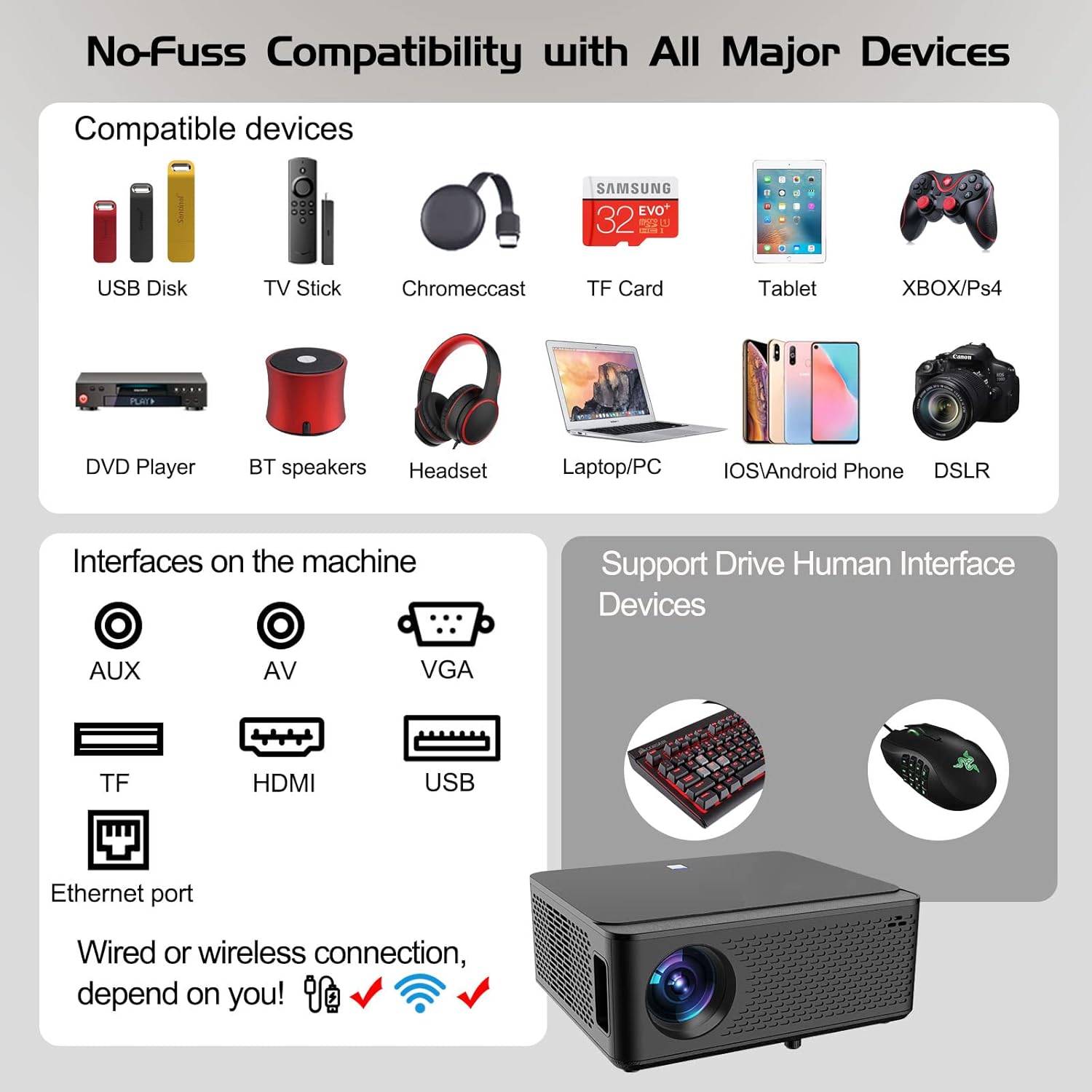
Image: Diagram illustrating the various input and output ports available on the Ysametp Projector, including USB, HDMI, AV, VGA, TF card slot, and Ethernet port.
The projector features a comprehensive set of ports for versatile connectivity:
- Ethernet vrata: Za žično internetno povezavo.
- VGA vrata: Za povezavo s starejšimi računalniki.
- Vrata USB-A: For connecting USB flash drives or external devices.
- Vrata HDMI: For high-definition audio and video input from various sources.
- AV vhod: For connecting analog audio/video devices.
- 3.5 mm avdio izhod: Za priklop zunanjih zvočnikov ali slušalk.
- Reža za TF kartice: For reading media from Micro SD cards.
- Vhodna moč: For connecting the AC power cable.
4.3 Zgornje kontrole
The top of the projector includes a power button for basic on/off functionality. Further controls are available via the remote control and the on-screen display.
4.4 Prilagoditev ostrenja
A mechanical focus adjustment screw is located on the side of the lens for manual image clarity control.
5. Nastavitev
5.1 Namestitev
Position the projector on a stable surface. The projection distance will determine the screen size. For optimal viewing, ensure the projector is perpendicular to the projection surface.
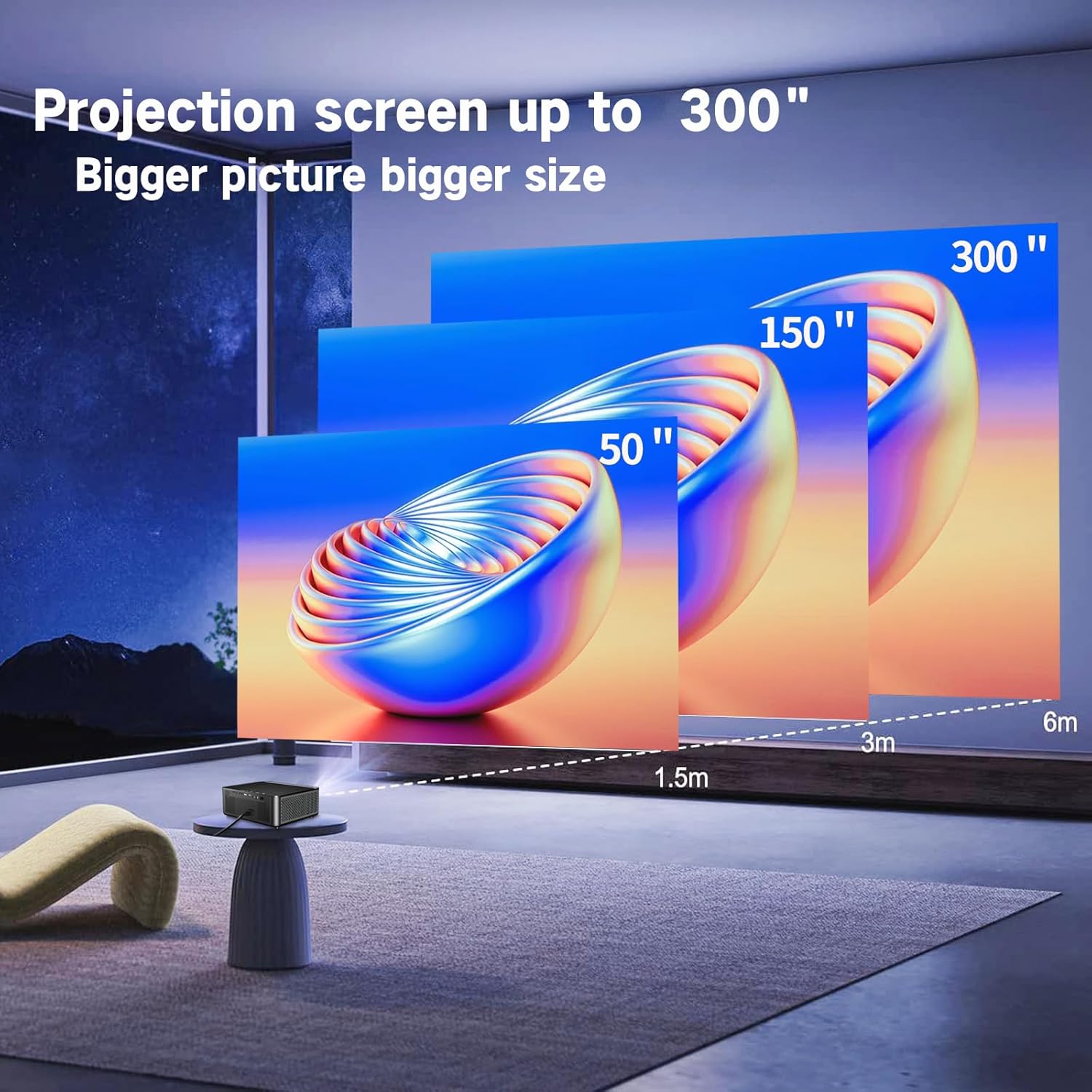
Image: Illustration demonstrating recommended projection distances for achieving screen sizes of 50, 150, and 300 inches.
5.2 Napajalni priključek
- Priključite napajalni kabel na vhod za napajanje projektorja.
- Drugi konec napajalnega kabla priključite v ustrezno električno vtičnico.
5.3 Začetni vklop
- Pritisnite gumb za vklop na projektorju ali daljinskem upravljalniku, da vklopite napravo.
- Allow a few moments for the projector to boot up.
5.4 Ostrenje in korekcija trapezne slike
After powering on, adjust the image for clarity and proper geometry:
- Fokus: Rotate the mechanical focus adjustment screw near the lens until the image appears sharp and clear.
- Trapezni popravek: If the projected image is trapezoidal (wider at the top or bottom), use the 4D keystone correction feature via the on-screen menu to adjust the image corners until it forms a perfect rectangle.

Image: Diagram showing how 4P/4D keystone correction can be used to adjust the corners of a projected image to achieve a rectangular shape.
6. Navodila za uporabo
6.1 Priključitev zunanjih naprav
The projector supports various connection methods:
- HDMI: Connect gaming consoles (PS4, Xbox), laptops, or other HDMI-enabled devices using an HDMI cable.
- USB: Insert a USB flash drive into the USB-A port to play media files neposredno.
- Kartica TF: Insert a Micro SD (TF) card into the TF card slot to access media.
- VGA/AV: Use these ports for older devices requiring analog connections.
- Bluetooth: Pair Bluetooth speakers or headphones for enhanced audio.

Image: The projector shown with various compatible devices, including laptops, smartphones, gaming consoles, USB drives, and external speakers, demonstrating its versatile connectivity.
6.2 Using the Integrated Android System
The projector comes with an integrated Android system, allowing access to a wide range of applications.

Image: The projector displaying its Android interface, featuring icons for popular streaming services and apps such as Netflix, YouTube, Prime Video, Hulu, Spotify, and TikTok.
- Omrežna povezava: Connect the projector to your home Wi-Fi network via the settings menu or use an Ethernet cable for a wired connection.
- Dostop do aplikacije: Navigate the Android interface using the remote control. You can download and install applications from the Google Play Store.
- Pretakanje: Enjoy content from pre-installed or downloaded streaming services.
6.3 5G WiFi Screen Mirroring
Mirror your smartphone, tablet, or PC screen wirelessly to the projector.

Image: A family enjoying content mirrored from a smartphone onto the large projected screen, illustrating the 5G WiFi Screen Mirroring feature for iOS, Android, and Windows devices.
- Ensure both the projector and your device are connected to the same 5G WiFi network.
- Select the "Screen Mirroring" option on the projector's menu.
- On your smartphone/tablet/PC, activate its screen mirroring function (e.g., "Smart View" for Android, "AirPlay" for iOS, "Cast" for Windows).
- Za vzpostavitev povezave izberite projektor s seznama razpoložljivih naprav.
7. Vzdrževanje
7.1 Čiščenje leče
Lečo projektorja nežno obrišite z mehko krpo, ki ne pušča vlaken in je posebej zasnovana za optične površine. Ne uporabljajte abrazivnih čistil ali prekomerne sile.
7.2 Čiščenje ohišja projektorja
Use a soft, dry cloth to clean the exterior of the projector. Avoid using harsh chemicals or solvents.
7.3 Optical Engine Protection
The projector features a full-sealed optical engine designed to prevent dust from entering the internal components, reducing the need for frequent internal cleaning and extending the device's lifespan.

Slika: Notranji view diagram of the projector's full-sealed optical engine, highlighting its design to prevent dust from entering and affecting performance.
7.4 Lamp življenje
The projector utilizes advanced SmarEco technology to minimize energy consumption and extend the lamp's lifespan up to 60,000 hours, providing long-term reliability.

Slika: Podroben diagram prikazujeasing the projector's lamp technology, indicating a lifespan of over 30,000 hours.
8. Odpravljanje težav
Če imate težave s projektorjem, si oglejte naslednje pogoste težave in rešitve:
| Težava | Možen vzrok | rešitev |
|---|---|---|
| Na zaslonu ni slike. | Power cable loose; incorrect input source; device not connected. | Check power connections. Select correct input source (HDMI, AV, etc.). Ensure external device is powered on and connected properly. |
| Slika je zamegljena. | Focus not adjusted; projector too far/close. | Prilagodite obroč za ostrenje na objektivu. Prepričajte se, da je projektor znotraj optimalne projekcijske razdalje. |
| Slika je trapezoidne oblike. | Projektor ni pravokoten glede na platno. | Use the 4D keystone correction feature in the settings menu to adjust the image shape. |
| Brez zvoka. | Volume too low; external audio device not connected; incorrect audio output selected. | Increase volume. Check external speaker/headphone connection. Ensure correct audio output is selected in settings. |
| Ni mogoče vzpostaviti povezave z omrežjem Wi-Fi. | Napačno geslo; izven dosega; težava z omrežjem. | Verify WiFi password. Move projector closer to router. Restart router and projector. |
9. Specifikacije
Key technical specifications for the Ysametp 5G WiFi Bluetooth Projector (Model DE-M8-E-An):
- Znamka: Ysametp
- Številka modela: DE-M8-E-An
- barva: Črna
- Vrsta izdelka: Prenosni projektor
- Tehnologija povezljivosti: HDMI, USB, Wi-Fi (5G), Bluetooth
- Posebne lastnosti: Integrated WiFi, Android System, 4D Keystone Correction
- Združljive naprave: Game Consoles, Speakers, Laptops, Smartphones, Tablets
- Ločljivost zaslona: Izvorna ločljivost 1920 x 1080 (polna visoka ločljivost)
- Največja ločljivost zaslona: 4096 x 2160 (4K Support)
- Vrsta zaslona: DLP
- Dimenzije izdelka: 26 D x 23 Š x 11 V centimetrov
- Faktor oblike: Prenosni
- Vrsta pritrditve: Namizni nosilec
- Lamp Življenjska doba: Do 60,000 ur

Image: A visual comparison highlighting the projector's 20,000 Lumens brightness, Native 1080P resolution, and 4K support, contrasting it with a lower specification projector.
10. Garancija in podpora
The Ysametp Projector comes with a 3-year service warranty. For technical support or warranty claims, please contact Ysametp customer service through your purchase platform or the official Ysametp webmesto.