
1. Izdelek je končanview
The havit GK59 Gaming Microphone is designed for clear audio capture during gaming, streaming, and voice communication. It features a condenser microphone for high-quality sound and a versatile design for ease of use.

Slika 1.1: Spredaj view of the havit GK59 Gaming Microphone, showcasing its main body, stand, and control buttons.
Ključne značilnosti:
- Enostaven za uporabo: Simple plug-and-play functionality.
- Good Performance: Delivers clear and consistent audio.
- Good Quality: Trpežna konstrukcija za zanesljivo uporabo.
- Prenosna zasnova: Kompakten in enostaven za transport.
- Nastavljivo stojalo: Allows for flexible positioning.
2. Navodila za nastavitev
2.1 Vsebina paketa
Prosimo, preverite paket za naslednje artikle:
- havit GK59 Gaming Microphone
- Priključni kabel USB
- Uporabniški priročnik (ta dokument)
2.2 Priključitev mikrofona
The GK59 microphone offers versatile connectivity options for various devices.
- USB povezava: Connect the provided USB cable to the USB-C port on the back of the microphone and the other end to an available USB port on your computer or gaming console. The microphone is plug-and-play and should be automatically recognized by most operating systems.
- 3.5mm Jack Connection: For devices supporting a 3.5mm auxiliary input, connect a 3.5mm audio cable (not included) to the 3.5mm jack on the back of the microphone and to your device's audio input.
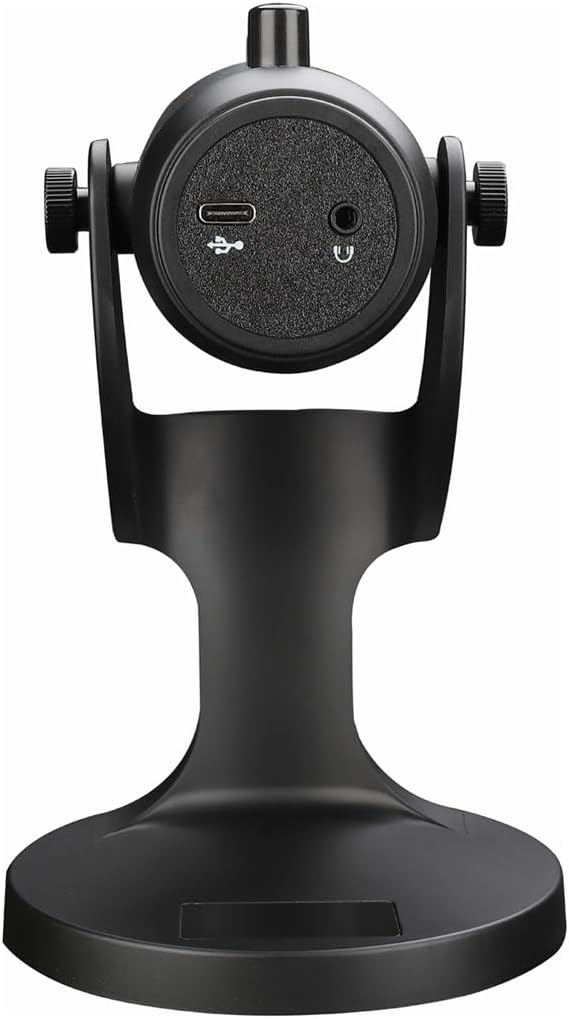
Slika 2.1: Zadaj view of the havit GK59 Gaming Microphone, highlighting the USB-C port for data and power, and the 3.5mm headphone jack for monitoring.
After connecting, ensure the microphone is selected as the default input device in your system's sound settings or your gaming/streaming software.
3. Navodila za uporabo
3.1 Osnovne kontrole
The havit GK59 features intuitive controls located on the front of the microphone body:
- Gumb za izklop zvoka: Pritisnite za izklop ali vklop mikrofona. Stanje izklopa običajno prikazuje indikatorska lučka.
- MIC +/- Buttons: Adjust the microphone input sensitivity (gain). Press '+' to increase, '-' to decrease.
- Gumbi VOL +/-: Adjust the headphone output volume for monitoring. Press '+' to increase, '-' to decrease.
- ECHO +/- Buttons: Adjust the echo effect level. Press '+' to increase, '-' to decrease.
Slika 3.1: Podrobno view of the microphone's control panel, including the mute button, microphone gain, volume, and echo adjustment buttons.
3.2 Adjusting Microphone Position
The microphone is equipped with an adjustable stand, allowing you to optimize its position for best sound capture and comfort.
- Gently hold the microphone body and the base of the stand.
- Tilt the microphone forward or backward to achieve the desired angle. The stand's design helps reduce vibration and abnormal sounds during use.
- Position the microphone approximately 6-12 inches (15-30 cm) from your mouth for optimal voice clarity.

Figure 3.2: The havit GK59 microphone demonstrating its adjustable tilt feature on the stand, designed for anti-vibration.
4. Vzdrževanje
4.1 Čiščenje
To maintain the microphone's performance and appearance:
- Disconnect the microphone from its power source before cleaning.
- Za brisanje zunanjih površin uporabite mehko, suho krpo.
- Ne uporabljajte tekočih čistil, aerosolov ali topil, saj lahko poškodujejo površino ali notranje komponente.
4.2 Shranjevanje
When not in use, store the microphone in a cool, dry place away from direct sunlight and extreme temperatures. Protect it from dust and moisture.
5. Odpravljanje težav
If you encounter issues with your havit GK59 Gaming Microphone, please refer to the following table for common problems and solutions:
| Težava | Možen vzrok | rešitev |
|---|---|---|
| No sound input from microphone | Mikrofon ni pravilno priključen Izbrana napačna vhodna naprava Mikrofon izklopljen | Prepričajte se, da je kabel USB varno priključen. Check system sound settings and select GK59 as input. Za vklop zvoka pritisnite gumb za izklop zvoka na mikrofonu. |
| Nizka glasnost mikrofona | Microphone gain too low Glasnost sistemskega vnosa je prenizka | Press the 'MIC +' button on the microphone. Adjust input volume in your system's sound settings. |
| Popačen ali nejasen zvok | Microphone gain too high Microphone too close to mouth Okoljski hrup | Press the 'MIC -' button on the microphone. Adjust microphone position (6-12 inches from mouth). Zmanjšajte hrup v ozadju v svojem okolju. |
| No headphone monitoring sound | Slušalke niso priključene Headphone volume too low | Ensure headphones are plugged into the 3.5mm jack. Press the 'VOL +' button on the microphone. |
6. Tehnične specifikacije
Below are the technical specifications for the havit GK59 Gaming Microphone:
| Funkcija | Specifikacija |
|---|---|
| Znamka | imeti |
| Številka modela | GK59 |
| Tehnologija povezljivosti | USB, 3.5 mm Jack (Auxiliary) |
| Priporočene uporabe | Igranje |
| Polarni vzorec | Enosmerno |
| Faktor oblike mikrofona | Handheld (with desktop stand) |
| Teža predmeta | 429 gramov |
| Impedanca | 250 Ohmov |
| Razmerje med signalom in hrupom | 18 dB |
| Zvočni hrup | 18 decibelov |
| Vir napajanja | Električni z žico (prek USB-ja) |
| Združljive naprave | Gaming Consoles, PCs |
| Dimenzije artikla (DxŠxV) | 5.59 x 4.92 x 9.06 palcev |
| barva | Črna |
7. Garancija in podpora
7.1 Informacije o garanciji
The havit GK59 Gaming Microphone comes with a standard manufacturer's warranty. Please refer to the warranty card included in your product packaging or visit the official havit webza podrobne garancijske pogoje.
7.2 Podpora strankam
For technical assistance, troubleshooting not covered in this manual, or warranty claims, please contact havit customer support through their official channels. You can find more information and contact details on the havit Store on Amazon ali njihov uradnik webmesto.