
1. Uvod
This manual provides detailed instructions for the installation, operation, and maintenance of the ZKTeco IN01-A/3G Fingerprint Time Attendance and Access Control Terminal. Please read this manual thoroughly before using the device to ensure proper functionality and to prevent damage.
2. Izdelek je končanview
The ZKTeco IN01-A/3G is a sophisticated 3-inch TFT screen terminal designed for both time attendance and access control applications. It integrates advanced fingerprint recognition technology to provide secure and efficient user identification.
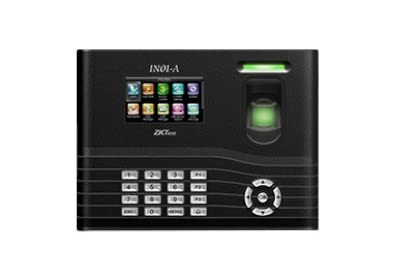
Slika 1: Spredaj view of the ZKTeco IN01-A/3G terminal, showing the 3-inch TFT screen, numeric keypad, navigation buttons, and the fingerprint sensor with an illuminated ring.
Key components include a high-resolution TFT display for user interaction, a numeric keypad for data entry, navigation buttons for menu control, and a robust fingerprint sensor for biometric authentication.
3. Lastnosti
- Zmogljivost prstnega odtisa: Supports storage for up to 3000 fingerprints.
- Zaslon: Equipped with an LCD (3-inch TFT screen) for clear visual feedback.
- Identification Method: Primarily uses fingerprint recognition for user authentication.
- Vzdržljivost: Features a scratch-proof design for enhanced longevity.
- Funkcionalnost: Combines time attendance tracking with access control capabilities.
4. Nastavitev
4.1 Razpakiranje in pregled
Carefully unpack the device and verify that all components are present and undamaged. Report any discrepancies to your supplier immediately.
4.2 Namestitev naprave
- Choose a suitable location for installation, ensuring it is protected from direct sunlight, extreme temperatures, and moisture.
- Use the provided mounting template to mark drilling positions on the wall.
- Izvrtajte luknje in vstavite stenske vložke.
- Montažno ploščo pritrdite na steno z vijaki.
- Attach the IN01-A/3G terminal to the mounting plate.
4.3 Napajalni priključek
Connect the provided power adapter to the device's power input port and then plug it into a standard electrical outlet. Ensure the power supply matches the device's requirements.
4.4 Omrežna povezava (neobvezno)
If network connectivity is required for data transfer or remote management, connect an Ethernet cable to the device's LAN port and to your network router/switch.
4.5 Začetna konfiguracija
Upon first power-up, the device may prompt for initial setup, including date, time, and administrator registration. Follow the on-screen instructions to complete these steps.
5. Navodila za uporabo
5.1 Administrator Registration
The first step is to register an administrator fingerprint. This user will have access to all device settings and user management functions.
- Pritisnite MENI gumb.
- Pojdite na Upravljanje uporabnikov in izberite Nov uporabnik.
- Enter a User ID and then select Prijavite prstni odtis.
- Place your finger on the sensor three times as prompted, ensuring full contact each time.
- Set the user's privilege level to Administrator.
- Shranite nastavitve.
5.2 Vpis uporabniškega prstnega odtisa
To allow other users to record attendance or gain access, their fingerprints must be enrolled.
- Access the menu as an administrator.
- Pojdite na Upravljanje uporabnikov in izberite Nov uporabnik or select an existing user to add a fingerprint.
- Enter or confirm the User ID.
- Izberite Prijavite prstni odtis and follow the on-screen prompts to scan the user's finger three times.
- Shranite podatke uporabnika.
5.3 Beleženje prisotnosti
Users can record their attendance by simply placing their enrolled finger on the fingerprint sensor. The device will provide visual and audible confirmation of a successful scan.
5.4 Access Control Functionality
For access control, the device will verify the enrolled fingerprint against its database. Upon successful verification, it will trigger the connected access mechanism (e.g., door lock) according to the configured access rules.
6. Vzdrževanje
6.1 Čiščenje naprave
Regularly clean the fingerprint sensor and screen with a soft, dry, lint-free cloth. Do not use abrasive cleaners or solvents, as these can damage the surface.
6.2 Varnostno kopiranje podatkov
It is recommended to regularly back up attendance records and user data to an external storage device (e.g., USB drive) or a connected server to prevent data loss.
6.3 Posodobitve vdelane programske opreme
Občasno preverite uradno stran ZKTeco website for firmware updates. Keeping the device's firmware up-to-date ensures optimal performance and access to new features.
7. Odpravljanje težav
- Naprava se ne vklopi:
- Prepričajte se, da je napajalnik varno priključen tako na napravo kot na delujočo električno vtičnico.
- Preverite, ali vtičnica deluje.
- Prstni odtis ni prepoznan:
- Prepričajte se, da je vaš prst čist in suh.
- Place your finger flat and centered on the sensor.
- Try enrolling the fingerprint again if the issue persists.
- Clean the fingerprint sensor surface.
- Cannot access menu:
- Ensure you are using an enrolled administrator fingerprint or password.
- Težave s prenosom podatkov:
- Preverite povezave omrežnih kablov.
- Verify network settings on the device and server.
8. Specifikacije
| Funkcija | Podrobnost |
|---|---|
| Znamka | ZKTeco |
| Model | IN01-A/3G |
| Kapaciteta prstnih odtisov | 3000 |
| Zaslon | 3-palčni TFT LCD |
| Metoda identifikacije | Prstni odtis |
| Dimenzije izdelka (DxŠxV) | 21.2 x 158.9 x 4.8 centimetrov |
| Številka dela artikla | 8765 |
| Država izvora | Indija |
| Prvi razpoložljivi datum | 22. junij 2022 |
9. Garancija in podpora
Za informacije o garanciji in tehnično podporo glejte dokumentacijo, priloženo nakupu, ali obiščite uradno spletno stran ZKTeco. webspletnega mesta. Račun shranite kot dokazilo o nakupu za uveljavljanje garancije.
For further assistance, you may contact ZKTeco customer service or your local distributor.