
1. Izdelek je končanview
The YEHUA Wireless HDMI Transmitter (Model TX) is designed to provide a seamless wireless streaming experience. This device allows you to transmit high-definition video and audio signals from various source devices to a display without the need for cables. It supports 4K resolution and features like Miracast for versatile connectivity.
Glavne lastnosti vključujejo:
- Connect multiple transmitters to one receiver.
- One-touch switching between active transmitters.
- Supports 4K resolution output.
- Integrated Miracast functionality.
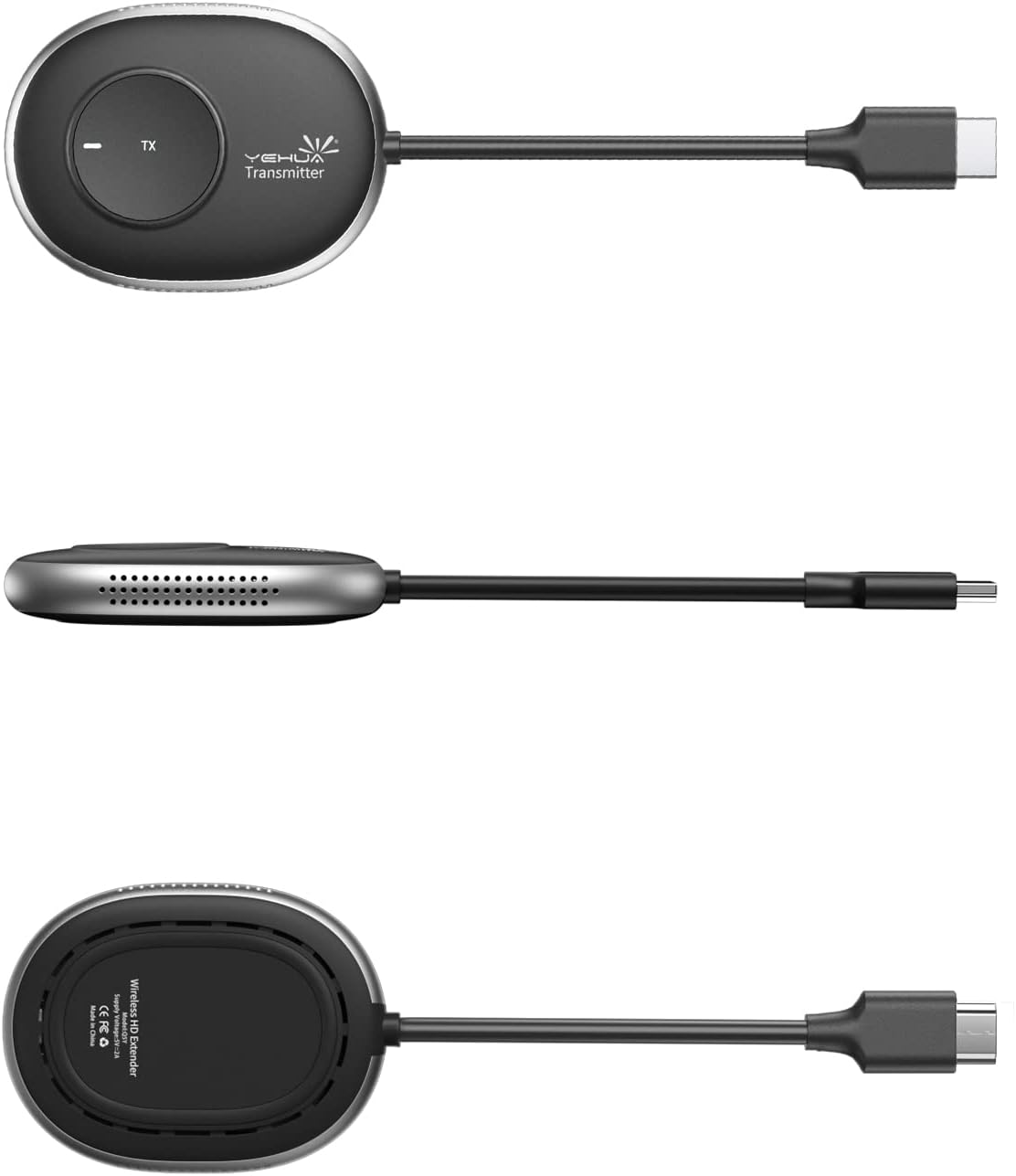
Slika 1: YEHUA Wireless HDMI Transmitter (Model TX) showing its compact design and various angles.
2. Vsebina paketa
Prosimo, preverite, ali so v vašem paketu vsi elementi:
- YEHUA Wireless HDMI Transmitter (TX unit)
- YEHUA Wireless HDMI Receiver (RX unit) - (Note: Receiver may be sold separately or as part of a kit)
- USB Power Cable (for TX and/or RX)
- Uporabniški priročnik (ta dokument)
3. Navodila za nastavitev
Follow these steps to set up your YEHUA Wireless HDMI Transmitter and Receiver system.
3.1 Priključitev sprejemnika (RX)
- Connect the HDMI output of the Receiver (RX) to an HDMI input port on your display device (e.g., TV, monitor, projector).
- Connect the USB power cable to the Receiver (RX) and plug the other end into a 5V/2A USB power adapter (not always included) or a powered USB port on your display device. Ensure the RX unit powers on.
3.2 Priključitev oddajnika (TX)
- Connect the HDMI output of your source device (e.g., video camera, DV, set-top box, PS3/4/5, PC, laptop) to the HDMI input port on the Transmitter (TX).
- Connect the USB power cable to the Transmitter (TX) and plug the other end into a 5V/2A USB power adapter or a powered USB port on your source device. Ensure the TX unit powers on.

Slika 2: Connection Diagram illustrating how to connect the TX unit to various source devices (video camera, DV, set-top box, PS3/4/5, PC, laptop) and the RX unit to display devices (monitor, HDTV, projector), both powered by 5V/2A adapters.
3.3 Začetno seznanjanje (če je potrebno)
In most cases, the TX and RX units are pre-paired. If they do not connect automatically:
- Prepričajte se, da sta obe enoti TX in RX vklopljeni.
- Press the pairing button on the RX unit (refer to the RX manual for exact location).
- Then, press the pairing button on the TX unit. The devices should connect within a few seconds.
4. Navodila za uporabo
Once the setup is complete, you can begin using your wireless HDMI system.
4.1 Osnovna operacija
- Power on your source device and display device.
- Select the correct HDMI input on your display device where the RX unit is connected.
- The TX unit will automatically transmit the signal from your source device to the RX unit. The display should show the content from your source.
4.2 Using Multiple Transmitters with One Receiver
The YEHUA system supports connecting multiple TX units to a single RX unit. This is ideal for presentations or collaborative environments where you need to switch between different source devices.
- Connect each additional TX unit to its respective source device and power it on, following the steps in Section 3.2.
- To switch between active transmitters, simply press the button on the desired TX unit. The receiver will then display the content from that specific transmitter.
- Opomba: The receiver can only display content from one transmitter at a time.

Slika 3: Illustration of one YEHUA RX unit connected to a large display, receiving signals from multiple TX units connected to laptops in a meeting room, demonstrating the one-touch switching capability.
5. Vzdrževanje
To ensure the longevity and optimal performance of your YEHUA Wireless HDMI Transmitter, follow these maintenance guidelines:
- Čiščenje: Use a soft, dry cloth to clean the devices. Do not use liquid cleaners or aerosols.
- Shranjevanje: Naprave shranjujte na hladnem in suhem mestu, stran od neposredne sončne svetlobe in ekstremnih temperatur.
- Ravnanje: Izogibajte se padcem ali izpostavljanju naprav močnim udarcem.
- Prezračevanje: Ensure the devices have adequate ventilation and do not block any vents.
6. Odpravljanje težav
If you encounter issues with your YEHUA Wireless HDMI Transmitter, refer to the following troubleshooting tips:
No Signal on Display
- Preverjanje moči: Ensure both the TX and RX units are properly powered on and their indicator lights are active.
- Kabelske povezave: Verify that all HDMI and USB power cables are securely connected to their respective ports.
- Vhod HDMI: Confirm that your display device is set to the correct HDMI input source where the RX unit is connected.
- Ponovno seznanjanje: If the devices were previously working and now show no signal, try re-pairing them as described in Section 3.3.
- Izvorna naprava: Test your source device (e.g., laptop) by connecting it directly to the display via an HDMI cable to rule out issues with the source or display.
Poor Video Quality or Intermittent Signal
- Razdalja: Ensure the TX and RX units are within the recommended operating range. Obstacles like walls can reduce signal strength.
- Motnje: Keep the devices away from other wireless devices (Wi-Fi routers, cordless phones) that might cause interference.
- Resolucija: While the system supports 4K, ensure your source device and display are also configured for optimal resolution.
Težave z zvokom
- obseg: Check the volume levels on both your source device and display.
- Nastavitve zvoka: Preverite nastavitve zvočnega izhoda na izvorni napravi.
7. Specifikacije
| Funkcija | Specifikacija |
|---|---|
| Znamka | YEHUA |
| Številka modela | TX |
| Tehnologija povezljivosti | HDMI |
| Vrsta priključka | HDMI |
| Posebna funkcija | Miracast |
| Resolucija | 4K (3840 pixels) |
| Podprte internetne storitve | YouTube |
| Vrsta krmilnika | Nadzor gumbov |
| Faktor oblike | TV-Box |
| Združljive naprave | televizija |
| Zmogljivost pomnilnika | 16 GB |
| Video kodek | H.264, H.265/HEVC |
8. Garancija in podpora
For warranty information and technical support, please refer to the documentation included with your purchase or visit the official YEHUA website. If you encounter issues not covered in this manual, please contact YEHUA customer service for assistance.
Proizvajalec: YEHUA
ASIN: B09STQPR3R