
plustek PSD300+
Plustek PSD300 Plus Document Scanner User Manual
Model: PSD300+ | Brand: Plustek
1. Izdelek je končanview
The Plustek PSD300 Plus Document Scanner is designed for efficient document digitization, offering direct scanning to various cloud services and network folders. It features an Automatic Document Feeder (ADF) for batch scanning and includes advanced image processing capabilities to ensure clear and organized digital files.

Figure 1.1: Plustek PSD300 Plus Document Scanner with accompanying eConnector software.
Key features include fast scanning speeds, duplex scanning, and built-in barcode recognition for automated file naming and separation. The bundled eConnector utility application streamlines workflow by allowing one-touch scanning to preset destinations.
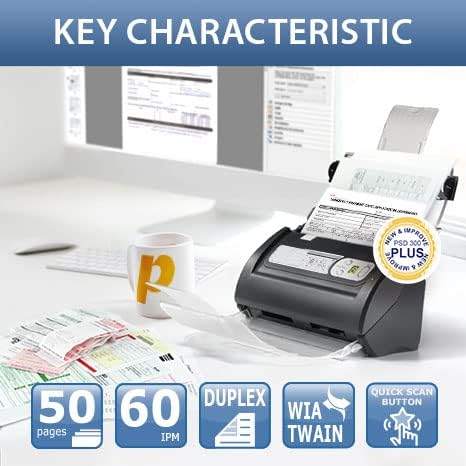
Figure 1.2: Key characteristics of the scanner, highlighting 50-page ADF, 60 IPM (Images Per Minute), Duplex scanning, WIA/TWAIN compatibility, and Quick Scan button.
2. Nastavitev
2.1 Razpakiranje in identifikacija komponent
Previdno razpakirajte vse komponente iz škatle. Preverite, ali so prisotni vsi spodaj navedeni elementi:

Figure 2.1: Contents of the box, including the scanner unit, Quick Guide, Calibration Sheet, Output Tray, Extended Paper Slider, Cleaning Cloth, eConnector CD, USB Cable, and Power Adapter.
Familiarize yourself with the scanner's physical components:

Figure 2.2: Diagram showing the Ergonomic Handle, Power and Switch Button, USB Port for PC connection, Input Tray, Open Lever, Function Button, Scan Button, and Output Tray.
2.2 Povezava strojne opreme
- Connect the power adapter to the scanner's power input and then to a power outlet.
- Priključite kabel USB iz vrat USB optičnega bralnika v prosta vrata USB na računalniku.
- Assemble the Output Tray and Extended Paper Slider onto the scanner as shown in the Quick Guide.
2.3 Namestitev programske opreme
The scanner requires driver and software installation for full functionality. It is recommended to download the latest drivers and eConnector utility from the official Plustek webspletno mesto za optimalno delovanje in združljivost.
- Insert the provided eConnector CD into your computer's CD/DVD drive, or navigate to the Plustek support website to download the latest software package for the PSD300 Plus model.
- Follow the on-screen instructions to install the scanner drivers and the eConnector Utility Application.
- Po namestitvi znova zaženite računalnik, če se to od vas zahteva.

Figure 2.3: Accessing drivers and downloads from the Plustek webmesto.

Figure 2.4: The eConnector Utility Application software, essential for optimizing scanning workflows.
3. Navodila za uporabo
3.1 Osnovno delovanje skeniranja
- Prepričajte se, da je skener vklopljen in povezan z računalnikom.
- Open the eConnector Utility Application on your computer.
- Place the documents face down into the Input Tray. Adjust the paper guides to fit the document width.
- Izberite želenega strokovnjaka za skeniranjefile or destination within the eConnector application.
- Pritisnite Gumb za skeniranje on the scanner or click the scan icon in the software to begin scanning.
- The scanner will automatically feed and scan documents.
The PSD300 Plus offers fast scanning speeds of up to 30 pages per minute (ppm) for single-sided documents and 60 images per minute (ipm) for double-sided documents, thanks to its single-pass duplex scanning capability.

Figure 3.1: Optimizing scanning tasks with the eConnector software interface.
3.2 Scanning to Cloud Services and Network Folders
The eConnector software allows direct scanning to a variety of destinations, enhancing workflow efficiency:
- Storitve v oblaku: Directly scan to Microsoft Office 365 (SharePoint, OneNote, OneDrive, Outlook), Dropbox, Google Drive, Evernote, and Box.
- Network & Local Destinations: Scan to Microsoft Exchange, SMB/CIFS network folders, FTP/SFTP/FTPS, and local folders.
- SharePoint On-Premises: Supports SharePoint On-Premises 2013/2016/2019 with Windows Authentication and Forms Based Authentication.

Figure 3.2: The scanner's capability to directly send scanned documents to various cloud platforms and network locations.
Video 3.1: Demonstration of the Plustek PSD300 Plus scanner streamlining documents to SharePoint On-Premises.
The scanner also supports SharePoint Document Check-In, allowing inputting of SharePoint library metadata fields directly during the scanning process.
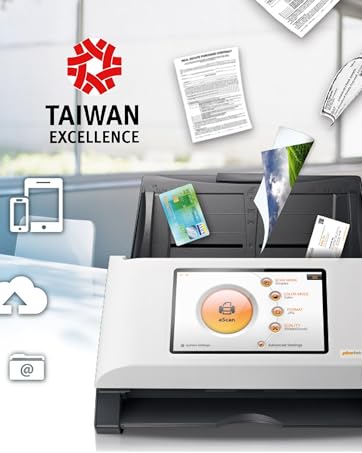
Figure 3.3: Illustrates the SharePoint Document Check-In feature, enabling seamless integration with existing document management systems.
3.3 naprednih funkcij
- Skeniranje dolgih dokumentov: Capable of scanning documents up to 200 inches in length, suitable for various business documents, receipts, and contracts.
- Prepoznavanje črtne kode: Built-in barcode recognition supports up to 12 barcode types, allowing for automatic renaming of scanned files and splitting of documents with ease. This simplifies batch processing and organization.
- Napredna obdelava slik: Features include automatic blank page removal, image compression, splitting images, removing punch holes, image edge fill, auto-rotate, and adjustable image settings. These functions ensure high-quality, optimized digital output.
- Vgrajen Preview & Editing Tool: Allows users to rotate, crop, and remove unwanted pages directly within the software before saving, ensuring only necessary content is retained.
- ABBYY FineReader Engine (Plustek OCR): The bundled software converts scanned image files into searchable and editable formats such as PDF, Microsoft Word (DOC), Excel (XLS), and plain text (TXT).
- WIA & TWAIN Support: Ensures broad compatibility with various scanning and document management applications.
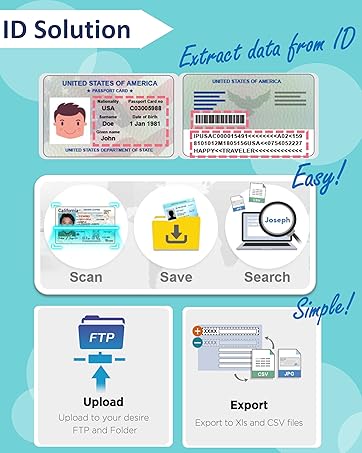
Figure 3.4: The scanner supports both WIA (Windows Image Acquisition) and TWAIN drivers for versatile integration.
4. Vzdrževanje
4.1 Čiščenje skenerja
Regular cleaning helps maintain optimal scanning performance and prevents paper jams or image quality issues. Use the provided cleaning cloth or a soft, lint-free cloth slightly dampz vodo ali blagim, neabrazivnim čistilom.
- Power off the scanner and disconnect it from the power source and computer.
- Gently wipe the exterior of the scanner.
- Open the scanner cover to access the internal rollers and glass scanning surface. Carefully wipe these components to remove dust, paper residue, or ink smudges.
- Allow all surfaces to dry completely before closing the cover and reconnecting the scanner.
Note: Avoid using harsh chemicals or abrasive materials, as they can damage the scanner's surfaces.
5. Odpravljanje težav
This section addresses common issues you might encounter with your Plustek PSD300 Plus scanner.
5.1 Pogoste težave in rešitve
| Težava | Možen vzrok | rešitev |
|---|---|---|
| Skener se ne vklopi. | Napajalni kabel je ohlapno priključen ali ni priključen; težava z vtičnico. | Preverite vse napajalne priključke. Poskusite z drugo vtičnico. |
| Documents not feeding correctly (jams). | Paper guides not adjusted; dirty rollers; overloaded input tray. | Adjust paper guides to fit document width. Clean the scanner rollers. Do not overload the input tray. Ensure documents are not creased or stapled. |
| Slaba kakovost skeniranja (proge, zamegljene slike). | Dirty scanning glass or rollers; incorrect scan settings. | Clean the scanning glass and rollers. Adjust scan resolution and image settings in the eConnector software. |
| Software not recognizing scanner or installation issues. | Incorrect drivers; USB connection issue; operating system compatibility. | Ensure the correct drivers are installed from the Plustek website. Try a different USB port or cable. Verify operating system compatibility (e.g., some users reported issues with Windows 11 Pro, check Plustek support for latest compatibility). |
Če naletite na vztrajne težave, ki niso obravnavane tukaj, si za dodatno pomoč oglejte razdelek za podporo.
6. Specifikacije
Detailed technical specifications for the Plustek PSD300 Plus Document Scanner:
- Dimenzije izdelka: 5 x 10.4 x 5.9 palcev (12.7 x 26.4 x 15 cm)
- Teža artikla: 5.81 funtov (2.64 kg)
- Vrsta optičnega bralnika: Business Card / Document Scanner with ADF
- Vrsta medija: Receipt, Business Card, Documents
- Tehnologija povezljivosti: USB
- Optična ločljivost: 600 dpi
- Maximum Sheet Size: 8.5 x 11 Inches (A4)
- Long Document Scan Length: Do 200 palcev
- Barvna globina: 8 bazne točke
- Proizvajalec: Plustek
- Številka modela: PSD300+
- Prvič na voljo: 20. januar 2022
7. Garancija in podpora
7.1 Podpora strankam
Plustek provides comprehensive customer support for its products. For technical assistance, troubleshooting, or general inquiries, please contact Plustek's US-based customer support team located in California, USA.
- Spletna podpora za Zendesk v realnem času
- Strokovna telefonska podpora v ZDA
- Podpora prek spletnega obrazca/e-pošte
- Svetovalna podpora za rešitve in SDK

Figure 7.1: Plustek's US-based customer support options for assistance.
For the most up-to-date contact information and support resources, please visit the official Plustek webspletno mesto: www.plustek.com
7.2 Informacije o garanciji
Specific warranty terms and conditions may vary by region and purchase date. Please refer to the warranty card included with your product or visit the Plustek official website for detailed warranty information and registration procedures. Retain your proof of purchase for warranty claims.
Ask a question about this manual
Ask about setup, troubleshooting, compatibility, parts, safety, or missing instructions. Manuals+ will review the question and use this page’s manual context to help answer it.