
1. Uvod
The ZKTeco LX50 is a compact and efficient fingerprint time attendance device designed for small to medium-sized businesses. It utilizes advanced biometric technology to accurately record employee attendance, providing a reliable solution for workforce management. This manual will guide you through the setup, operation, and maintenance of your LX50 device.
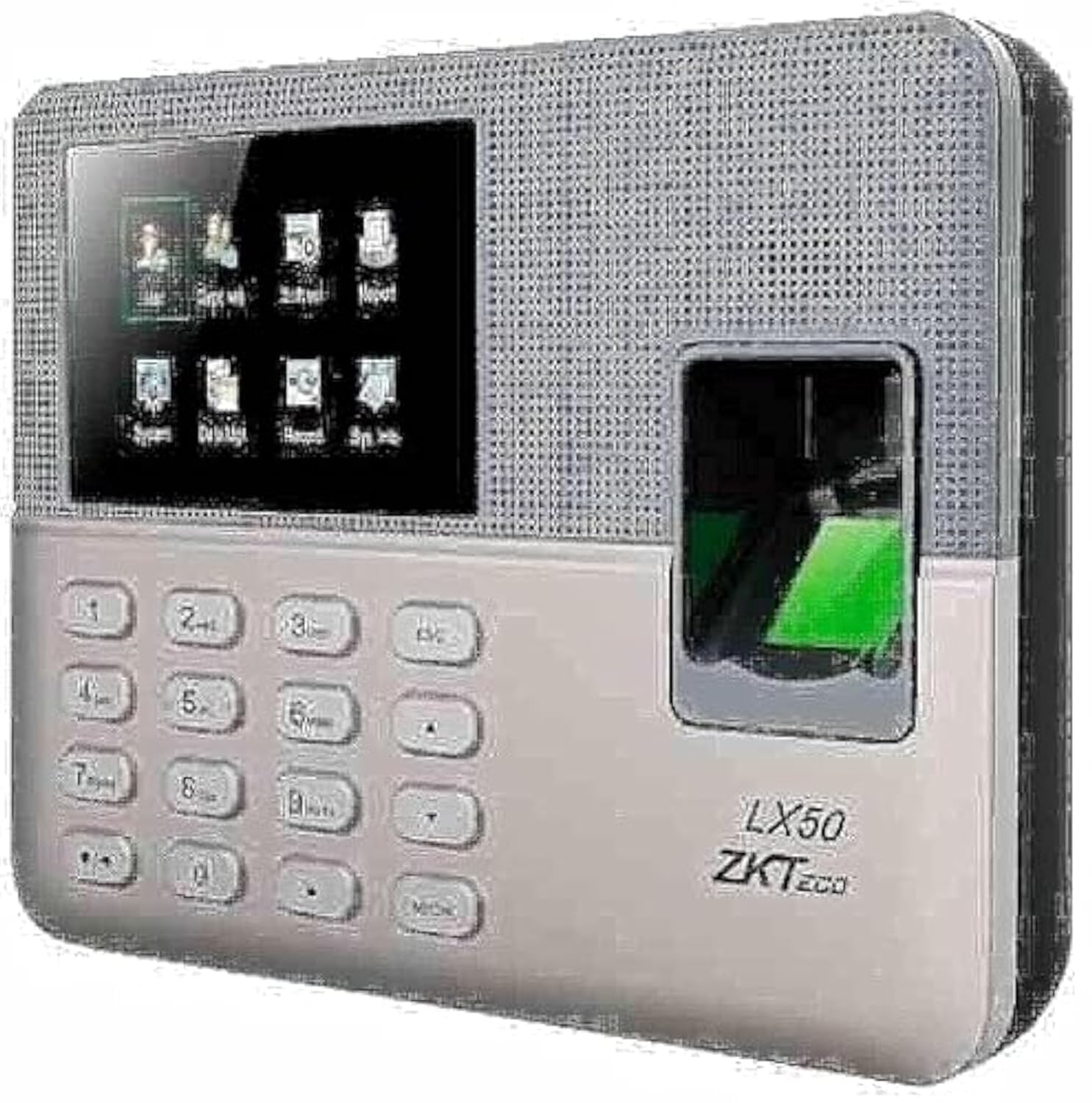
Figure 1: ZKTeco LX50 Fingerprint Time Attendance Device. This image shows the front view of the device, highlighting its compact design and fingerprint sensor.
2. Vsebina paketa
Preden začnete, preverite vsebino paketa in se prepričajte, da so prisotni vsi elementi:
- ZKTeco LX50 Device
- Napajalni adapter
- Pribor za montažo (vijaki, stenski vložki)
- Vodnik za hiter začetek
- USB kabel
3. Nastavitev
3.1 Namestitev naprave
- Choose a suitable location for installation, ensuring it is easily accessible for users and protected from direct sunlight or moisture.
- Use the provided mounting template (if available) to mark the drilling points on the wall.
- Izvrtajte luknje in vstavite stenske vložke.
- Napravo pritrdite na steno s priloženimi vijaki.
3.2 Napajalni priključek
Priključite napajalnik v vhodno vtičnico naprave in ga nato priključite v standardno električno vtičnico. Naprava se bo samodejno vklopila.
3.3 Začetna konfiguracija
Upon first power-on, the device may prompt you to set the date, time, and administrator fingerprint. Follow the on-screen instructions.
- Setting Administrator: It is crucial to register at least one administrator fingerprint for device management.
- Datum in čas: Ensure the date and time are set correctly for accurate attendance records.
4. Navodila za uporabo
4.1 Registracija uporabnika
Za registracijo novega uporabnika:
- Access the main menu using the administrator fingerprint or password.
- Pojdite na Upravljanje uporabnikov > Nov uporabnik.
- Enter the user's 9-digit ID. The device supports T9 input for alphanumeric characters if needed.
- Register the user's fingerprint by placing their finger on the sensor multiple times as prompted.
- Save the user information. The device has a capacity for 500 users and 500 fingerprints.
4.2 Beleženje prisotnosti
Users can record their attendance by simply placing their registered finger on the fingerprint sensor. The device will confirm the successful punch with an audible and visual indicator.
- The device uses the ZKFinger VX 10.0 algorithm for fast and accurate fingerprint recognition.
- It can store up to 50,000 transaction records.
4.3 Data Download
Attendance data can be downloaded via the USB host port.
- Insert a USB flash drive into the device's USB port.
- Access the main menu using the administrator fingerprint or password.
- Pojdite na Upravljanje podatkov > Download Attendance Data.
- Select the desired date range and confirm the download.
- The data will be saved to the USB flash drive in a compatible format (e.g., Excel).
4.4 Načrtovani zvonec
The LX50 features a scheduled bell function. You can configure specific times for the device to sound an alarm, useful for marking shift changes or breaks.
- Dostop do glavnega menija.
- Pojdite na Sistemske nastavitve > Urnik zvonjenja.
- Set the desired times and days for the bell to ring.
5. Vzdrževanje
- Čiščenje: Regularly clean the fingerprint sensor and screen with a soft, dry cloth. Avoid using abrasive cleaners or liquids directly on the device.
- Varnostno kopiranje podatkov: Periodically download and back up attendance data to prevent loss.
- Posodobitve programske opreme: Preverite pri proizvajalcu webZa zagotovitev optimalne zmogljivosti in varnosti obiščite spletno mesto za morebitne posodobitve vdelane programske opreme.
- Okoljski pogoji: Napravo hranite v suhem okolju, stran od ekstremnih temperatur in neposredne sončne svetlobe.
6. Odpravljanje težav
- Naprava se ne vklopi:
Ensure the power adapter is securely connected to both the device and a working power outlet. Verify the power outlet is functional.
- Prstni odtis ni prepoznan:
Ensure the finger is clean and dry. Place the finger flat on the sensor, covering the entire surface. If issues persist, re-register the fingerprint.
- Cannot download data to USB:
Ensure the USB flash drive is formatted correctly (FAT32 is recommended) and has sufficient free space. Try a different USB flash drive. Ensure you are performing the download operation from the administrator menu.
- Device not connecting to network:
The ZKTeco LX50 model primarily uses a USB host for data communication and does not support direct network (Ethernet/Wi-Fi) connectivity for data transfer. Data must be manually pulled via a USB flash drive.
7. Specifikacije
| Funkcija | Podrobnost |
|---|---|
| Proizvajalec | ZKTeco |
| Znamka | ZKTeco |
| Model | LX50 |
| Različica algoritma | ZKFinger VX 10.0 |
| Uporabniška zmogljivost | 500 |
| Kapaciteta prstnih odtisov | 500 |
| Transakcijska zmogljivost | 50,000 |
| Komunikacija | Gostitelj USB |
| Standardne funkcije | Scheduled Bell, Self-Learning Report, 9-digit User Registration, T9 Input |
| Dimenzije paketa | 30.2 x 21.7 x 7.6 cm |
| Teža predmeta | 680 g |
| barva | Večbarvna |
| Prvič na voljo | 27. julij 2021 |
8. Garancija in podpora
The ZKTeco LX50 device comes with a standard manufacturer's warranty against defects in materials and workmanship. Please refer to the warranty card included in your package for specific terms and conditions, including the warranty period and coverage details.
For technical support, troubleshooting assistance, or warranty claims, please contact ZKTeco customer service or your local distributor. Contact information can typically be found on the manufacturer's official webmestu ali v embalaži izdelka.
Pomembno: Za namene garancije shranite račun kot dokazilo o nakupu.