
Uvod
This manual provides comprehensive instructions for the setup, operation, and maintenance of your POLONO PL60 Thermal Label Printer. Please read this guide thoroughly before using the printer to ensure optimal performance and longevity.
Vsebina paketa
Preverite, ali so v vašem paketu priloženi vsi spodaj navedeni elementi:
- 1 Grey POLONO PL60 Thermal Label Printer
- 1 Napajalni kabel
- 1 kabel USB
- 1 U Disk (containing printer driver, installation guide, setup guide, and user manual)
- 1 Vodnik za hiter začetek
- 10pcs 4"x6" Labels (sample)

Image: All components included in the POLONO PL60 printer package, including the printer, cables, U disk, quick start guide, and sampoznake.
Navodila za namestitev
- Connect Power and USB Cable: Connect the power cord to the printer and a power outlet. Connect the USB cable from the printer to your computer (Windows or Mac).

Image: Step 1 of setup, showing the power and USB cables being connected to the printer.
- Namestite gonilnik: Insert the included U Disk into your computer. Install the printer driver. Alternatively, download the latest driver from the official POLONO website. The printer is compatible with Windows and Mac operating systems. Note: This printer does not support Bluetooth or Chromebook.

Image: The POLONO PL60 printer connected to a laptop, indicating compatibility with Mac and Windows systems.
- Naloži oznake: Open the printer cover. Place the thermal labels into the label compartment, ensuring the print side faces up. Adjust the label guides to fit the label width snugly. Close the cover.

Image: Step 3 of setup, demonstrating how to load labels into the printer's compartment.
- Automatic Label Alignment: After loading labels and closing the cover, press the feed button on the printer. The printer will automatically detect the label size and align the labels for printing.

Image: The POLONO PL60 printer with labels loaded, showing the automatic label detection feature.
Navodila za uporabo
Tiskanje nalepk
The POLONO PL60 printer uses advanced thermal direct technology, eliminating the need for ink or toner. It supports label widths from 1.57 inches (40 mm) to 4.65 inches (118 mm).
- Pripravite svoj dokument: Ensure your label design or shipping label is correctly formatted for a 4x6 inch label (or other supported sizes).
- Izberite tiskalnik: In your computer's print dialog, select "POLONO PL60" as your printer.
- Nastavitve tiskanja: Adjust print settings as needed. For optimal print quality, you may need to adjust the print density/darkness and speed in the printer preferences. Slower speeds generally result in better print quality.
- Začni tiskanje: Click "Print" to send the label to the printer. The printer can achieve speeds of 150mm/s, printing approximately 72 labels per minute.

Image: The POLONO PL60 printer printing a label, highlighting its high efficiency and print quality.
Adjusting Print Darkness and Speed (Windows Example)
To customize print quality, follow these steps:
- Go to your computer's nastavitve > Tiskalniki in optični bralniki.
- Izberite POLONO Label Printer in kliknite Upravljaj.
- Pojdi na Nastavitve tiskalnika.
- V Napredna nastavitev okno, kliknite na Hitrost in izberite Customize Print Speed. Adjust the slider to a slower speed for better print quality.
- Similarly, adjust Tema settings to achieve desired label contrast.
Video: Instructions on how to adjust the print darkness settings for the POLONO PL60 printer.
Podprte velikosti nalepk
The printer supports various label sizes, including:
- 4"x6"
- 3"x2"
- 3"x1"
- 2"x1"
- 2-5/16" x 4"
- 2.25"x1.25"
- 2-inch round labels
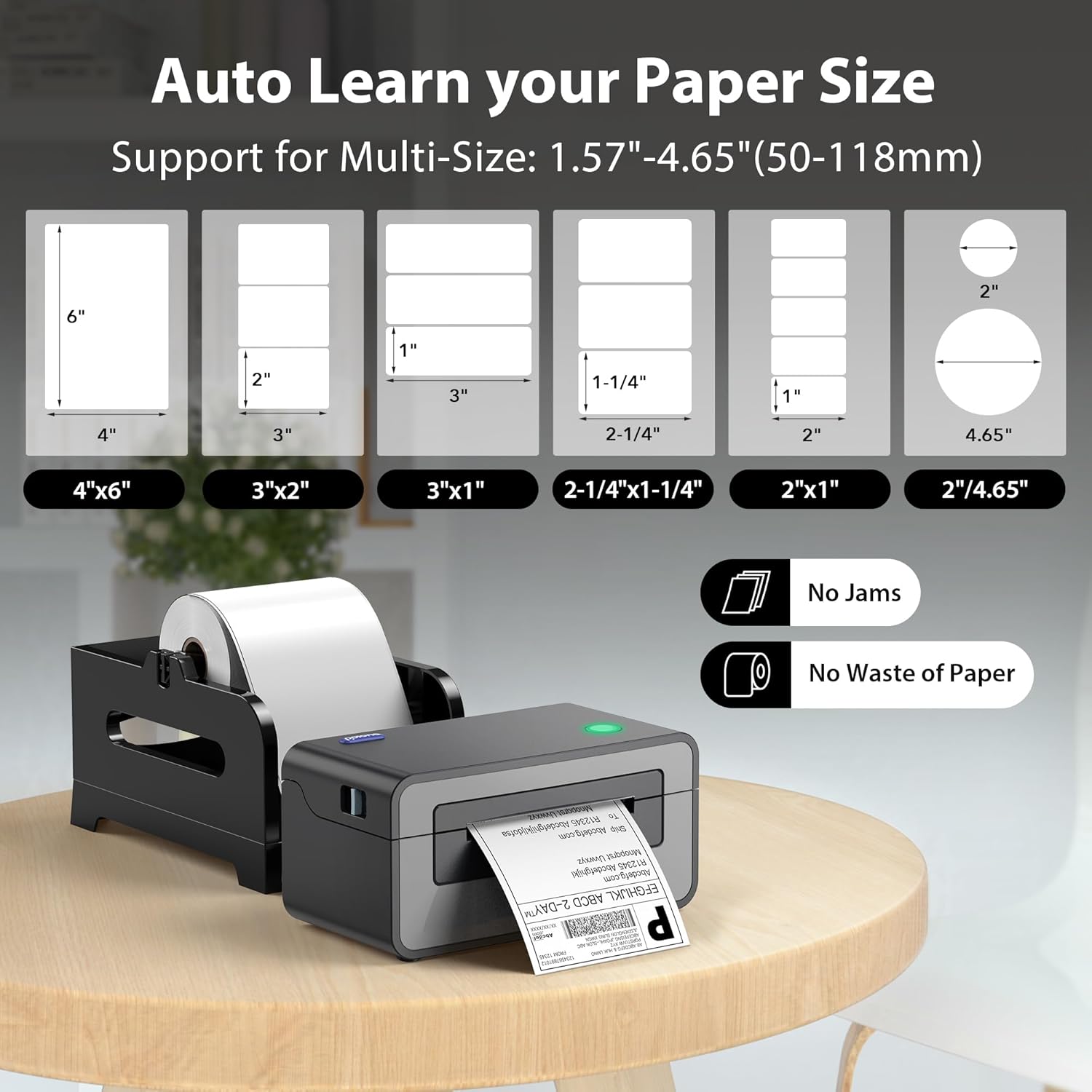
Image: Visual representation of different label sizes that the POLONO PL60 printer can automatically detect and print.
Vzdrževanje
The POLONO PL60 is a thermal direct printer, meaning it does not require ink cartridges or toner. This simplifies maintenance significantly.
- Čiščenje tiskalne glave: Periodically clean the print head with an alcohol wipe to ensure clear print quality. Refer to the detailed user manual on the U Disk for specific cleaning instructions.
- Generalno čiščenje: Keep the printer free from dust and debris. Use a soft, dry cloth to wipe the exterior.
Odpravljanje težav
Pogoste težave in rešitve
- Printer Not Responding / Not Printing:
- Ensure the power cord and USB cable are securely connected.
- Verify the printer is turned on (indicated by the LED light).
- Check if the correct printer driver is installed and updated.
- For Mac users experiencing issues, try uninstalling the driver, deleting the printer from your computer settings, then reinstalling the driver from the provided U Disk and re-adding the printer.
- Zbledela ali slaba kakovost tiska:
- Adjust the print darkness setting in your printer preferences (refer to "Adjusting Print Darkness and Speed" section).
- Prepričajte se, da uporabljate visokokakovostne termične etikete.
- Očistite tiskalno glavo, kot je opisano v razdelku Vzdrževanje.
- Labels Not Feeding Correctly / "Out of Labels" Error:
- Ensure labels are loaded correctly with the print side up.
- Adjust the label guides to fit the label width.
- Press the feed button to allow the printer to automatically detect and align the labels.
Specifikacije
| Funkcija | Podrobnost |
|---|---|
| Znamka | POLONO |
| Ime modela | PL60 |
| Tehnologija povezljivosti | USB |
| Tehnologija tiskanja | Toplotna |
| barva | siva |
| Izhod tiskalnika | Enobarvno |
| Največja hitrost tiskanja (enobarvno) | 150mm/s (72 labels/minute) |
| Teža predmeta | 1.9 kilogramov |
| Mere izdelka (D x Š x V) | 11.5 cm x 6 cm x 6 cm |
| Resolucija | 203 x 203 DPI |
| Največja velikost medija | 4 x 6 palcev |
| Podprte velikosti papirja | 4"x6", 3"x2", 3"x1", 2"x1", 2.25"x1.25", 2-5/16" x 4", 2" Circle Inches |
| Združljive naprave | Laptops, Mac, PC, Windows |
Garancija in podpora
The POLONO PL60 Thermal Label Printer comes with a 1-letna omejena garancija proizvajalca.
For further assistance, detailed user manuals, and driver downloads, please refer to the included U Disk or visit the official POLONO webmesto.
Dostopate lahko tudi do Uporabniški priročnik (PDF) za dodatne informacije.