
Uvod
This manual provides essential information for setting up, operating, maintaining, and troubleshooting your CyberpowerPC Gamer Xtreme Gaming PC. This system is designed for high-performance gaming and multitasking, featuring an AMD Ryzen 7 3700X processor, NVIDIA GeForce RTX 3060 graphics, 16GB DDR4 RAM, and a combination of SSD and HDD storage, running on Windows 10 Home 64-Bit.
1. Nastavitev
1.1 Razpakiranje
Carefully remove the PC from its packaging. Ensure all accessories, including the power cable, keyboard, and mouse, are present. Retain the original packaging for future transport or service needs.

Slika 1: Spredaj view of the CyberpowerPC Gamer Xtreme, highlighting its design and RGB lighting.
1.2 Priključitev zunanjih naprav
Connect your monitor, keyboard, mouse, and other peripherals to the appropriate ports on the rear and top of the PC. Ensure all connections are secure.
- Monitor: Connect your monitor to the graphics card's HDMI or DisplayPort output.
- Tipkovnica in miška: Connect to any available USB ports (USB 2.0 or USB 3.0).
- moč: Napajalni kabel priključite na napajalnik računalnika (PSU) in nato na ozemljeno električno vtičnico.
- Omrežje: For wired internet, connect an Ethernet cable to the LAN port. For wireless, ensure the Wi-Fi antenna (if included) is attached.

Slika 2: Pod kotom view of the CyberpowerPC Gamer Xtreme, highlighting the front panel design and side ventilation.

Slika 3: Zgornji del view of the PC, illustrating the accessible front I/O ports and top ventilation.
1.3 Začetni vklop in namestitev sistema Windows
Press the power button located on the top panel of the PC. The system will boot up. Follow the on-screen instructions to complete the Windows 10 Home setup, including language selection, network connection, and user account creation.
2. Navodila za uporabo
2.1 Vklop/izklop
- Za vklop: Pritisnite gumb za vklop na zgornji plošči.
- Za izklop: V sistemu Windows kliknite gumb Start in nato izberite Napajanje > Zaustavitev sistema.
- Za ponovni zagon: Kliknite gumb Start in nato izberite Napajanje > Ponovni zagon.
- Za spanje: Kliknite gumb Start in nato izberite Napajanje > Spanje.
2.2 Povezovanje z omrežjem
Your PC supports both wired (Ethernet) and wireless (Wi-Fi) network connections.
- Žično: Connect an Ethernet cable from your router/modem to the LAN port on the rear of the PC.
- Brezžično: In Windows, click the network icon in the taskbar, select your Wi-Fi network, enter the password, and click Connect.
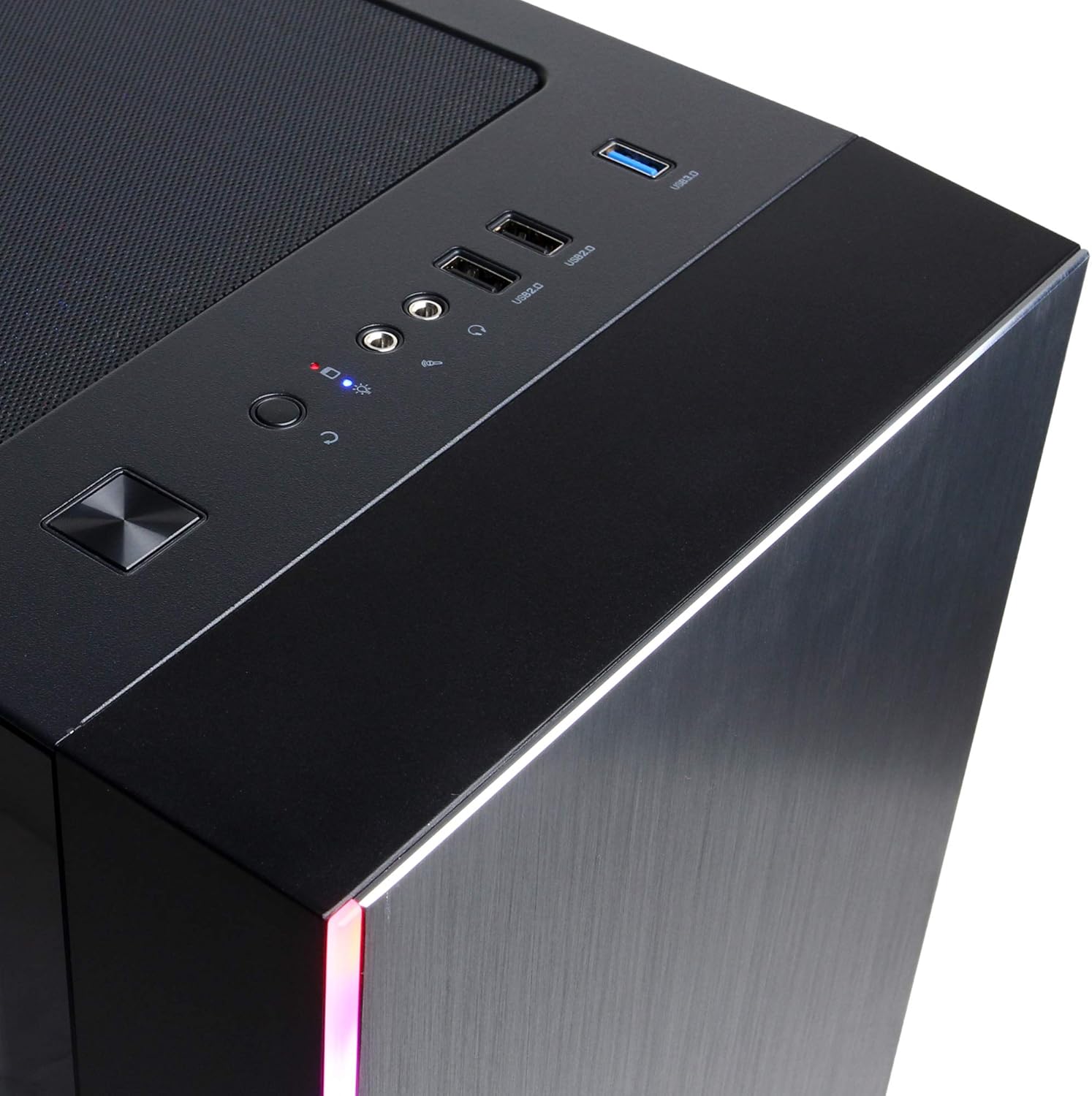
Figure 4: Detail of the top I/O panel, providing easy access to USB and audio connections.
3. Vzdrževanje
3.1 Čiščenje
Regular cleaning helps maintain optimal performance and extends the lifespan of your PC.
- Zunanjost: Uporabite mehko, damp cloth to wipe down the exterior. Avoid harsh chemicals.
- Prah: Periodically use compressed air to clear dust from ventilation grilles and internal components. Ensure the PC is powered off and unplugged before cleaning.
3.2 Posodobitve programske opreme
Keep your operating system, drivers, and applications updated to ensure security, stability, and performance.
- Posodobitve sistema Windows: Pojdite v Nastavitve > Posodobitev in varnost > Windows Update.
- Gonilniki grafičnih kartic: Download the latest drivers directly from NVIDIA's official webmesto.
4. Odpravljanje težav
4.1 Brez napajanja
- Prepričajte se, da je napajalni kabel varno priključen tako v računalnik kot v stensko vtičnico.
- Preverite delovanje stenske vtičnice tako, da vanjo priključite drugo napravo.
- Check the power switch on the PSU (if present) is in the 'On' position.
4.2 Ni zaslona
- Confirm the monitor is powered on and connected to the graphics card's output, not the motherboard's integrated graphics ports (if applicable).
- Poskusite z drugim kablom za zaslon ali monitorjem, če je na voljo.
- Ensure the monitor's input source is correctly selected.
4.3 Upočasnitev ali zamrznitev sistema
- Preverite upravitelja opravil (Ctrl+Shift+Esc) za visoko porabo procesorja, RAM-a ali diska s strani določenih aplikacij.
- Prepričajte se, da so Windows in gonilniki posodobljeni.
- Zaženite pregled za viruse in zlonamerno programsko opremo.
- Ensure adequate ventilation and check for excessive dust buildup.
5. Specifikacije
| Funkcija | Podrobnost |
|---|---|
| Znamka | CyberpowerPC |
| Ime modela | Gamer Xtreme |
| Operacijski sistem | Windows 10 Home |
| Model procesorja | AMD Ryzen 7 3700X |
| Hitrost procesorja | 3.6 GHz (osnovna) |
| Grafični koprocesor | NVIDIA GeForce RTX 3060 |
| Graphics Card RAM | 12 GB GDDR6 |
| Nameščen RAM pomnilnik | 16 GB DDR4 |
| Shranjevanje | 240 GB SSD, 1 TB HDD |
| Povezljivost | HDMI, Wi-Fi (802.11ab), USB 2.0, USB 3.0 |
| Dimenzije artikla (DxŠxV) | 18.6 x 17.4 x 8.9 palcev |
| Metoda hlajenja | zrak |
| UPC | 811842073769 |
6. Informacije o garanciji
Your CyberpowerPC Gamer Xtreme Gaming PC is covered by a manufacturer's limited warranty. Specific terms and conditions, including warranty duration and coverage details, are typically provided with your purchase documentation or can be found on the official CyberpowerPC webspletnega mesta. Prosimo, shranite dokazilo o nakupu za uveljavljanje garancije.
7. Podpora
For technical assistance, troubleshooting, or further inquiries, please visit the official CyberpowerPC support website or contact their customer service. You may need your product model number (GMA3088W) and serial number for support.
- Uradno Webspletno mesto: www.cyberpowerpc.com
- Support Section: Look for a "Support" or "Contact Us" link on their webmesto.