
Uvod
This user manual provides detailed instructions for the installation, operation, maintenance, and troubleshooting of your Xprinter XP-K200L 80mm Thermal Receipt Printer. Please read this manual thoroughly before using the printer to ensure proper function and to extend the product's lifespan. Keep this manual for future reference.
Varnostne informacije
- Vedno uporabljajte napajalnik, ki je priložen tiskalniku.
- Tiskalnika ne izpostavljajte vodi ali vlagi.
- Tiskalnika ne postavljajte na neposredno sončno svetlobo ali v bližino virov toplote.
- Zagotovite ustrezno prezračevanje okoli tiskalnika.
- Tiskalnika ne poskušajte razstavljati ali popravljati sami. Obrnite se na usposobljeno servisno osebje.
- Hraniti izven dosega otrok.
Vsebina paketa
Please check the package contents upon unpacking. If any items are missing or damaged, contact your vendor.
- Xprinter XP-K200L Thermal Receipt Printer
- Napajalni adapter
- Napajalni kabel
- USB kabel
- Termo papirna rola (začetna rola)
- Kabel predala za denar
- Uporabniški priročnik (ta dokument)
Konec izdelkaview
Familiarize yourself with the main components of your Xprinter XP-K200L thermal receipt printer.

Slika 1: stran view of the Xprinter XP-K200L thermal receipt printer. On the right, the power switch is visible, and on the left, a button to open the paper cover is present.
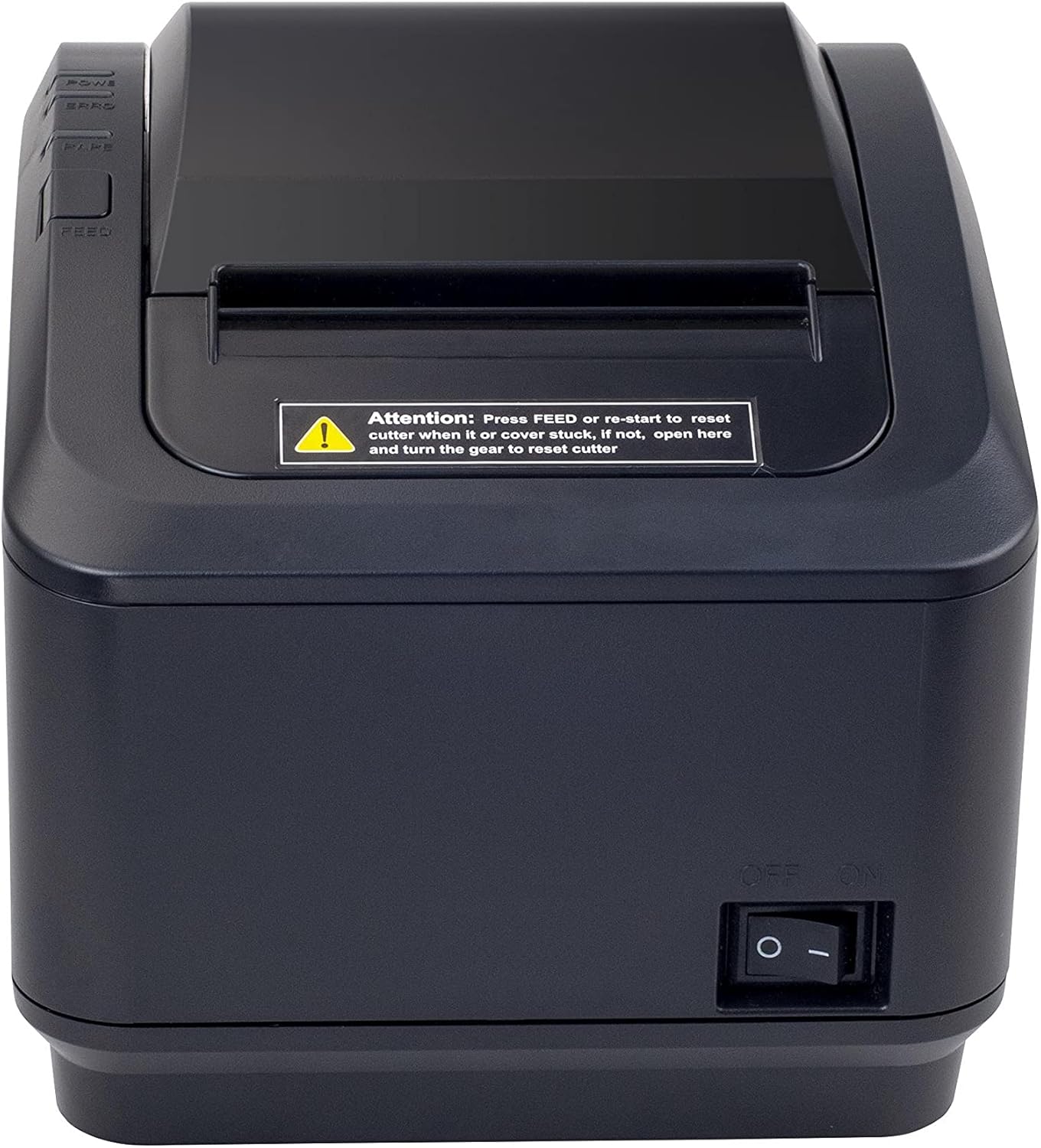
Slika 2: Sprednja stran view of the Xprinter XP-K200L thermal receipt printer. The paper output slot is at the top, and below it are control buttons for functions like feed and error reset. A warning label is also visible.

Figure 3: This image displays the Xprinter XP-K200L thermal receipt printer with its top cover open, showing the internal compartment where the thermal paper roll is loaded. The print head mechanism is also visible.
Nastavitev
1. Priključitev napajanja
- Ensure the printer's power switch is in the IZKLOP položaj.
- Priključite napajalnik v napajalna vrata tiskalnika.
- Priključite napajalni kabel v ustrezno električno vtičnico.
2. Vstavljanje termičnega papirja
- Press the cover open button (refer to Figure 1) to open the top cover of the printer.
- Insert a new 80mm thermal paper roll into the compartment, ensuring the paper feeds from the bottom and the leading edge extends slightly out of the printer.
- Close the top cover firmly until it clicks into place. Ensure there is no slack in the paper roll.
3. Connecting to a Computer/Network
The XP-K200L printer supports both USB and LAN (Ethernet) connectivity.
USB povezava:
- En konec kabla USB priključite v vrata USB na tiskalniku.
- Drugi konec kabla USB priključite na razpoložljiva vrata USB na vašem računalniku.
- Install the printer drivers. Drivers are typically provided on a CD or can be downloaded from the manufacturer's webspletno mesto. Za namestitev sledite navodilom na zaslonu.
LAN (ethernet) povezava:
- Connect one end of an Ethernet cable to the printer's LAN port.
- Drugi konec ethernetnega kabla povežite z omrežnim usmerjevalnikom ali stikalom.
- Configure the printer's network settings (e.g., IP address) if necessary. This usually involves printing a self-test page to get the current IP address and then accessing the printer's web interface or using a utility tool provided by the manufacturer.
- Install the printer drivers on your computer, selecting the network connection option during setup.
4. Connecting a Cash Drawer
- Connect the cash drawer cable to the dedicated cash drawer port on the printer.
- Ensure your POS software is configured to send commands to open the cash drawer via the printer.
Navodila za uporabo
Vklop/izklop
- To power on the printer, flip the power switch (refer to Figure 1) to the ON položaj.
- To power off the printer, flip the power switch to the IZKLOP položaj.
Osnovno tiskanje
Once the printer is connected and drivers are installed, you can print receipts from your POS software or any application that supports printing.
- Ensure the printer is powered on and has paper loaded.
- From your application, select the print option.
- Choose the "Xprinter XP-K200L" from the list of available printers.
- Confirm print settings and click "Print".
Self-Test Page
To print a self-test page, which provides information about the printer's settings and status:
- Ensure the printer is powered off and the paper roll is loaded.
- Pritisnite in držite KRMA gumb.
- Medtem ko držite KRMA button, turn the power switch to ON.
- Spustite KRMA button after the printer starts printing.
Vzdrževanje
Čiščenje tiskalnika
- Tiskalna glava: Z vatirano palčko rahlo obrišiteampened with isopropyl alcohol to gently wipe the thermal print head. Allow it to dry completely before use. Clean regularly to ensure print quality.
- Rezalnik: If the cutter becomes jammed or dirty, carefully clean it with a soft brush or cloth.
- Zunanjost: Zunanjost tiskalnika obrišite z mehko, suho krpo. Ne uporabljajte abrazivnih čistil ali topil.
Zamenjava termičnega papirja
When the paper roll is depleted or near its end, replace it following the steps in the "Loading Thermal Paper" section under Setup.
Odpravljanje težav
| Težava | Možen vzrok | rešitev |
|---|---|---|
| Tiskalnik se ne vklopi. | Power cord or adapter not connected properly; power outlet issue. | Preverite vse napajalne priključke. Poskusite z drugo vtičnico. |
| No printing. | No paper; paper loaded incorrectly; printer offline; driver issue; incorrect connection. | Load paper correctly. Check printer status. Reinstall drivers. Verify USB/LAN connection. |
| Slaba kakovost tiskanja. | Dirty print head; low quality thermal paper. | Clean the print head (see Maintenance). Use recommended thermal paper. |
| Paper jam or cutter error. | Paper loaded incorrectly; debris in cutter mechanism. | As per printer label: Pritisnite KRMA or re-start to reset cutter. If the issue persists, open the top cover and carefully turn the gear to reset the cutter mechanism. Ensure paper is loaded correctly and remove any obstructions. |
| Cash drawer does not open. | Cable not connected; POS software not configured. | Check cash drawer cable connection. Verify POS software settings for cash drawer trigger. |
Specifikacije
| Funkcija | Podrobnost |
|---|---|
| Znamka | Xprinter |
| Ime modela | XP-K200L |
| Tehnologija tiskalnika | Toplotna |
| Tehnologija povezljivosti | USB, LAN (Ethernet) |
| Posebne lastnosti | Omrežje pripravljeno |
| barva | Črna |
| Izhod tiskalnika | Enobarvno |
| Teža predmeta | 1.5 kg |
| Dimenzije izdelka (DxŠxV) | 19.5 cm x 14 cm x 13.8 cm |
| Compatible OS/Controller Type | Android (and typically Windows/Linux via drivers) |
| Tiskarski mediji | Plain Thermal Paper |
| Print Color | Črna |
| Resolucija | 576 x 512 dots per inch (or dots per line) |
| Max Print Resolution B/W | 576 dpi |
| Dodatne funkcije tiskalnika | Samo tiskanje |
| Nadzorna metoda | Daljinsko |
| Največja velikost medija | 80 mm |
| Velikost papirja | 79.5 mm |
| Moč | 60 vatov |
| Vključene komponente | Power adapter, Cash drawer cable |
| serija | XP-K |
| Posebne uporabe | Restaurants, bars, cinemas, garages, transportation, hospitals, clinics |
| Skupno število vrat USB | 1 |
Garancija in podpora
For warranty information and technical support, please refer to the documentation provided with your purchase or contact your vendor directly. Keep your proof of purchase for warranty claims.
For driver downloads and further support resources, visit the official Xprinter webmesto.