
1. Uvod
This manual provides detailed instructions for the EVICIV Portable Touchscreen Monitor, Model MDS-156B03. Please read this manual thoroughly before using the product to ensure proper operation and to maximize its performance and lifespan. This monitor is designed to extend your visual workspace and enhance productivity with its portable design and touchscreen capabilities.

Image 1.1: The EVICIV Portable Touchscreen Monitor.
2. Vsebina paketa
Po razpakiranju preverite vsebino paketa. Če kateri koli predmet manjka ali je poškodovan, se obrnite na podporo strankam.
- EVICIV Portable Touchscreen Monitor (MDS-156B03)
- HDMI kabel
- USB-A to USB-C Cable (for touch functionality)
- USB-C to USB-C Cables (x2, for power, display, and touch)
- Napajalnik USB-C
- Uporabniški priročnik (ta dokument)
3. Značilnosti izdelka
The EVICIV Portable Touchscreen Monitor offers a range of features designed for versatility and high performance:
- 15.6-inch Full HD (1080p) Display: Enjoy crisp and clear visuals.
- 5-Point Touch Functionality: Interact directly with your content for intuitive control.
- 100% sRGB Color Accuracy: Experience vibrant and true-to-life colors.
- Built-in Kick-Stand: Omogoča nastavljivo viewing angles and supports both portrait and landscape orientations.
- Upravljanje kablov: Integrated design helps keep cables organized behind the monitor.
- LED osvetlitev ozadja: Features RGB light effects for an enhanced aesthetic.
- Vsestranska povezljivost: Equipped with USB-C and HDMI ports for broad compatibility.
3.1. Adjustable Stand and Orientation
The integrated kick-stand allows for flexible positioning, enabling you to pivot the monitor 90 degrees for portrait mode, which can significantly increase viewability for certain tasks like coding or document review.

Image 3.1: Monitor pivoted 90 degrees for increased viewability in portrait mode.

Image 3.2: The monitor's rounded bezel and built-in kick-stand supporting both portrait and landscape orientations.
3.2. Upravljanje kablov
The monitor features a design that helps manage cables, keeping your workspace tidy and organized.

Image 3.3: The monitor's cable management system keeps connections neat.
3.3. Color Accuracy
With 100% sRGB coverage, the monitor delivers outstanding color accuracy and resolution, making it suitable for tasks requiring precise color representation.

Image 3.4: Visual representation of 100% sRGB color accuracy.
3.4. LED osvetlitev ozadja
The monitor includes an LED backlight with customizable RGB light effects, allowing you to personalize your setup.
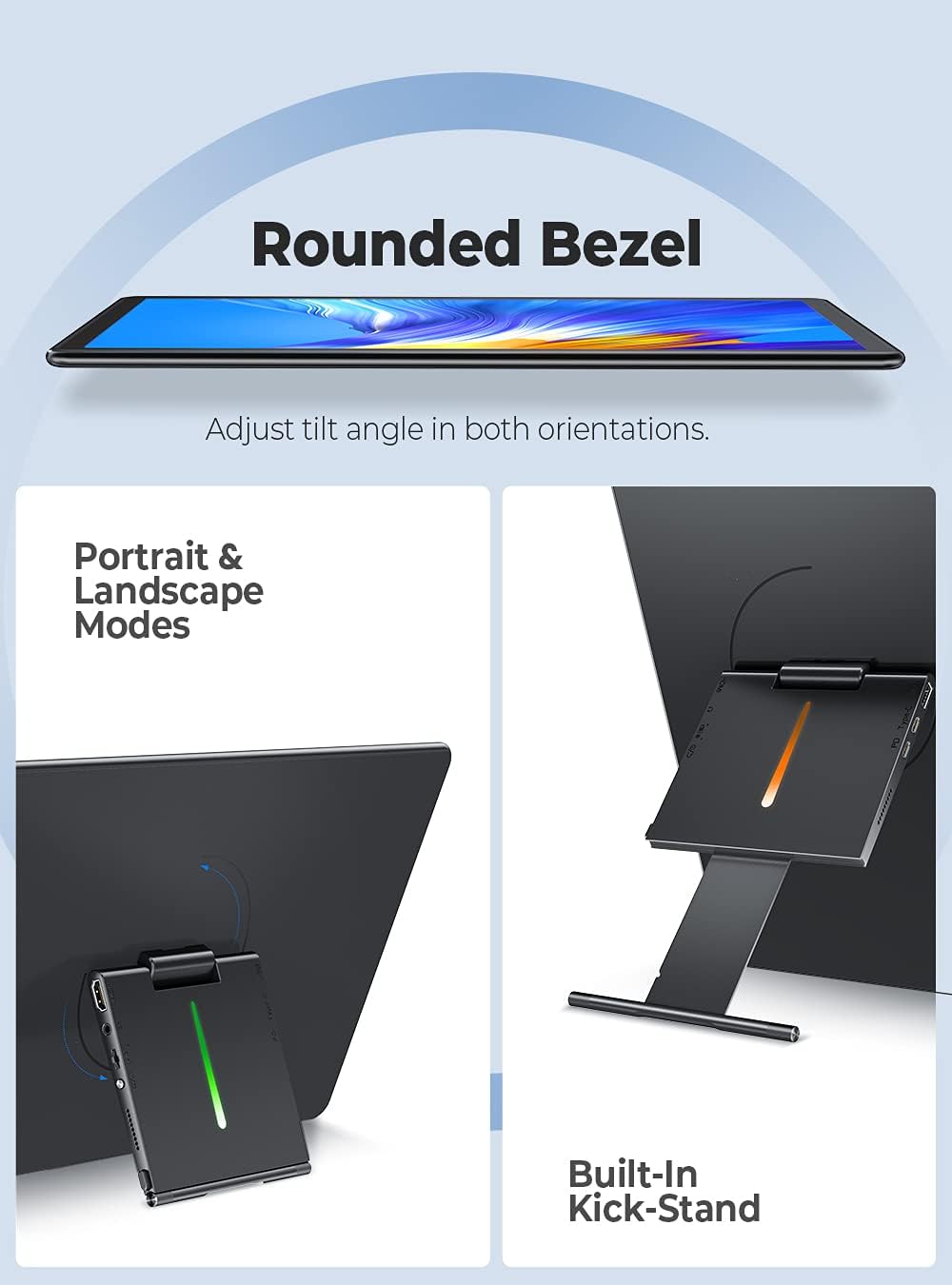
Image 3.5: The monitor's LED backlight feature.
4. Navodila za nastavitev
Follow these steps to set up your EVICIV Portable Touchscreen Monitor:
- Napajalni priključek: Connect the USB-C power adapter to the monitor's USB-C PD port. Ensure the monitor receives adequate power.
- Povezovanje z napravo:
- Using USB-C (Full Function): If your device (laptop, smartphone) has a full-featured USB-C port that supports DisplayPort Alternate Mode and power delivery, connect one of the provided USB-C to USB-C cables directly from your device to the monitor's USB-C port. This single cable can provide power, video, and touch functionality.
- Using HDMI and USB-A: If your device does not have a full-featured USB-C port, connect the HDMI cable from your device to the monitor's HDMI port for video output. For touch functionality, connect the USB-A end of the USB-A to USB-C cable to your device and the USB-C end to the monitor's USB-C data port. Ensure the monitor is also powered via its USB-C PD port.
- Začetni prikaz: Once connected, your device should automatically detect the monitor. If not, you may need to adjust display settings on your device (e.g., extend display, duplicate display).
- Touch Driver Installation: For Windows 10/11, the touch driver should install automatically when connected via USB. For other operating systems, specific drivers may be required.

Image 4.1: Connecting the monitor using USB and HDMI cables.
4.1. Video vodnik za nastavitev
For a visual guide on setting up your EVICIV Portable Touchscreen Monitor, please refer to the official product video below:
Video 4.1: Official EVICIV video demonstrating the 15.6-inch USB Type-C Portable Monitor's features and connectivity.
5. Navodila za uporabo
5.1. Vklop/izklop
Locate the power button on the side or back of the monitor. Press and hold for a few seconds to power on or off. A short press may activate or deactivate the display.
5.2. Zaslonski meni (OSD).
The OSD menu allows you to adjust various display settings. Typically, buttons on the side or back of the monitor are used to navigate and select options within the OSD. Common settings include:
- Svetlost/kontrast: Prilagodite raven svetlosti in kontrasta zaslona.
- Barvne nastavitve: Spremeni barvno temperaturo, odtenek in nasičenost.
- Vir vhoda: Ročno izberite med vhodoma USB-C in HDMI.
- obseg: Nadzorujte glasnost vgrajenih zvočnikov.
5.3. Funkcionalnost na dotik
The monitor supports 5-point multi-touch. Basic touch gestures include tapping to select, swiping to scroll, and pinch-to-zoom. Ensure the USB connection for touch is properly established for this feature to work.
5.4. Usmerjenost zaslona
The monitor can be used in both landscape and portrait modes. To switch orientation, physically rotate the monitor. Your operating system may automatically adjust the display orientation. If not, you can manually change it in your device's display settings.
6. Vzdrževanje
Pravilno vzdrževanje zagotavlja dolgo življenjsko dobo in optimalno delovanje vašega monitorja.
- Čiščenje zaslona: Uporabite mehko krpo, ki ne pušča vlaken in je posebej zasnovana za elektroniko. Rahlo obrišiteampen the cloth with water or a screen-cleaning solution. Avoid harsh chemicals, alcohol, or abrasive materials.
- Čiščenje telesa: Ohišje monitorja obrišite z mehko, suho krpo.
- Shranjevanje: When not in use, store the monitor in a clean, dry place away from direct sunlight and extreme temperatures. Consider using a protective sleeve or case for transport to prevent scratches and damage.
- Izogibajte se tekočinam: Do not spray liquids directly onto the monitor.
7. Odpravljanje težav
Če imate težave z monitorjem, si oglejte naslednje pogoste rešitve:
- Brez prikaza/črni zaslon:
- Ensure the monitor is properly powered and the power adapter is connected.
- Check all video cables (USB-C, HDMI) are securely connected to both the monitor and your device.
- Preverite, ali je v zaslonskem meniju monitorja izbran pravilen vhodni vir.
- Če je mogoče, preizkusite z drugim kablom ali napravo.
- Funkcija na dotik ne deluje:
- Ensure the USB connection for touch (USB-C to USB-C or USB-A to USB-C) is firmly connected.
- For Windows, check Device Manager to see if the touch screen driver is installed correctly. Reconnect the USB cable to trigger driver reinstallation.
- Some operating systems may require specific drivers or may not fully support multi-touch.
- Poor Image Quality/Incorrect Colors:
- Access the OSD menu and adjust brightness, contrast, and color settings.
- For optimal color, navigate to the OSD's color options, select 'User Settings', and adjust the RGB sliders. A common adjustment for better balance is setting Green to 70-80% while Red and Blue remain at 100%.
- Ensure your device's graphics settings are configured for the monitor's native resolution (1920x1080).
- Ni zvoka ali nizka glasnost:
- Check the volume settings in the monitor's OSD menu.
- Verify the audio output settings on your connected device.
- The built-in speakers are designed for basic audio; for higher quality sound, external speakers are recommended.
8. Specifikacije
| Funkcija | Podrobnost |
|---|---|
| Znamka | EVICIV |
| Številka modela | MDS-156B03 |
| Velikost zaslona | 15.6 palcev |
| Resolucija | FHD 1080p (1920 x 1080) |
| Razmerje stranic | 16:10 |
| Opis površine zaslona | Sijajni |
| Kontrastno razmerje | 2000:1 |
| Hitrost osveževanja | 60 Hz |
| Viewkota | 178 stopinj |
| Odzivni čas | 1 milisekund |
| Tehnologija povezljivosti | USB, HDMI, USB Type C |
| Posebne uporabe za izdelek | Gaming, Productivity |
| Vrsta namestitve | Desk Mount (Built-in Kick-Stand) |
| Total Number of HDMI Ports | 1 |
9. Garancija in podpora
EVICIV products are manufactured to high-quality standards. For specific warranty information, please refer to the warranty card included in your product packaging or visit the official EVICIV website. For technical support, troubleshooting assistance, or to inquire about replacement parts, please contact EVICIV customer service through the contact information provided on the official webspletno mesto ali vašo nakupovalno platformo.