
Uvod
This manual provides essential instructions for setting up, operating, maintaining, and troubleshooting your Surfans K7 Kids Tablet. Please read this guide thoroughly to ensure proper use and to maximize the tablet's features for a safe and engaging experience for children.
Konec izdelkaview
Ključne značilnosti
- Operacijski sistem Android 10.0: Provides a secure and fast user experience.
- 7-inch IPS FHD Display: Features a 1920 x 1200 resolution eye-care touchscreen with a 178-degree wide viewvhodni kot.
- Štirijedrni procesor: Ensures smooth performance for apps and games.
- 2GB RAM, 32GB ROM: Sufficient memory for multitasking and storage, expandable via MicroSD card.
- Dvojne kamere: Equipped with 2MP front and 5MP rear cameras for photos and video calls.
- Povezljivost: Includes Wi-Fi and Bluetooth for wireless connections.
- Pre-installed iWAWA App: Offers updated educational content including games, videos, e-books, drawing, puzzles, and creative arts.
- Dostop do trgovine Google Play: Allows downloading additional applications like YouTube Kids, Netflix, and Hulu.
- Parental Control Mode: Enables parents to manage content, set time limits, and customize child profiles.
- Durable Kid-Proof Case: Comes with a colorful, soft, and high-quality silicone case with an integrated 360-degree adjustable stand, suitable for children aged 2 to 10 years.

Image: The Surfans K7 Kids Tablet showcasing its GMS Certified Android 10.0 operating system and access to various applications via Google Play Store.

Image: The Surfans K7 Kids Tablet in use, illustrating its key features including quad-core processor, Android 10.0, 2GB RAM, 32GB ROM, WiFi, and Parent Mode.
Komponente tabličnega računalnika
Seznanite se s fizičnimi komponentami tabličnega računalnika:
- Gumb za vklop: Typically located on the side, used to turn the tablet on/off or put it to sleep/wake it up.
- Gumbi za glasnost: Prilagodite raven zvočnega izhoda.
- Vrata USB-C: For charging the tablet and connecting to a computer for data transfer.
- 3.5 mm avdio priključek: Za priklop slušalk ali zunanjih zvočnikov.
- Reža za kartico MicroSD: Allows for memory expansion using a compatible MicroSD card.
- Sprednja kamera: Used for video calls and taking selfies.
- Zadnja kamera: Za zajemanje fotografij in videoposnetkov.
- govornik: Provides audio output for media and notifications.
Nastavitev
1. Polnjenje tablice
Before first use, fully charge the tablet. Connect the provided USB cable to the tablet's USB-C port and the other end to the power adapter. Plug the adapter into a wall outlet. The battery indicator on the screen will show the charging status.
2. Vklop/izklop
- Za vklop: Press and hold the Power Button until the screen lights up and the Surfans logo appears.
- Za izklop: Press and hold the Power Button until a menu appears on the screen. Select "Power off" and confirm.
- Za spanje/zbujanje: Na kratko pritisnite gumb za vklop, da tablični računalnik preklopite v stanje mirovanja ali ga zbudite.
3. Začetna nastavitev
Upon first power-on, follow the on-screen prompts to configure basic settings:
- Izberite želeni jezik.
- Connect to a Wi-Fi network (see next step).
- Set up your Google account or create a new one. This is necessary for downloading apps from the Google Play Store.
- Review in sprejmite pogoje poslovanja.
4. Povezovanje z Wi-Fi
To connect your tablet to the internet:
- Pojdi na nastavitve.
- Dotaknite se Omrežje in internet.
- Izberite Wi-Fi in ga vklopite.
- The tablet will scan for available networks. Select your desired network from the list.
- Enter the Wi-Fi password if prompted, then tap Povežite se.
Navodila za uporabo
1. Osnovna navigacija
The Surfans K7 tablet uses a touchscreen for interaction:
- Tapnite: Za izbiro elementa, odpiranje aplikacije ali pritisk gumba se enkrat dotaknite zaslona.
- Povlecite: Za pomikanje po straneh, seznamih ali preklapljanje med začetnimi zasloni povlecite s prstom po zaslonu.
- Povečava s ščipanjem in ščipanjem prstov: Place two fingers on the screen and move them apart or together to zoom in or out.
- Obvestila in hitre nastavitve: Za dostop do obvestil in hitrih nastavitev (Wi-Fi, Bluetooth itd.) povlecite navzdol z vrha zaslona.
2. Downloading Apps from Google Play Store
With a Google account set up, you can download a wide variety of applications:
- Tapnite Trgovina Play ikono na začetnem zaslonu ali v predalu z aplikacijami.
- Browse or search for apps, games, movies, and books.
- Select an item and tap Namestite da ga prenesete in namestite.
3. Using Pre-installed iWAWA App
The iWAWA app provides a safe and engaging environment for children:
- Poiščite in tapnite iWAWA ikona.
- Explore the various categories such as games, videos, e-books, and creative activities.
- Content within iWAWA is curated to be age-appropriate and educational.
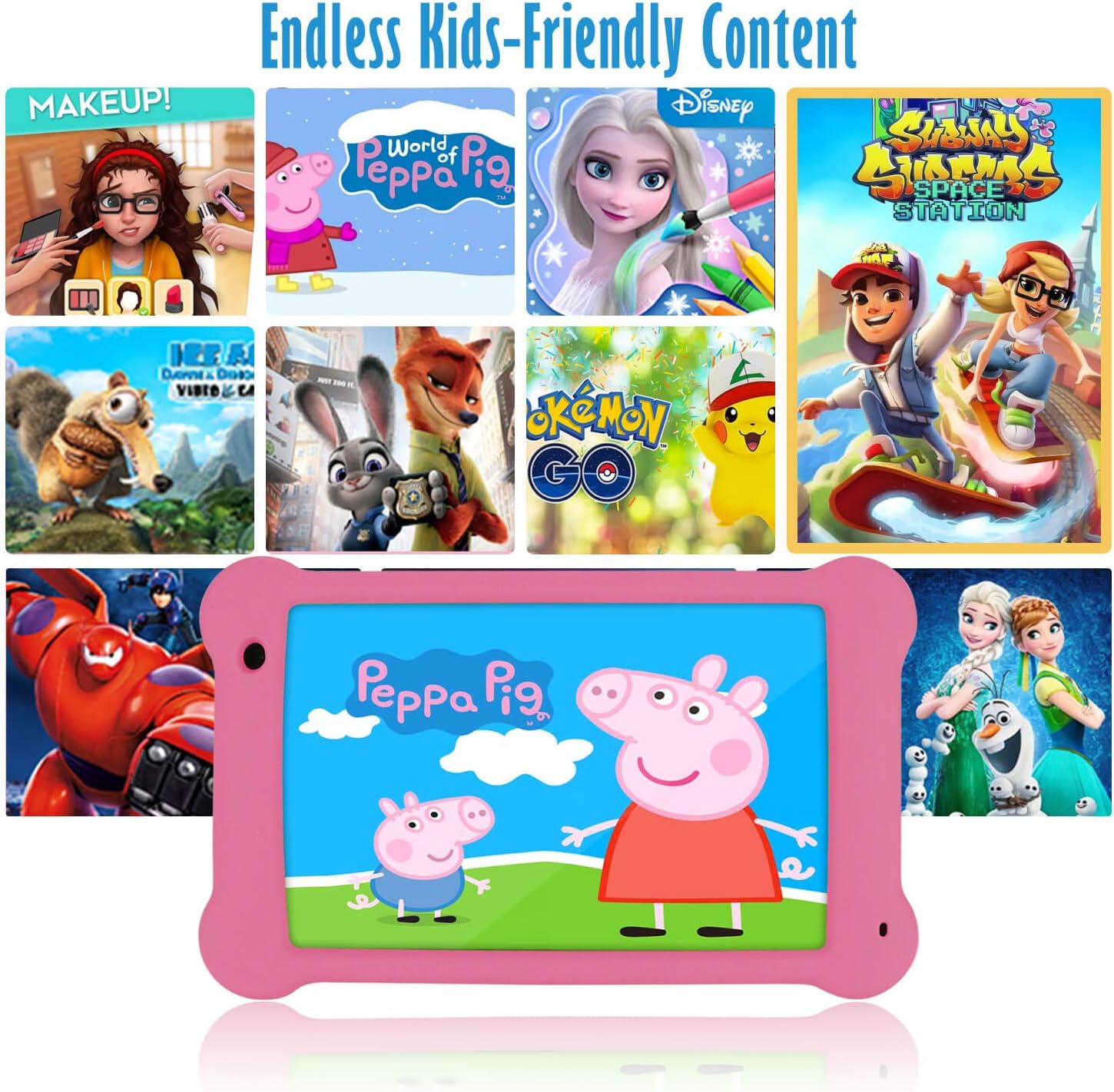
Image: The Surfans K7 Kids Tablet showcasing a variety of popular kid-friendly content, accessible through pre-installed apps and Google Play Store.
Način starševskega nadzora
The Surfans K7 tablet includes a dedicated Parental Control Mode to manage your child's usage and ensure a safe digital environment.
1. Accessing Parental Mode
To access and configure parental controls:
- Poiščite in odprite Matične način or iWAWA Parent aplikacijo na tablici.
- You will be prompted to set up a password or PIN for secure access. Remember this password.
2. Setting Time Limits
Manage how long your child can use the tablet:
- Configure daily usage limits for the tablet.
- Set specific time blocks during which the tablet can or cannot be used (e.g., bedtime restrictions).
3. Content Filtering
Ensure your child accesses only appropriate content:
- Select and approve specific applications, websites, and media content that your child is allowed to access.
- Block inappropriate content categories or specific webstrani.
4. Managing Child Profiles
Create personalized experiences for each child:
- Ustvarite individualne profiles for multiple children.
- Customize settings, content access, and time limits for each profile based on age and preferences.

Image: A parent and child using the Surfans K7 Kids Tablet, demonstrating the ease of setting up and managing parental controls for time limits, child lock, and content filtering.
Vzdrževanje
1. Čiščenje tabličnega računalnika
To keep your tablet clean and functional:
- Use a soft, lint-free cloth (e.g., microfiber cloth) to gently wipe the screen and tablet body.
- Za trdovratne madeže rahlo dampen the cloth with water. Avoid using harsh chemicals, abrasive cleaners, or excessive moisture, as these can damage the screen or internal components.
- Pred čiščenjem se prepričajte, da je tablični računalnik izklopljen in izklopljen iz električnega omrežja.
2. Skrb za baterijo
Proper battery care extends the tablet's lifespan:
- Avoid fully discharging the tablet frequently. Charge the tablet when the battery level is low (e.g., below 20%).
- Do not expose the tablet to extreme temperatures (hot or cold), as this can degrade battery performance.
- Uporabljajte samo priloženi polnilnik ali certificiran združljiv polnilnik.
3. Posodobitve programske opreme
Keep your tablet's software up-to-date for optimal performance and security:
- Periodically check for system updates by going to Nastavitve > Sistem > Posodobitev sistema.
- Preden začnete s posodabljanjem, se prepričajte, da je tablični računalnik povezan z omrežjem Wi-Fi in da je baterija dovolj napolnjena.
4. Protective Case Care
The included kid-proof silicone case offers protection:
- Očistite ohišje z oglasomamp krpo, če se umaže.
- Ensure the case is properly fitted around the tablet to provide maximum protection against drops and bumps.

Slika: Podrobna view of the Surfans K7 Kids Tablet's durable kid-proof case, highlighting its soft silicone material and anti-drop corner design for enhanced protection.
Odpravljanje težav
This section addresses common issues you might encounter with your Surfans K7 Kids Tablet.
Tablični računalnik se ne vklopi
- Preverite baterijo: Prepričajte se, da je tablični računalnik napolnjen. Priključite ga na polnilnik za vsaj 30 minut, nato pa ga poskusite znova vklopiti.
- Prisilni ponovni zagon: Press and hold the Power Button for about 10-15 seconds until the tablet restarts.
Screen is Black but Audio is Playing
This can sometimes occur:
- Briefly press the Power Button to put the screen to sleep, then press it again to wake it up.
- If the issue persists, perform a force restart by pressing and holding the Power Button for 10-15 seconds.
Težave s povezavo Wi-Fi
- Omogoči Wi-Fi: Pojdi na Nastavitve > Omrežje in internet > Wi-Fi and ensure Wi-Fi is turned on.
- Znova zaženite usmerjevalnik: Znova zaženite usmerjevalnik in modem Wi-Fi.
- Pozabi omrežje: Go to Wi-Fi settings, tap on your network, and select "Forget network." Then, reconnect to the network and re-enter the password.
- Moč signala: If the signal is weak, move closer to your Wi-Fi router.
Apps Are Slow or Crashing
- Zapri neuporabljene aplikacije: Swipe up from the bottom of the screen (or tap the square navigation button) to view recent apps, then swipe them away to close.
- Znova zaženite tablični računalnik: A simple restart can often resolve performance issues.
- Počisti predpomnilnik aplikacije: Pojdi na Nastavitve > Aplikacije > [Ime aplikacije] > Pomnilnik in predpomnilnik > Počisti predpomnilnik.
Tablet is Unresponsive
If the tablet freezes and does not respond to touch:
- Perform a force restart by pressing and holding the Power Button for approximately 10-15 seconds until the device powers off and restarts.
Ponastavitev na tovarniške nastavitve (zadnja možnost)
If all other troubleshooting steps fail, a factory reset may be necessary. Warning: This will erase all data on the tablet, including apps, photos, and user settings. Back up any important data before proceeding.
- Pojdi na Nastavitve > Sistem > Možnosti ponastavitve.
- Tapnite Izbriši vse podatke (ponastavitev na tovarniške nastavitve).
- Potrdite svojo odločitev in sledite navodilom na zaslonu.
Specifikacije

Image: Visual comparison highlighting the superior clarity of the 1920x1200 FHD IPS display with a 178-degree wide viewing angle on the Surfans K7 Kids Tablet.
| Funkcija | Specifikacija |
|---|---|
| Znamka | Surfans |
| Ime modela | K7 |
| Operacijski sistem | Android 10.0 |
| Velikost zaslona | 7 palcev |
| Največja ločljivost zaslona | 1920 x 1200 slikovnih pik |
| Znamka procesorja | ARM (Quad-core 1.6GHz) |
| Nameščen RAM pomnilnik | 2 GB |
| Zmogljivost pomnilnika | 32 GB |
| Razširljiv prostor za shranjevanje | Reža za kartico MicroSD |
| Front Photo Sensor Resolution | 2 MP |
| Maks Webcam ločljivost slike | 5 MP |
| Ločljivost video posnetka | FHD 1080p |
| Tehnologija povezljivosti | Bluetooth, USB, Wi-Fi |
| Brezžična združljivost | 802.11a/b/g/n |
| Strojna povezljivost | 3.5 mm Audio Jack, USB-C Port |
| Vrsta baterije | Litijev polimer |
| Kapaciteta baterije | 3000 mAh |
| Povprečna življenjska doba baterije | 8 ur |
| Teža predmeta | 450 gramov |
| barva | Roza |
| Opis starostne skupine | Baby, Children (2-10 years) |
Garancija in podpora
The Surfans K7 Kids Tablet comes with a standard manufacturer's warranty. For specific warranty terms, conditions, and duration, please refer to the warranty card included in the product packaging or contact Surfans customer support.
For technical assistance, troubleshooting beyond this manual, or further inquiries, please visit the official Surfans webali se obrnite na njihovo službo za pomoč strankam prek kontaktnih podatkov, ki ste jih prejeli ob nakupu ali na njihovi webmesto.