
Uvod
This manual provides comprehensive instructions for the Vivitar Podcast and Social Media Microphone MIC918. This high-quality condenser microphone is designed for clear audio capture for various applications, including podcasting, live streaming, gaming, voice-overs, and vocal recording. It features a simple plug-and-play USB connection, integrated volume control, and a stable tripod stand for optimal positioning.
Varnostne informacije
- Mikrofona ne izpostavljajte vodi ali prekomerni vlagi.
- Izogibajte se ekstremnim temperaturam ali neposredni sončni svetlobi.
- Ne poskušajte razstavljati ali spreminjati mikrofona. S tem boste razveljavili garancijo.
- Mikrofon ne izpostavljajte močnim magnetnim poljem.
- Za čiščenje uporabljajte samo mehko, suho krpo.
Konec izdelkaview
Vsebina paketa
- Vivitar MIC918 Microphone Unit
- Stojalo za stativ
- Integrated USB Connection Cable
Microphone Components
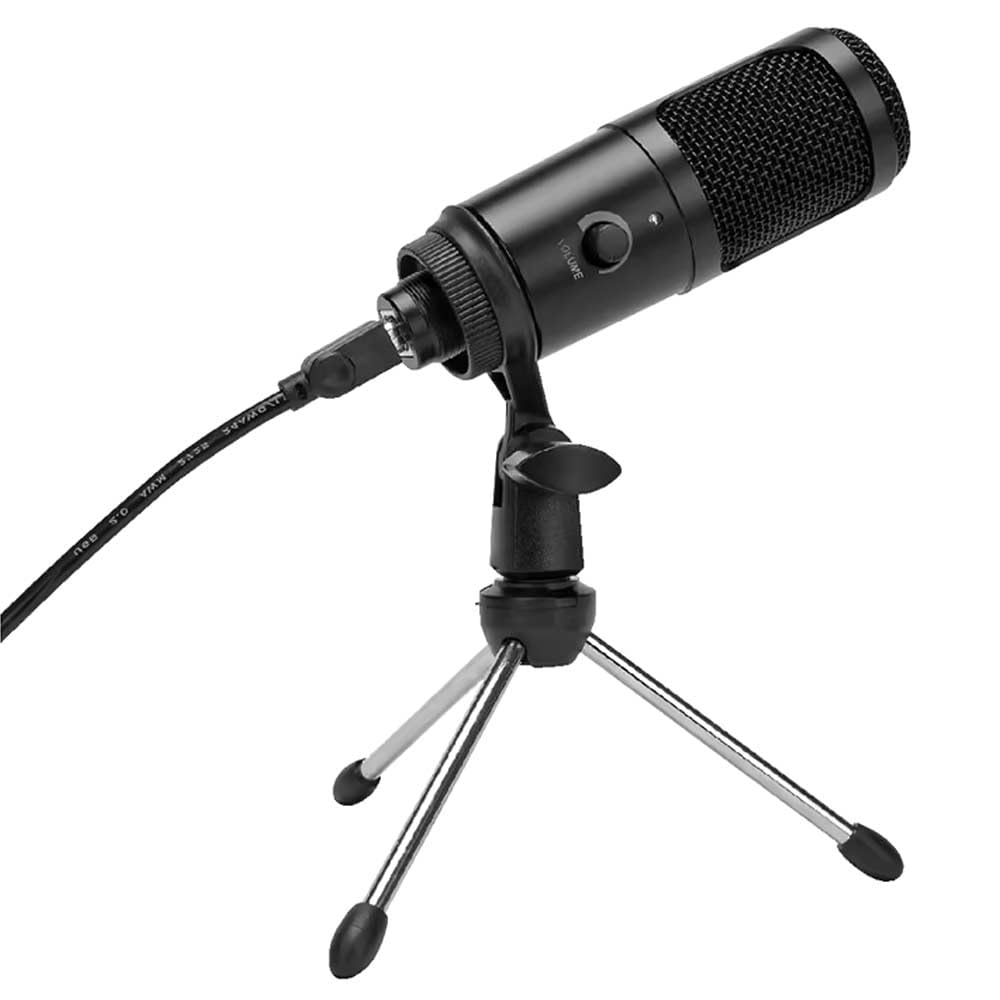
Slika 1: Vivitar MIC918 Microphone unit attached to its tripod stand, showing the integrated USB cable.

Slika 2: Stran view of the Vivitar MIC918 Microphone, highlighting the volume control knob and the Vivitar brand logo.
The microphone unit features a durable metal construction. The front side includes a volume control knob for easy audio level adjustments. The microphone is designed with a unidirectional polar pattern to focus on sound directly in front of it, reducing background noise.
Nastavitev
Priključitev mikrofona
- Sestavite stojalo: If not already assembled, unfold the tripod stand and ensure it is stable on a flat surface. Securely attach the microphone unit to the stand's mounting point. The rotating shaft ring allows for angle adjustment.
- Povežite se z napravo: Plug the integrated USB cable from the microphone into an available USB port on your computer, laptop, or compatible gaming console.
- Plug and Play: The Vivitar MIC918 is a plug-and-play device. Your operating system (Windows, macOS, etc.) should automatically detect and install the necessary drivers. No additional software installation is typically required.
- Izberite kot vhodno napravo: After connecting, navigate to your device's sound settings or the audio settings within your recording/streaming software. Select the "Vivitar MIC918" or similar USB audio device as your primary input (microphone) device.
Delovanje
Prilagoditev glasnosti
The microphone features a built-in volume control knob located on its side (refer to Figure 2). Rotate this knob clockwise to increase the microphone's input sensitivity (volume) and counter-clockwise to decrease it. Adjust this to achieve the desired recording level without distortion.
Namestitev mikrofona
For optimal audio capture, position the microphone directly in front of the sound source (e.g., your mouth for speaking or singing). The tilting tripod stand allows you to adjust the microphone's angle to best suit your needs. Due to its unidirectional polar pattern, the microphone is most sensitive to sounds coming from the front and less sensitive to sounds from the sides or rear, helping to minimize ambient noise.
Vzdrževanje
- Čiščenje: Use a soft, dry, lint-free cloth to wipe the microphone's exterior. Do not use liquid cleaners, aerosols, or solvents.
- Shranjevanje: When not in use, store the microphone in a clean, dry place, away from dust and extreme temperatures.
- Ravnanje: Z mikrofonom ravnajte previdno. Pazite, da vam ne pade ali da ga ne izpostavljate močnim udarcem.
Odpravljanje težav
| Težava | Možen vzrok | rešitev |
|---|---|---|
| Iz mikrofona ni zvoka. | Mikrofon ni pravilno priključen. Izbrana je napačna vhodna naprava. Glasnost mikrofona je prenizka. | Ensure USB cable is securely plugged into both the microphone and the device. Verify that "Vivitar MIC918" is selected as the input device in your system's sound settings or recording software. Increase the volume using the knob on the microphone and check system input levels. |
| Poor sound quality (e.g., muffled, too quiet, background noise). | Nepravilna postavitev mikrofona. High ambient noise. Input level too high or too low. | Position the microphone closer to the sound source and ensure it's facing directly towards it. Snemajte v tišjem okolju. Adjust the microphone's volume knob and system input levels to an optimal range, avoiding clipping or being too faint. |
| Računalnik ne prepozna mikrofona. | Okvarjena vrata USB ali kabel. System driver issue. | Poskusite priključiti mikrofon na druga vrata USB v računalniku. Restart your computer. If the issue persists, check your operating system's device manager for any driver conflicts or updates. |
Specifikacije
| Funkcija | Specifikacija |
|---|---|
| Znamka | Vivitar |
| Številka modela | MIC918 |
| Povezljivost | USB (priklopi in poženi) |
| Vrsta mikrofona | Kondenzator |
| Polarni vzorec | Enosmerno |
| Razmerje med signalom in hrupom | 78 dB |
| Material ohišja | Kovina |
| Teža predmeta | 0.95 funta (približno 0.43 kg) |
| Mere predmeta (D x Š x V) | 8.86 x 5.36 x 2.49 palca (približno 22.5 x 13.6 x 6.3 cm) |
| Vir napajanja | Električni z žico (prek USB-ja) |
| Združljive naprave | Computers, Laptops, Gaming Consoles |
Informacije o garanciji
The Vivitar Podcast and Social Media Microphone MIC918 comes with a 3-Year USA Warranty. For specific terms, conditions, and to register your product, please refer to the official Vivitar webspletno mesto ali se obrnite neposredno na njihovo podporo strankam. Shranite dokazilo o nakupu za uveljavljanje garancije.
Podpora uporabnikom
For further assistance, technical support, or inquiries regarding your Vivitar MIC918 microphone, please visit the official Vivitar website or contact their customer service department. Contact information can typically be found on the Vivitar website under the 'Support' or 'Contact Us' sections.