
1. Izdelek je končanview
The Cosmic Byte Callisto Wireless Gamepad is designed for an immersive gaming experience on Windows PC. It features an ergonomic design for comfortable extended play, sensitive triggers for precise control, and customizable macro keys for personalized gameplay.

Image: Cosmic Byte Callisto Wireless Gamepad with its USB dongle.
Ključne značilnosti:
- Ergonomic Design and Textured Grip: Provides comfort and a secure hold during long gaming sessions.
- Sensitive Triggers and Accurate Analog Sticks: Ensures precise control and responsiveness in games.
- Customisable Macro Keys: Two programmable buttons (K1, K2) located on the back of the controller for personalized commands.
- Vibration Feature: Offers tactile feedback for enhanced immersion.
- Zero Lag Connection: Achieved via the included USB dongle for seamless wireless gameplay.
- Brezžični doseg: Operates effectively within a 6-8 meter range.
- LED Backlit Buttons: Enhances visibility and aesthetic appeal.
2. Kaj je v škatli
Upon opening your Cosmic Byte Callisto Wireless Gamepad package, you should find the following items:
- Cosmic Byte Callisto Wireless Gamepad
- USB ključ
- Polnilni kabel
- Uporabniški priročnik (ta dokument)

Image: The gamepad, USB dongle, and charging cable as found in the box.
3. Navodila za namestitev
3.1 Polnjenje igralne plošče
Before initial use, ensure your gamepad is fully charged.
- Connect the small end of the provided charging cable to the charging port on the front of the gamepad.
- Connect the larger USB end of the charging cable to a USB power source (e.g., PC USB port, USB wall adapter).
- The LED indicators on the gamepad will illuminate to show charging status. They will typically stop blinking or change color once fully charged.
3.2 Connecting to a Windows PC
The Callisto Wireless Gamepad connects to your PC via a dedicated USB dongle.
- Insert the USB dongle into an available USB port on your Windows PC.
- Press and hold the Home button (Cosmic Byte logo) on the gamepad to power it on.
- The gamepad will automatically attempt to connect to the USB dongle. The LED indicators will flash during pairing and become solid once a connection is established.
- Your Windows PC should automatically detect the gamepad and install any necessary drivers. This process may take a few moments.
- Once connected, the gamepad is ready for use in compatible games.
4. Navodila za uporabo
4.1 Osnovne kontrole
Familiarize yourself with the standard layout of the gamepad:
- Leva/desna analogna palica: Za gibanje in nadzor kamere.
- D-pad: Za smerni vnos, pogosto uporabljen v menijih ali za določena dejanja v igri.
- Gumbi za dejanja (A, B, X, Y): For primary game actions.
- Ramenski gumbi (L1, R1) in sprožilci (L2, R2): For various in-game functions, with L2/R2 offering sensitive, analog input.
- Gumbi Start/Nazaj: For pausing games, accessing menus, or specific in-game commands.
- Domov gumb: Powers the gamepad on/off and can open system menus.

Slika: spredaj view of the gamepad highlighting the main buttons and analog sticks.
4.2 Programmable Macro Keys (K1, K2)
The Callisto Wireless Gamepad features two customizable macro keys (K1 and K2) on the back, allowing you to assign complex button sequences or single button functions for quick access.
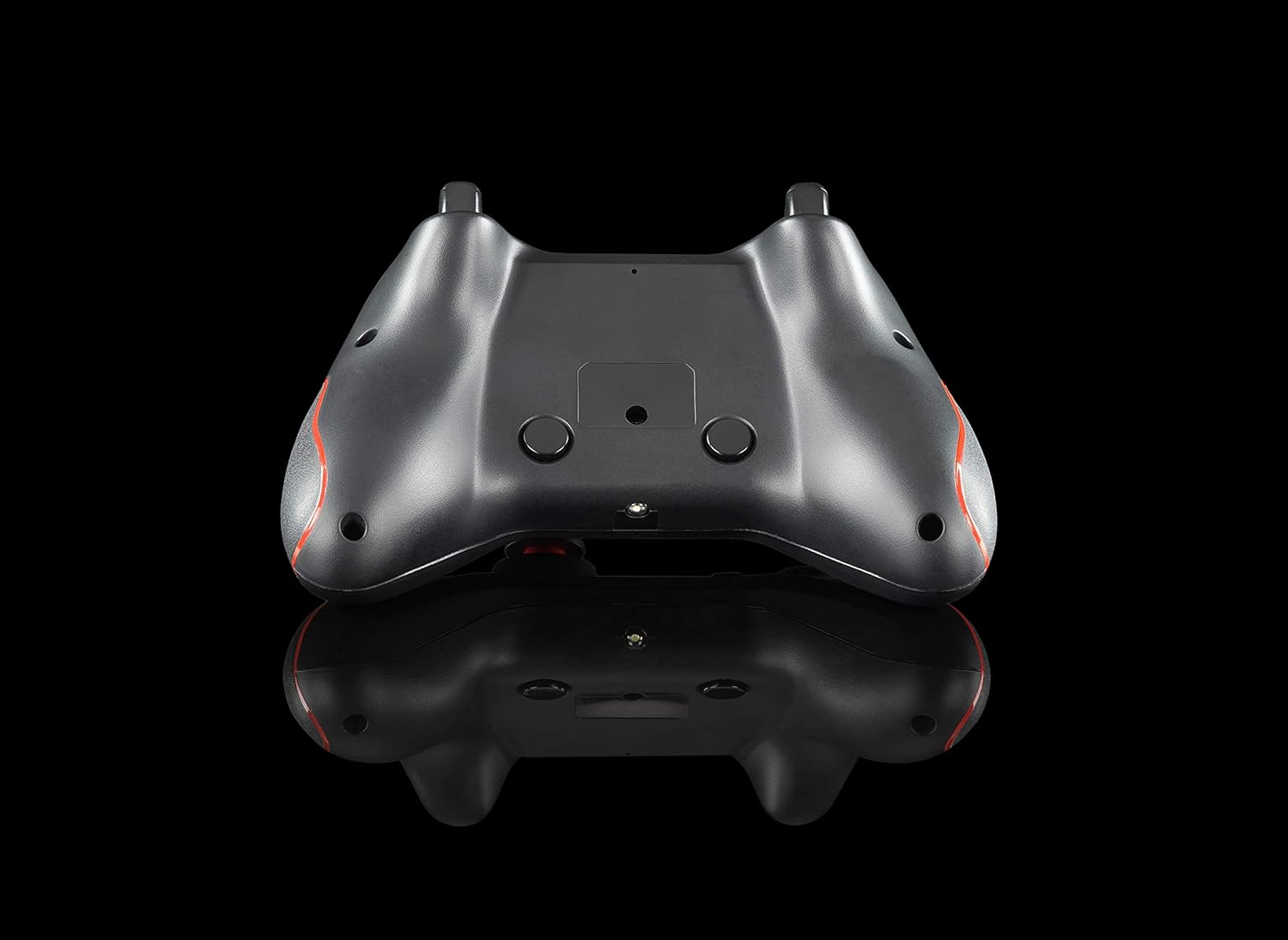
Slika: Nazaj view of the gamepad, showing the K1 and K2 macro keys.
To program a macro key (specific instructions may vary slightly, refer to the physical manual for exact steps):
- Press and hold the 'Program' button (if available, or a specific combination like 'Turbo' + 'Macro Key').
- Press the macro key (K1 or K2) you wish to program.
- Input the desired button sequence or single button press.
- Press the 'Program' button again to save the macro.
4.3 Funkcija Turbo
The Turbo function allows for rapid, repeated pressing of a button with a single hold. To activate/deactivate:
- Aktiviraj: Press and hold the 'Turbo' button, then press the desired action button (e.g., A, B, X, Y, L1, R1, L2, R2). The button will now rapidly repeat its action when held down.
- Deaktiviraj: Press and hold the 'Turbo' button again, then press the same action button. The Turbo function for that button will be turned off.
4.4 LED Backlighting
The action buttons feature LED backlighting. To toggle the LED lights on or off, press the 'Back' button and the 'A' button simultaneously.
5. Vzdrževanje
To ensure the longevity and optimal performance of your Cosmic Byte Callisto Wireless Gamepad, follow these maintenance guidelines:
- Čiščenje: Use a soft, dry cloth to wipe down the gamepad. Avoid using abrasive cleaners, solvents, or harsh chemicals, as these can damage the surface and internal components.
- Shranjevanje: Igralno palico shranjujte na hladnem in suhem mestu, stran od neposredne sončne svetlobe, ekstremnih temperatur in visoke vlažnosti.
- Vzdrževanje baterije: Avoid completely draining the battery frequently. Charge the gamepad regularly, even if not in constant use, to maintain battery health. Do not attempt to replace the internal battery yourself.
- Ravnajte previdno: Igralni plošček ne sme spustiti ali biti izpostavljen močnim udarcem, saj lahko to povzroči notranje poškodbe.
6. Odpravljanje težav
If you encounter issues with your gamepad, refer to the following common troubleshooting steps:
- Igralna konzola se ne povezuje:
- Ensure the USB dongle is securely inserted into a working USB port on your PC.
- Check if the gamepad battery is charged. Connect it to the charging cable.
- Poskusite znova zagnati računalnik.
- Test the USB dongle in a different USB port.
- Buttons Unresponsive or Laggy:
- Verify the gamepad is properly connected to the PC (solid LED indicator).
- Ensure there are no physical obstructions preventing button presses.
- Check game settings to ensure gamepad input is enabled and configured correctly.
- Vibration Feature Not Working:
- Preverite, ali igra, ki jo igrate, podpira vibracijske povratne informacije.
- Preverite nastavitve v igri, da se prepričate, da je vibracija omogočena.
- Ensure the gamepad is fully charged and properly connected.
- Macro Keys Not Programming Correctly:
- Review the macro programming steps in Section 4.2 carefully.
- Note that some games or applications may not fully support custom macro inputs.
7. Specifikacije
| Funkcija | Podrobnost |
|---|---|
| Znamka | Kozmični bajt |
| Ime modela | Callisto Wireless |
| Združljive naprave | Računalnik (Windows) |
| Vrsta krmilnika | Igralni plošček |
| Tehnologija povezljivosti | WiFi (via USB Dongle) |
| Lastnosti izdelka | Wireless, Programmable Buttons, Vibration, Ergonomic Design |
| Platforma strojne opreme | Namizje |
| Vrsta vira napajanja | Wireless (Rechargeable Battery) |
| Teža predmeta | 220 gramov |
| Količina paketa artikla | 1 |
| Mere predmeta | 15.6 x 10.5 x 5.5 centimetrov |
| barva | Črna |
8. Videoposnetki izdelkov
8.1 izdelkov konecview
Video: Kratek pregled izdelkaview of the Cosmic Byte Callisto Wireless Gamepad, highlighting its main features and contents.
8.2 Tech Demo
Video: A technical demonstration of the Cosmic Byte Callisto Wireless Gamepad, showcasing its features like programmable buttons, sensitive triggers, and wireless connectivity.
9. Garancija in podpora
9.1 Informacije o garanciji
The Cosmic Byte Callisto Wireless Gamepad comes with a 1-letna garancija na proizvodne napake od datuma nakupa. Za uveljavljanje garancije shranite račun.
9.2 Podpora strankam
For any support, queries, or warranty claims, please contact Cosmic Byte customer service:
- Webspletno mesto: Visit the official Cosmic Byte webspletno mesto na www.thecosmicbyte.com and navigate to their customer support portal.
- E-pošta: You can also directly email customer care at cc@thecosmicbyte.com.
Video: An animated guide on how to initiate a warranty claim with Cosmic Byte, detailing the steps to contact customer support and process a replacement.