
TERIOS T-12
TERIOS Mobile Game Controller User Manual
Model: T-12
Uvod
Welcome to your new TERIOS Mobile Game Controller. This manual provides detailed instructions for setup, operation, and maintenance to ensure optimal performance and an enhanced gaming experience across various platforms including Android smartphones, Windows PCs, and PlayStation 3 consoles. Please read this manual thoroughly before using the device.
Ključne značilnosti
- Innovative Gaming: Designed to enrich your mobile gaming experience with precision and responsiveness.
- Široka združljivost: Connects via Bluetooth 4.0 to Android smartphones, and is compatible with Windows PC and PlayStation 3. Supports popular games like PUBG, Call of Duty, and Mobile Legends.
- Gaming Joysticks: Features dual analog sticks for comprehensive and precise control.
- Ergonomska oblika: Comfortable grip with an integrated smartphone holder for extended gaming sessions.
- Turbo funkcija: Allows for rapid, continuous input with a single button press.
- Responsive Active Buttons: Includes 2 quick access buttons on the back and numerous action buttons for enhanced accuracy.
- Dolga življenjska doba baterije: Do 12 ur neprekinjenega predvajanja z enim polnjenjem.
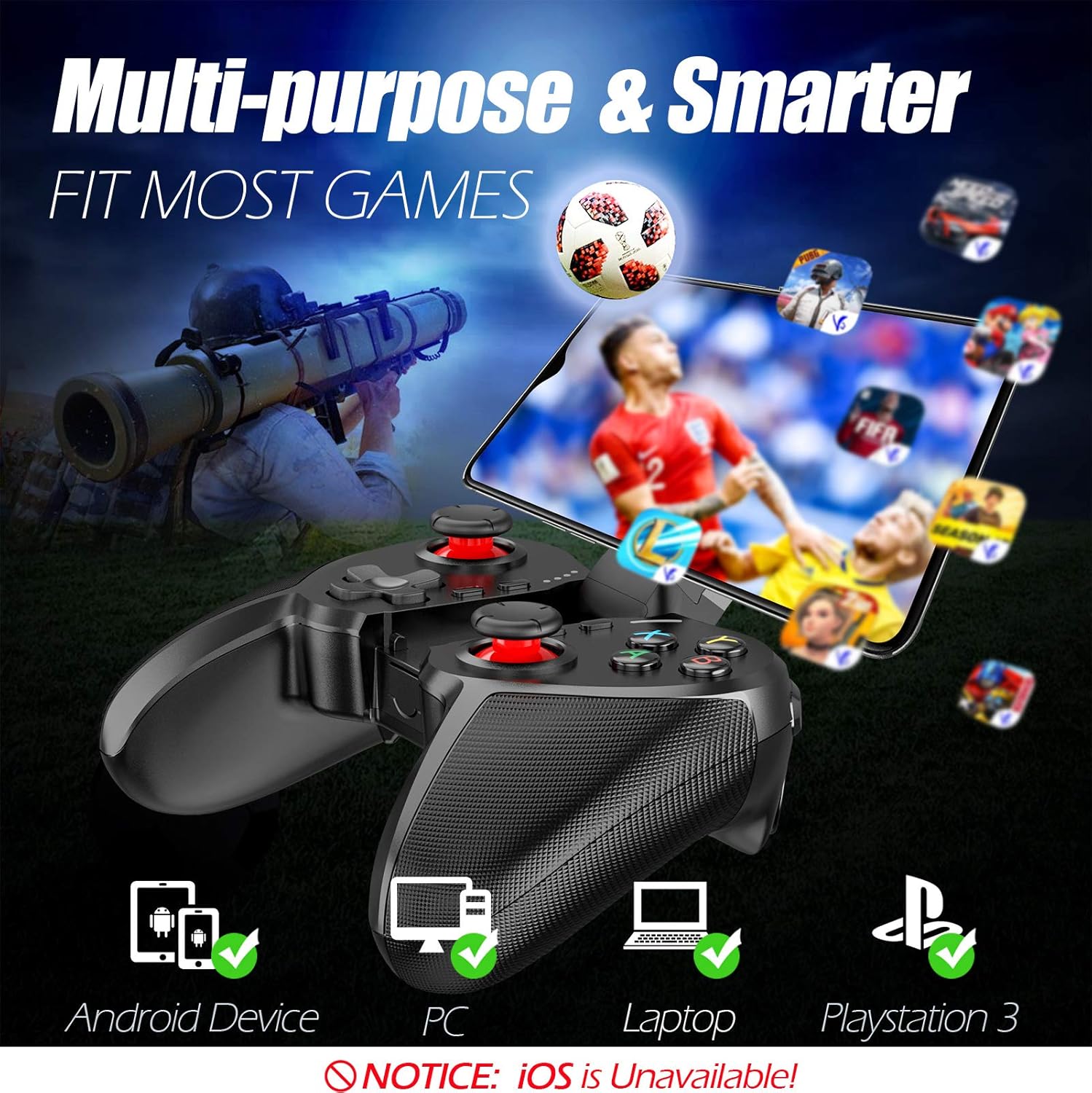
Figure 1: The TERIOS controller is compatible with Android devices, PCs, Laptops, and PlayStation 3.

Figure 2: Detail of the controller's built-in smartphone bracket, accurate buttons, and comfortable soft rubber grips.
Nastavitev in povezava
1. Polnjenje krmilnika
Before first use, fully charge the controller. Connect the provided Micro USB cable to the controller's charging port and the other end to a USB power source (e.g., computer USB port, USB wall adapter). The indicator lights will show charging status and turn off when fully charged.

Figure 3: The controller features a 400mAh battery, providing 12-14 hours of playtime with a 2-3 hour charging time.
2. Vklop/izklop
- Za vklop: Pritisnite in držite DOMOV button for 2 seconds. The indicator lights will flash.
- Za izklop: Pritisnite in držite DOMOV button for 5 seconds until the indicator lights turn off. The controller will automatically power off after 5 minutes of inactivity.
3. Bluetooth Pairing (Android Smartphones / PS3)
- Prepričajte se, da je krmilnik izklopljen.
- On your Android smartphone or PS3, enable Bluetooth.
- Pritisnite in držite DOMOV button on the controller until the indicator lights flash rapidly, indicating pairing mode.
- On your device, search for new Bluetooth devices. Select "TERIOS Gamepad" or similar from the list.
- Ko je povezava vzpostavljena, bo indikatorska lučka začela neprekinjeno svetiti.
4. Povezava z računalnikom
For PC connection, the controller typically uses a USB dongle (often included). Insert the USB dongle into an available USB port on your PC. The controller should automatically connect. If not, press the DOMOV button to initiate connection.
5. Initial Setup and App (V3 App)
For optimal customization and compatibility with certain mobile games, it is recommended to download the V3 app from the Google Play Store. This app allows you to map virtual keys on your screen to the physical buttons of the controller.
- Download the "V3" app from the Google Play Store.
- Connect the TERIOS gamepad to your smartphone via Bluetooth.
- Open the V3 app and follow the on-screen instructions to customize key mappings for your desired games.

Figure 4: The V3 app allows for easy customization of virtual keys to match controller buttons, creating more combinations.
Navodila za uporabo
1. Razporeditev in funkcije gumbov

Figure 5: The TERIOS Mobile Game Controller with a smartphone securely mounted in its integrated holder.
- Leva analogna palica: Primarni nadzor gibanja.
- Desna analogna palica: Nadzor kamere ali sekundarno gibanje.
- D-pad (smerna ploščica): Precise directional input.
- Gumbi ABXY: Standardni akcijski gumbi (A, B, X, Y).
- L1/L2, R1/R2 Buttons: Ramenski in sprožilni gumbi za različna dejanja v igri.
- Gumb SELECT: Običajno se uporablja za navigacijo po menijih ali za določene funkcije igre.
- Gumb START: Običajno se uporablja za začasno ustavitev iger ali dostop do menijev.
- Gumb HOME: Powers on/off, enters pairing mode, and returns to home screen on some devices.
- Gumb TURBO: Activates the turbo function for other buttons.
- Gumb CLEAR: Deactivates the turbo function.

Figure 6: The dual analog sticks are designed for precise control and execution in games.
2. Funkcija Turbo
The Turbo function allows a button to be pressed repeatedly as long as you hold it down, which is useful for rapid-fire actions in games.
- Aktiviranje: Pritisnite in držite TURBO button, then press the desired action button (e.g., A, B, X, Y, L1, R1). Release both buttons. Now, holding down the action button will activate turbo fire.
- Za deaktivacijo: Pritisnite in držite ČISTO button, then press the action button for which turbo was activated. Release both buttons.

Figure 7: The dedicated Turbo button enables rapid-fire functionality with one click.
3. Smartphone Holder Usage
The integrated smartphone holder can accommodate most smartphone sizes. Gently extend the holder and place your smartphone securely within the clamps. Ensure the phone is centered for balance.
Vzdrževanje
- Čiščenje: Za čiščenje krmilnika uporabite mehko, suho krpo. Ne uporabljajte abrazivnih čistil ali topil.
- Shranjevanje: Krmilnik shranjujte na hladnem in suhem mestu, stran od neposredne sončne svetlobe in ekstremnih temperatur.
- Vzdrževanje baterije: Da podaljšate življenjsko dobo baterije, se izogibajte pogostemu popolnemu praznjenju krmilnika. Redno ga polnite, tudi če ga dalj časa ne uporabljate.
Odpravljanje težav
| Izdaja | Možen vzrok | rešitev |
|---|---|---|
| Controller not connecting via Bluetooth. | Controller not in pairing mode; device Bluetooth off; interference. | Ensure controller is in pairing mode (rapid flashing lights). Check device Bluetooth settings. Move closer to the device. Try restarting both controller and device. |
| Gumbi se ne odzivajo ali pa se odzivajo z zakasnitvijo. | Low battery; software glitch; interference. | Charge the controller fully. Restart the controller. Ensure no other strong wireless signals are nearby. For mobile games, check V3 app settings. |
| Krmilnik se pogosto odklopi. | Prazna baterija; predaleč od naprave; motnje. | Charge the controller. Stay within the recommended Bluetooth range. Minimize wireless interference. |
| Funkcija Turbo ne deluje. | Incorrect activation sequence; button not supported. | Ensure you press and hold TURBO, then press the desired action button, then release both. Some games or buttons may not fully support turbo. |
Specifikacije izdelka
| Funkcija | Podrobnost |
|---|---|
| Znamka | TERIOS |
| Model | T-12 |
| Tehnologija povezljivosti | Bluetooth 4.0 |
| Združljive naprave | Android Smartphones, Windows PC, PlayStation 3 |
| Vir napajanja | Napajanje z baterijo (litijev polimer) |
| Kapaciteta baterije | 400mAh (approx. 1.48 Watt Hours) |
| Igralni čas | Do 12-14 ure |
| Čas polnjenja | 2-3 ur |
| Število gumbov | 16 (including ABXY, D-pad, analog sticks, L/R triggers/bumpers, Select, Start, Home, Turbo, Clear) |
| Posebne lastnosti | Turbo Function, Dual Analog Sticks, In-built Smartphone Holder, Responsive Action Buttons |
| Dimenzije (paket) | 17 x 12.4 x 7.7 cm |
| Teža (paket) | 310 g |
Informacije o garanciji in podpori
The TERIOS Mobile Game Controller is designed for durability and performance. For any product-related inquiries, technical support, or warranty claims, please refer to the contact information provided with your purchase or visit the official TERIOS support webspletnega mesta. Za namene garancije shranite dokazilo o nakupu.
Ask a question about this manual
Ask about setup, troubleshooting, compatibility, parts, safety, or missing instructions. Manuals+ will review the question and use this page’s manual context to help answer it.