
1. Uvod
The j5create JCC153 USB-C to HDMI Adapter Cable provides a direct connection from your USB-C enabled device to an HDMI display. This cable supports high-definition 4K video output at 60Hz, making it suitable for extending your display or mirroring content to a larger screen. It is compliant with HDMI 2.0 specifications and DisplayPort alternate mode over USB-C, ensuring reliable performance without the need for additional software or drivers.
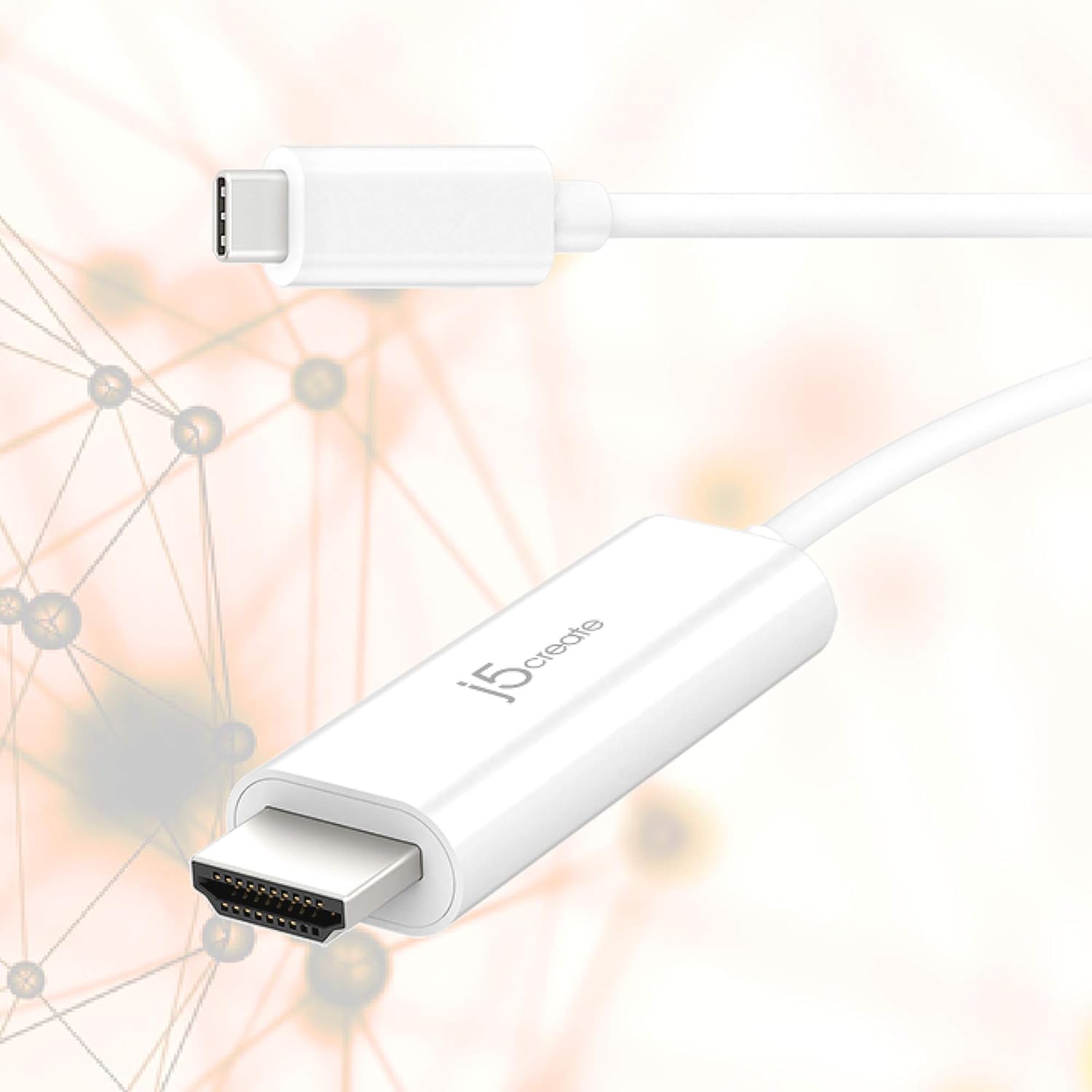
Image 1.1: The j5create JCC153 USB-C to HDMI Adapter Cable, featuring its USB-C connector and HDMI connector.
2. Lastnosti
- 4K pri 60 Hz video izhod: Supports high-definition HDMI 4K video at a refresh rate of 60Hz.
- USB-C to HDMI Connectivity: Enables direct connection from a USB-C port to an HDMI display.
- HDMI 2.0 Compliant: Adheres to HDMI 2.0 specifications for optimal video performance.
- DisplayPort Alternate Mode: Utilizes DisplayPort alternate mode over USB-C for video transmission.
- Vklopi in igraj: No software or drivers required for installation.
- Univerzalna združljivost: Ideal for devices with a USB-C port that supports DisplayPort Alt Mode, including MacBook, tablets, PCs, and laptops.
- Dolžina kabla: 5 feet (154 cm) for flexible setup.

Image 2.1: Visual representation of 4K video resolution capabilities, highlighting the clarity of 4K 2160p compared to standard HD and DVD resolutions.
3. Navodila za nastavitev
Follow these steps to connect your device using the j5create JCC153 USB-C to HDMI Adapter Cable:
- Poveži se s prikazom: Plug the HDMI connector of the JCC153 cable into an available HDMI input port on your monitor, TV, or projector.
- Povežite se z napravo: Plug the USB-C connector of the JCC153 cable into the USB-C port on your laptop, tablet, or PC. Ensure your device's USB-C port supports DisplayPort Alternate Mode (Alt Mode) for video output.
- Vklop: Turn on your display and your source device.
- Izberite vnos: On your display, select the correct HDMI input source that the cable is connected to.
The display should automatically detect the connection and mirror or extend your device's screen. No additional software installation is required.

Image 3.1: A laptop connected to an external 4K monitor, demonstrating a typical setup using the USB-C to HDMI cable.
4. Navodila za uporabo
Once connected, your device's operating system will typically recognize the external display automatically. You can configure the display settings as follows:
- Windows: Right-click on the desktop, select 'Display settings'. Here you can choose to 'Duplicate these displays' (mirror) or 'Extend these displays'. You can also adjust resolution and orientation.
- MacOS: Go to 'System Preferences' > 'Displays'. You can arrange displays, set resolutions, and choose between 'Mirror Displays' or 'Use as separate display'.
- Chrome OS: Go to 'Settings' > 'Device' > 'Displays'. You can mirror or extend your display and adjust resolution.
For optimal 4K@60Hz performance, ensure both your source device and your display support this resolution and refresh rate.
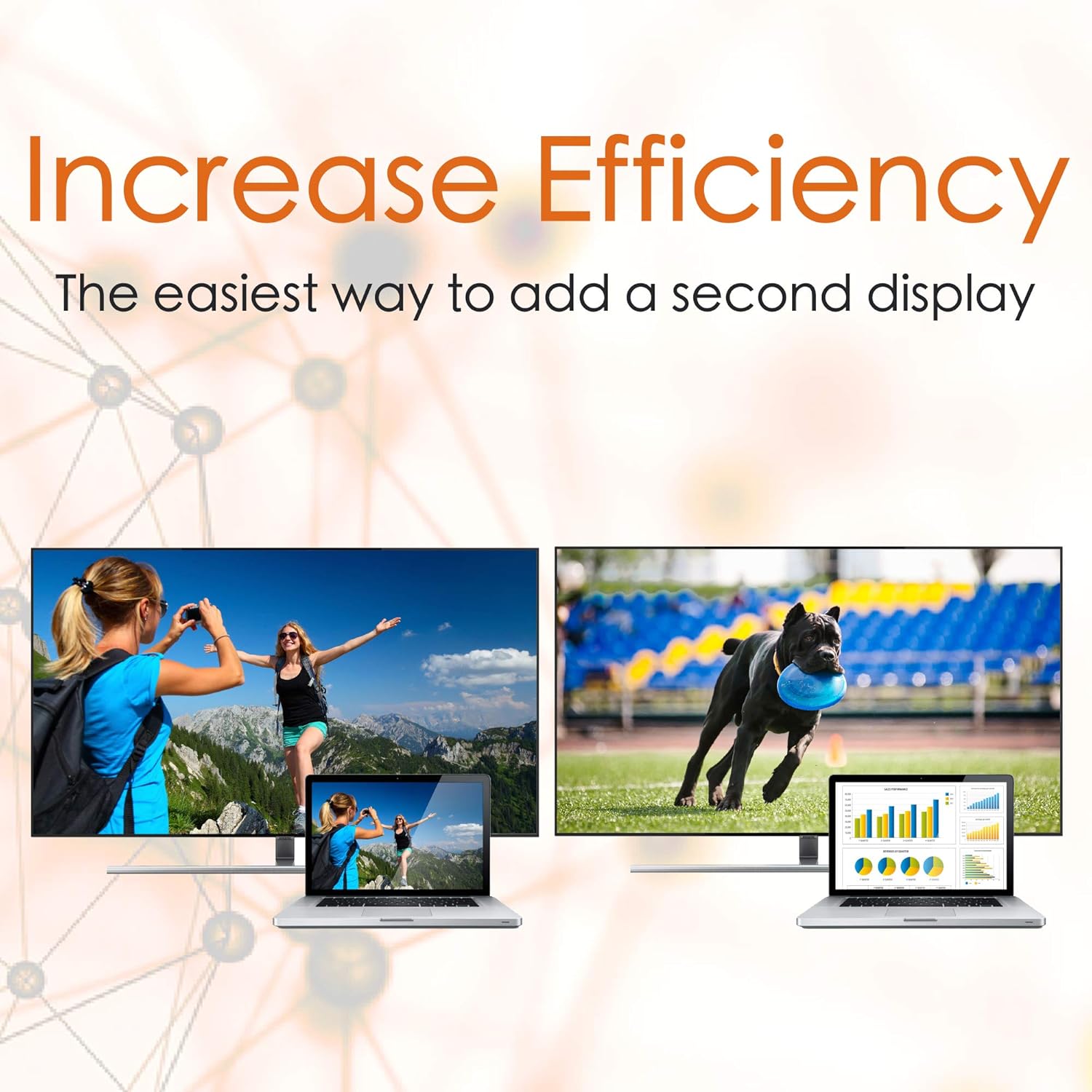
Slika 4.1: Bivšiample of using the adapter to extend a laptop's display to an external monitor, enhancing productivity.
5. Odpravljanje težav
If you encounter issues while using the JCC153 adapter cable, refer to the following troubleshooting tips:
- Brez prikaza/signala:
- Ensure both the USB-C and HDMI connectors are securely plugged into their respective ports.
- Verify that your source device's USB-C port supports DisplayPort Alternate Mode (Alt Mode). Not all USB-C ports support video output.
- Check the input source selection on your display (monitor/TV). Make sure it is set to the correct HDMI input.
- Try connecting the cable to a different USB-C port on your device, if available.
- Test the cable with another HDMI display or another USB-C device to isolate the issue.
- Nepravilna ločljivost ali hitrost osveževanja:
- Ensure both your source device and your display are capable of supporting the desired resolution (e.g., 4K) and refresh rate (e.g., 60Hz).
- Adjust the display settings on your operating system (refer to Section 4: Operating Instructions).
- Some older HDMI displays may not fully support 4K@60Hz. Try a lower resolution or refresh rate if necessary.
- Utripajoč ali nestabilen prikaz:
- Prepričajte se, da kabel ni upognjen ali poškodovan.
- Zmanjšajte ločljivost zaslona ali hitrost osveževanja, da preverite, ali težava še vedno obstaja.
- Check for any available driver updates for your device's graphics card or USB-C controller.
6. Specifikacije
| Številka modela | JCC153 |
| Vrsta priključka | USB Type-C Male to HDMI Male |
| Video ločljivost | Up to 4K (3840 x 2160) @ 60Hz |
| Skladnost s HDMI | HDMI 2.0 |
| USB-C Standard | DisplayPort Alternate Mode (Alt Mode) |
| Dolžina kabla | 5 ft (154 cm) |
| barva | Bela |
| Združljive naprave | Laptops, PCs, Tablets with USB-C port supporting DisplayPort Alt Mode |
| UPC | 847626002106 |

Image 6.1: Product diagram illustrating the cable's connections and key specifications.
7. Garancija in podpora
This j5create product comes with a limited warranty. For specific warranty terms and conditions, please refer to the warranty information provided with your purchase or visit the official j5create webmesto.
For technical support, product inquiries, or further assistance, please visit the j5create official webspletno mesto ali se obrnite na njihovo službo za pomoč strankam. Kontaktne podatke običajno najdete na embalaži izdelka ali na uradni webmesto.