
1. Uvod
This manual provides detailed instructions for the setup, operation, and maintenance of your ELECROW 7 Inch 1024x600 IPS Capacitive Touchscreen Monitor. This display is designed for broad compatibility with devices such as Raspberry Pi (5/4/3B+/3B/2B+), BB Black, Banana Pi, Jetson Nano, and Windows 11/10/8/7 systems.
Ključne značilnosti:
- HD vizualni elementi: 7-inch IPS screen with 1024x600 resolution and 170° wide viewing angle for consistent colors and clear viewing.
- Kapacitivni dotik: Supports up to 5-point touch functionality without requiring driver installation for most compatible systems.
- Plug and Play: Simple connectivity via HD (HDMI) and Micro USB ports for immediate use.
- Vsestranska uporaba: Suitable for use as a Raspberry Pi display, mini PC monitor, gaming console screen, or a computer temperature monitor.
2. Kaj je v škatli
Preden nadaljujete z namestitvijo, preverite, ali so vse komponente prisotne.
- 7 Inch Capacitive Display x 1
- HD Cable x 1
- USB kabel x 1
- Micro HD Adapter x 1
- Copper Screws Pack (4pcs) x 1
- DVD x 1 (Contains drivers and documentation)
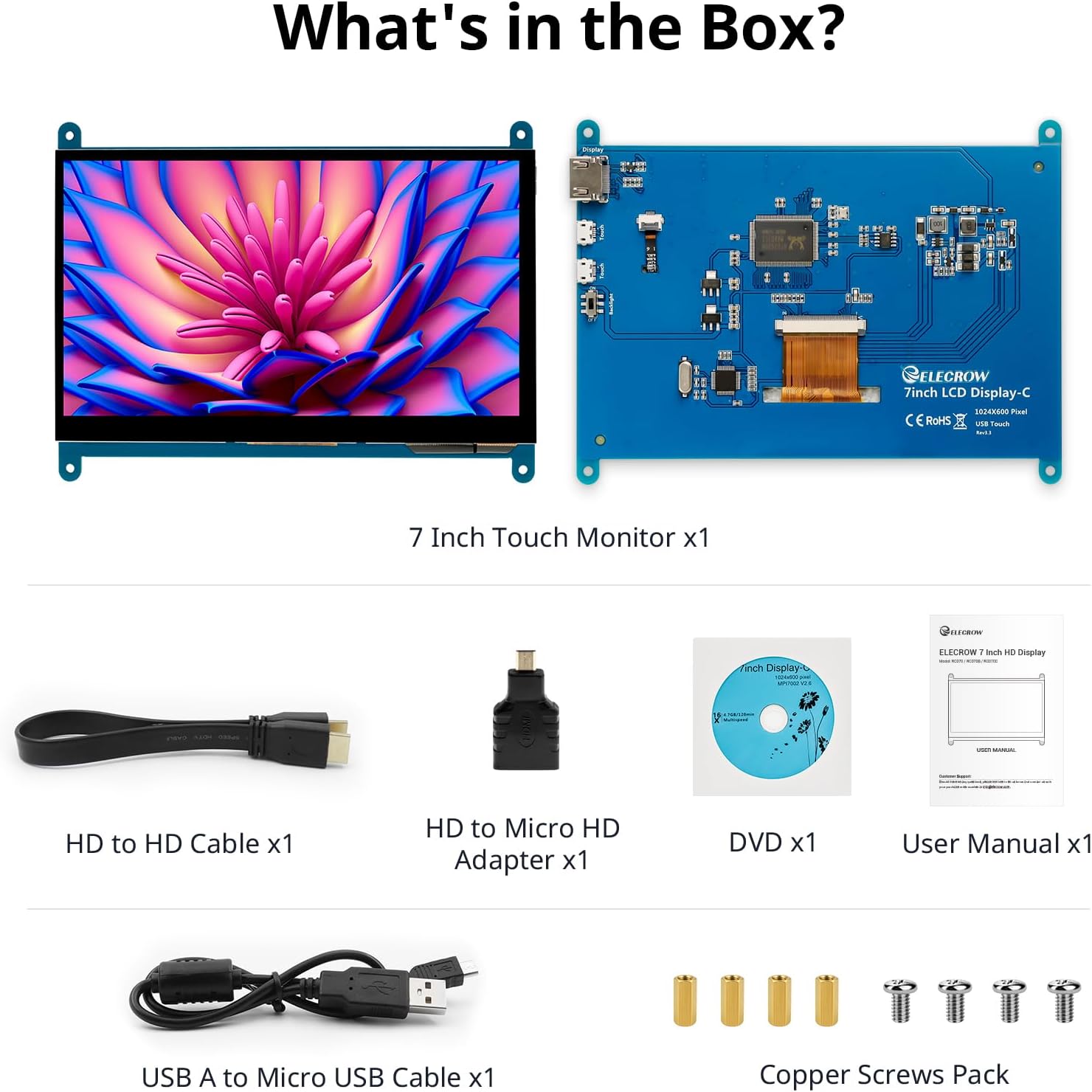
Slika: Vse komponente so vključene v embalažo izdelka.
3. Nastavitev in povezave
Follow these steps to connect your ELECROW 7 Inch Touchscreen Monitor to your device.
3.1 Konec strojne opremeview

Slika: Zadaj view of the monitor highlighting the Standard HD Port, Micro USB Port for touch and power, and Backlight switch.
- Standard HD Port: For video data transfer.
- Vrata za mikro USB: For touch functionality and power supply.
- Stikalo za osvetlitev ozadja: To turn the display backlight on or off.
3.2 Povezovanje z Raspberry Pi
To connect the monitor to a Raspberry Pi, you will need both the HD cable for video and the USB cable for touch and power.
- Connect one end of the HD cable to the Standard HD Port on the monitor and the other end to the HDMI port on your Raspberry Pi. Use the Micro HD adapter if necessary for your Raspberry Pi model.
- Connect the Micro USB cable to the Micro USB Port on the monitor. Connect the other end of the USB cable to a USB port on your Raspberry Pi for power and touch data.
- Ensure the backlight switch on the monitor is in the 'On' position.
- Power on your Raspberry Pi. The display should automatically detect and show the output.
For touch functionality with Raspberry Pi, power can be supplied via the Raspberry Pi's USB port. If using an external power source for the Raspberry Pi, ensure it is sufficient. For optimal performance, especially with older Raspberry Pi models, an external power supply for the monitor might be beneficial if the Pi cannot provide enough current.
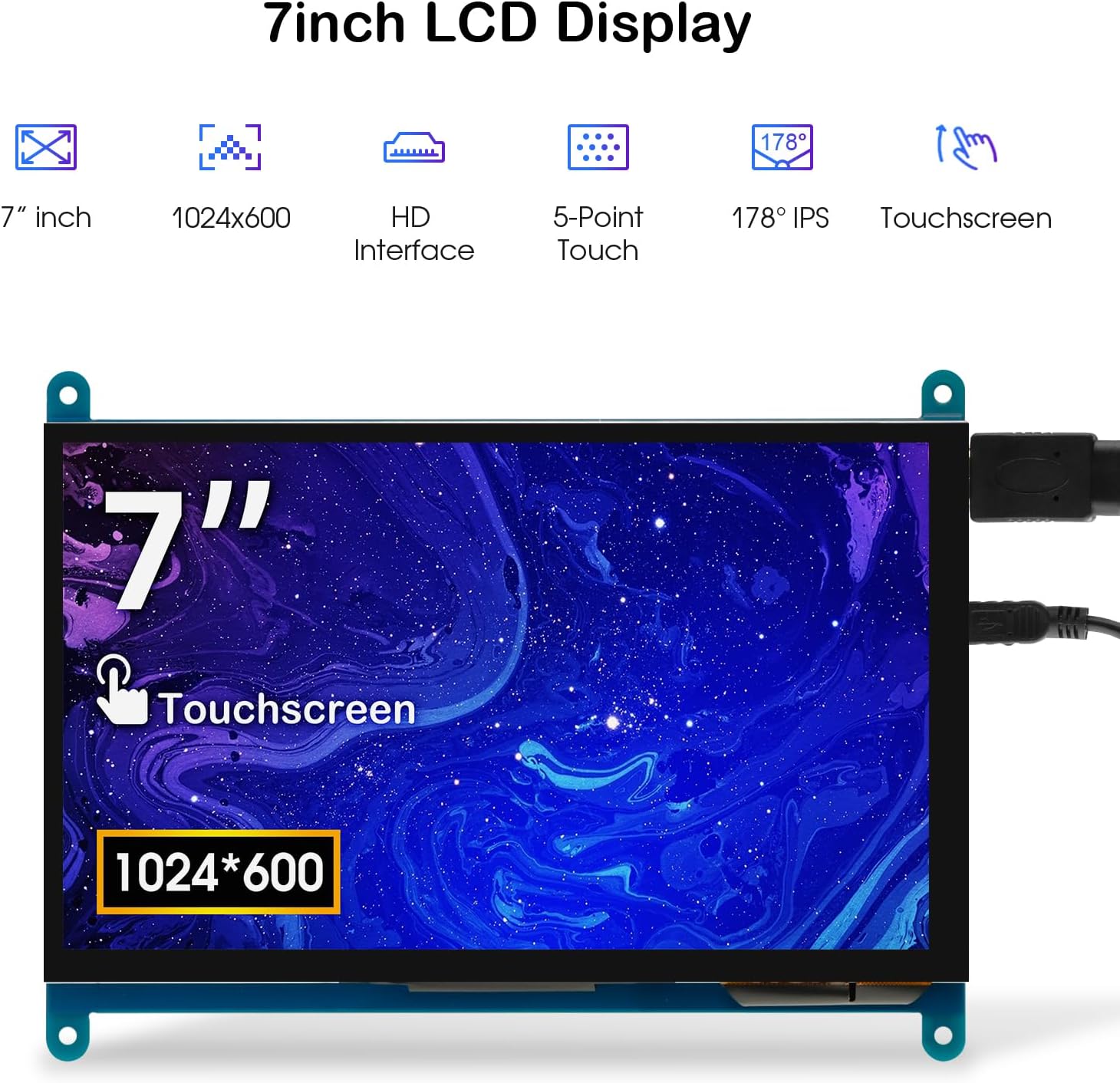
Image: The 7-inch touchscreen connected to a Raspberry Pi board, displaying a graphical user interface.
3.3 Connecting to Windows PC/Laptop
For Windows systems, the monitor functions as a plug-and-play display and touchscreen.
- Connect the HD cable from the monitor's Standard HD Port to an HDMI port on your PC or laptop.
- Connect the Micro USB cable from the monitor's Micro USB Port to a USB-A port on your PC or laptop. This provides power and enables touch functionality.
- Ensure the backlight switch is 'On'.
- Your Windows system should automatically detect the display and touchscreen. No additional drivers are typically required for Windows 7/8/10/11 for basic display and 5-point touch.

Image: The 7-inch touchscreen connected to a laptop, demonstrating seamless connectivity with various operating systems including Windows.
4. Navodila za uporabo
4.1 Funkcionalnost na dotik
The monitor supports 5-point capacitive touch, allowing for various gestures.
- Tapnite: Single touch for selection or activation.
- Pritisnite: Sustained touch for context menus or drag operations.
- Povečaj/Pomanjšaj: Pinch gestures with two fingers.
- Mouse Click: A single tap typically registers as a left-click.
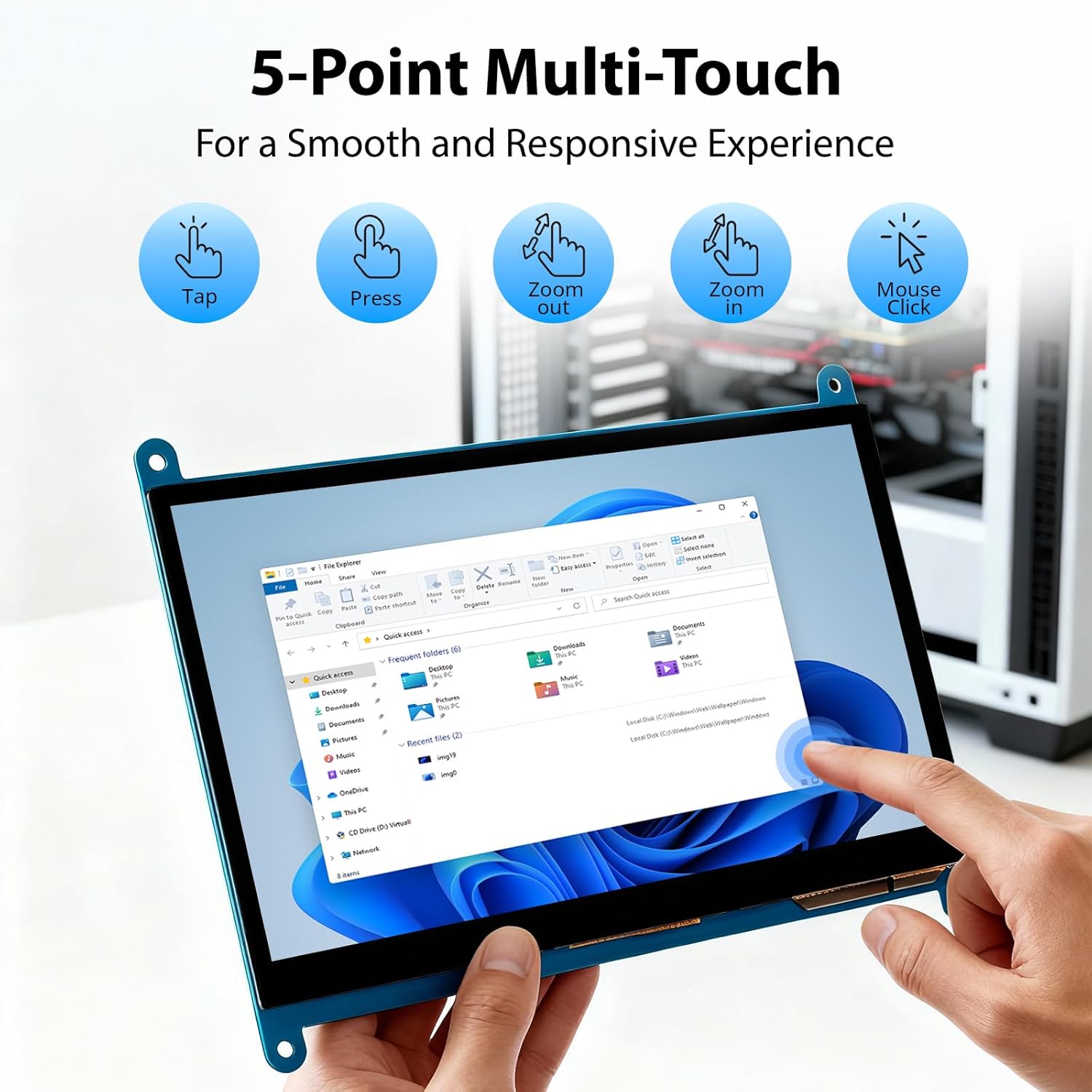
Image: Visual guide to the 5-point multi-touch capabilities of the screen, showing common gestures.
4.2 Načini prikaza
When connected to a computer, the monitor can operate in several display modes:
- Način podvajanja: The monitor mirrors the content of your primary display.
- Razširjeni način: The monitor acts as an extension of your primary display, providing additional screen space.
- Drugi način zaslona: The monitor functions as the sole display, with the primary display turned off.
Te načine je običajno mogoče konfigurirati prek nastavitev zaslona vašega operacijskega sistema.

Image: Illustrations demonstrating the three display modes: Duplicate, Extend, and Second Screen, showing how the monitor can be used with a laptop.
4.3 Nadzor osvetlitve ozadja
The monitor features a physical switch to control the backlight. This allows you to turn the display illumination on or off without disconnecting power. Note that there is no granular brightness control; it is an on/off function only.
Video: This video demonstrates the backlight control switch on the ELECROW 7 Inch Touchscreen, showing how to turn the display illumination on and off.
5. Vzdrževanje
Pravilno vzdrževanje zagotavlja dolgo življenjsko dobo in optimalno delovanje vašega monitorja.
- Čiščenje zaslona: Uporabite mehko krpo, ki ne pušča vlaken, dampened with water or a screen-cleaning solution. Avoid harsh chemicals or abrasive materials that could damage the screen surface.
- Splošna nega: Keep the monitor in a clean, dry environment. Avoid exposing it to extreme temperatures, direct sunlight, or high humidity.
- Ravnanje: Handle the monitor by its edges. Avoid applying excessive pressure to the screen.
6. Odpravljanje težav
Če imate težave z monitorjem, si oglejte naslednje pogoste težave in rešitve.
| Težava | Možen vzrok | rešitev |
|---|---|---|
| Brez prikaza/črni zaslon |
|
|
| Zaslon na dotik se ne odziva |
|
|
| Display resolution incorrect |
|
|
| Brez nadzora svetlosti | The monitor only has an on/off switch for the backlight, not adjustable brightness. | This is expected behavior. The monitor does not support adjustable brightness. |
7. Specifikacije
Detailed technical specifications for the ELECROW 7 Inch Touchscreen Monitor.
| Funkcija | Podrobnost |
|---|---|
| Znamka | ELECTROW |
| Ime modela | RC070 |
| Velikost zaslona | 7 palcev |
| Največja ločljivost zaslona | 1024 x 600 |
| Izvorna ločljivost | 1024x600 |
| Vrsta zaslona | LCD |
| Tehnologija zaslona | IPS |
| Razmerje stranic | 1.71:1 |
| Hitrost osveževanja | 60 Hz |
| Odzivni čas | 8 milisekund |
| Kontrastno razmerje | 800:1 |
| Svetlost | 300 lm |
| Viewkota | 170 stopinj |
| Opis površine zaslona | Sijajni |
| Tehnologija povezljivosti | HDMI |
| Strojna povezljivost | HDMI, USB |
| Total Number of HDMI Ports | 1 |
| Skupno število vrat USB | 2 (Micro USB for power/touch, USB-A for power/touch) |
| Poraba energije | 12.5 vatov |
| voltage | 5 volta |
| Mere predmeta (D x Š x V) | 0.3"D x 6.1"Š x 4.8"V |
| Teža predmeta | 7.36 unč |
| Združljive naprave | Raspberry Pi, BB Black, Banana Pi, Jetson Nano, Computers, Laptops, Gaming Consoles |
8. Garancija in podpora
Your ELECROW 7 Inch Touchscreen Monitor comes with a manufacturer's warranty.
- Vrsta garancije: 1-letna garancija proizvajalca
- Opis garancije: 1 let proizvajalec
For technical support or warranty claims, please contact ELECROW customer service through their official webspletno mesto ali platforma, kjer je bil izdelek kupljen.