
1. Uvod
This manual provides detailed instructions for installing, configuring, and maintaining your GIGABYTE GA-B150M-D3H Micro ATX motherboard. The GA-B150M-D3H is designed to support 6th Generation Intel Core Processors and features Dual Channel DDR4 memory, PCIe Gen3 x4 M.2 connector, SATA Express, and 8-channel HD audio with Audio Noise Guard.
Please read this manual thoroughly before beginning installation to ensure proper setup and operation.
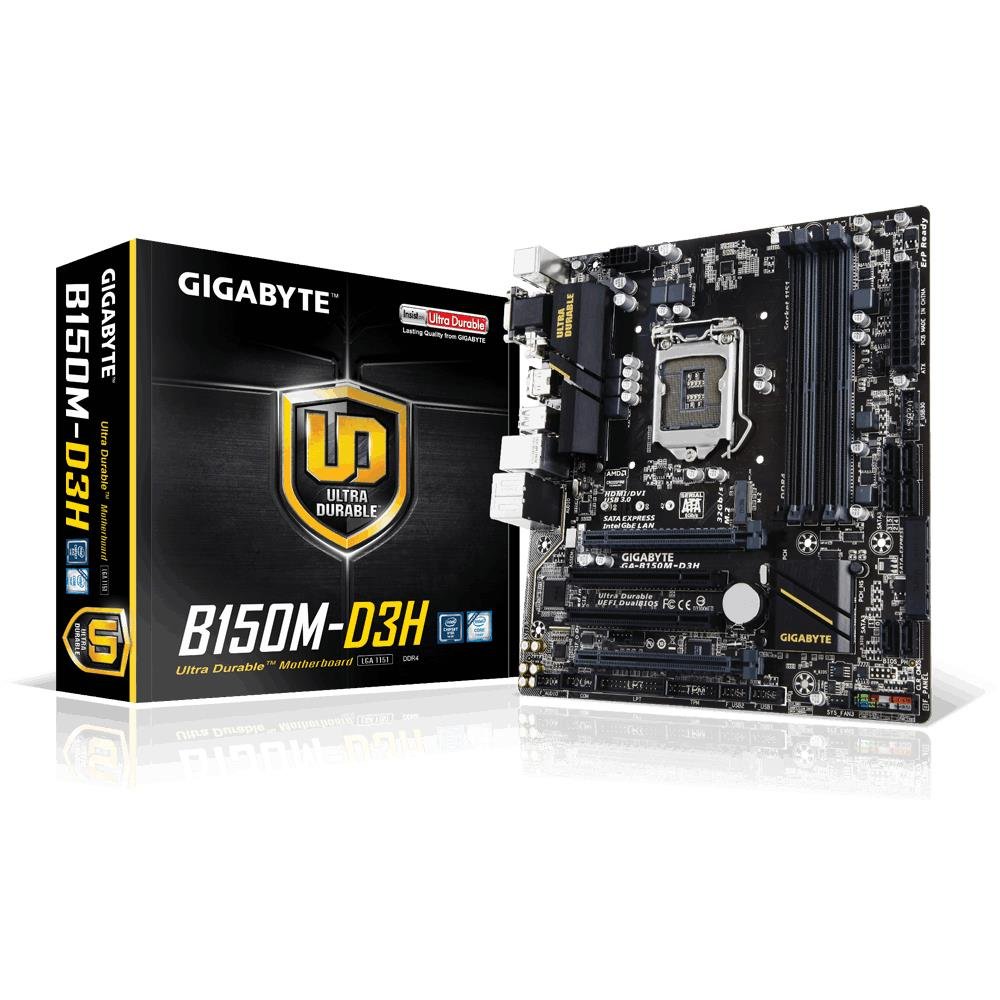
Image 1.1: GIGABYTE GA-B150M-D3H Micro ATX Motherboard. This image displays the overall layout of the motherboard, highlighting its compact Micro ATX form factor and various component slots.
2. Varnostne informacije
Da preprečite poškodbe matične plošče in telesne poškodbe, upoštevajte naslednje varnostne ukrepe:
- Preden se dotaknete kakršnih koli komponent, vedno izključite napajalni kabel iz stenske vtičnice.
- Nosite antistatično zapestnico ali se pogosto dotikajte ozemljenega kovinskega predmeta, da sprostite statično elektriko.
- Matično ploščo prijemajte za robove, da se izognete dotikanju občutljivih komponent.
- Matično ploščo hranite stran od vlage in ekstremnih temperatur.
- Zagotovite ustrezno prezračevanje v ohišju računalnika, da preprečite pregrevanje.
3. Vsebina paketa
Preverite, ali so v paketu z matično ploščo prisotni vsi elementi:
- GIGABYTE GA-B150M-D3H Motherboard
- Uporabniški priročnik
- I / O Shield
- SATA kabli
- Driver CD/DVD
Note: Contents may vary slightly depending on region or revision.
4. Postavitev matične plošče
Familiarize yourself with the various components and connectors on the GA-B150M-D3H motherboard.
Image 4.1: GIGABYTE GA-B150M-D3H Motherboard Layout. This image provides a visual reference for the location of key components such as the CPU socket, DIMM slots, PCIe slots, SATA ports, and M.2 connector.
Ključne komponente:
- Vtičnica za procesor LGA 1151: For 6th Generation Intel Core Processors.
- DDR4 DIMM Slots (4): Supports Dual Channel DDR4 memory up to 2133 MHz.
- PCIe reže: Includes PCIe Gen3 x16 for graphics cards and PCIe x1 slots for expansion.
- M.2 Connector: Supports PCIe NVMe & SATA SSDs with up to 32Gb/s data transfer.
- SATA Express Connector: For up to 16Gb/s data transfer.
- Vrata SATA 6 Gb/s: For connecting traditional SATA storage devices.
- 24-Pin ATX Power Connector: Glavni vhod napajanja.
- 8-Pin ATX 12V Power Connector: CPU power input.
- Priključki na sprednji plošči: For power button, reset button, LED indicators, and USB ports.
- Avdio priključki: 8-channel HD Audio with high quality capacitors and Audio Noise Guard.
5. Nastavitev in namestitev
Za pravilno namestitev matične plošče in komponent sledite tem korakom.
5.1. Namestitev procesorja
- Poiščite vtičnico procesorja LGA 1151.
- Odprite ročico podnožja procesorja in dvignite nosilno ploščo.
- Previdno poravnajte procesor z vtičnico in se prepričajte, da se zlati trikotnik na procesorju ujema s trikotnikom na vtičnici. Procesorja ne potiskajte na silo v vtičnico.
- Spustite tovorno ploščo in jo pritrdite z ročico.
5.2. Namestitev hladilnika procesorja
Refer to your CPU cooler's instruction manual for specific installation steps. Ensure thermal paste is applied correctly between the CPU and cooler base.
5.3. Namestitev pomnilnika (RAM)
- Odprite sponke na obeh koncih rež za DDR4 DIMM.
- Poravnajte pomnilniški modul z režo in se prepričajte, da se zareza na modulu ujema s ključem v reži.
- Trdno pritisnite na oba konca pomnilniškega modula, da se sponke zaskočijo.
- For dual-channel performance, install memory modules in matching colored slots (e.g., DIMM1 and DIMM2).
5.4. Installing Expansion Cards
- Remove the metal bracket from the desired PCIe slot on your computer case.
- Razširitveno kartico poravnajte z režo PCIe in jo močno pritisnite navzdol, da se pravilno namesti.
- Kartico pritrdite z vijakom na ohišje računalnika.
5.5. Priključitev naprav za shranjevanje
- Naprave SATA: Connect one end of the SATA data cable to a SATA 6Gb/s port on the motherboard and the other end to your hard drive or SSD. Connect the SATA power cable from your power supply to the device.
- M.2 SSD: Vstavite pogon M.2 SSD v režo M.2 pod kotom, nato ga nežno potisnite navzdol in pritrdite s priloženim vijakom.
- SATA Express: If using a SATA Express device, connect it to the designated SATA Express connector.
5.6. Priključitev priključkov na sprednji plošči
Connect the cables from your computer case's front panel (power button, reset button, HDD LED, power LED, front USB, front audio) to the corresponding headers on the motherboard. Refer to the motherboard layout diagram for exact locations and pin assignments.
5.7. Priključitev napajanja
- Connect the 24-pin ATX main power connector from your power supply to the 24-pin power socket on the motherboard.
- Connect the 8-pin ATX 12V CPU power connector to the 8-pin socket near the CPU.
- Prepričajte se, da so vse napajalne povezave varne.
6. Navodila za uporabo
6.1. Prvi zagon
After assembling all components, connect your monitor, keyboard, and mouse. Power on the system. The system should display the GIGABYTE splash screen and then enter the BIOS/UEFI setup or attempt to boot from a connected storage device.
6.2. Nastavitev BIOS-a/UEFI-ja
Za vstop v nastavitve BIOS/UEFI pritisnite DEL key repeatedly during the boot process when the GIGABYTE logo appears. Here you can configure system settings, boot order, and monitor hardware status. The GA-B150M-D3H features GIGABYTE UEFI Dual BIOS for enhanced reliability.
6.3. Namestitev gonilnika
After installing your operating system, install the necessary drivers for the motherboard components. These can be found on the included driver CD/DVD or downloaded from the official GIGABYTE website. Key drivers include chipset, audio (Realtek ALC892 codec), LAN, and any integrated graphics drivers.
6.4. Namestitev operacijskega sistema
Insert your operating system installation media (USB drive or DVD) and configure the boot order in the BIOS/UEFI to boot from it. Follow the on-screen instructions to install your preferred operating system (e.g., Windows 8.1, Windows 10).
7. Vzdrževanje
7.1. Čiščenje
Redno čistite notranjost ohišja računalnika, da preprečite nabiranje prahu, ki lahko povzroči pregrevanje. Za odstranjevanje prahu z ventilatorjev, hladilnikov in komponent matične plošče uporabite stisnjen zrak. Pred čiščenjem se prepričajte, da je sistem izklopljen in izklopljen iz električnega omrežja.
7.2. Posodobitve BIOS-a
GIGABYTE občasno izdaja posodobitve BIOS-a za izboljšanje stabilnosti, združljivosti in zmogljivosti sistema. Obiščite uradno spletno stran GIGABYTE. website for your motherboard model (GA-B150M-D3H) to check for the latest BIOS version and follow the provided instructions for updating. Exercise caution during BIOS updates, as an interruption can render the motherboard inoperable.
8. Odpravljanje težav
Ta razdelek obravnava pogoste težave, na katere lahko naletite.
8.1. Ni napajanja / Sistem se ne vklopi
- Check if the power supply is connected correctly to the motherboard (24-pin and 8-pin connectors).
- Prepričajte se, da je stikalo za napajanje v položaju VKLOP.
- Preverite, ali je kabel gumba za vklop na sprednji plošči pravilno priključen na priključek matične plošče.
- Preizkusite napajalnik z drugim sistemom ali testerjem napajalnikov.
8.2. Ni izhoda za prikaz
- Ensure the monitor is connected to the correct graphics output (either integrated graphics on the motherboard or a dedicated graphics card).
- Ponovno namestite grafično kartico in pomnilniške module.
- Try booting with only one memory module installed.
- Preverite, ali je monitor vklopljen in nastavljen na pravilen vhodni vir.
8.3. Nestabilnost sistema / Zrušitve
- Preverite temperaturo procesorja in grafičnega procesorja, da se prepričate, da sta znotraj varnih delovnih meja.
- Verify that all drivers are installed and up to date.
- Za preverjanje morebitnih okvar RAM-a zaženite orodja za diagnostiko pomnilnika.
- Zagotovite, da napajalnik zagotavlja zadostno in stabilno napajanje vseh komponent.
9. Specifikacije
Detailed technical specifications for the GIGABYTE GA-B150M-D3H motherboard:
| Funkcija | Specifikacija |
|---|---|
| Ime modela | GA-B150M-D3H |
| Faktor oblike | Micro ATX (24.4 cm x 22.5 cm) |
| CPU vtičnica | LGA 1151 |
| Združljivi procesorji | Procesorji Intel Core 6. generacije |
| Čipset | Čipset Intel B150 Express |
| Tehnologija pomnilnika | DDR4 |
| Pomnilniške reže | 4 x DDR4 DIMM sockets (Dual Channel) |
| Največja zmogljivost pomnilnika | 16 GB |
| Hitrost ure pomnilnika | 2133 MHz |
| PCIe reže | 1 x PCI Express x16, 1 x Total PCIe Ports |
| Vmesniki za shranjevanje | PCIe Gen3 x4 M.2, SATA Express, SATA 6Gb/s |
| Avdio kodek | Realtek ALC892 codec, 8-channel HD Audio |
| Vrata USB | Total 8 USB Ports (including USB 2.0) |
| Glavni napajalni konektor | 24-pinski ATX |
| CPU napajalni priključek | 8-Pin ATX 12V |
| Edinstvene lastnosti | GIGABYTE UEFI Dual BIOS, Audio Noise Guard with LED Trace Path Lighting, App Center (Easy Tune, Cloud Station) |
10. Garancija in podpora
For warranty information, please refer to the warranty card included in your product package or visit the official GIGABYTE webGarancijski pogoji se lahko razlikujejo glede na regijo.
For technical support, driver downloads, BIOS updates, and further product information, please visit the GIGABYTE official support webspletno mesto:
https://www.gigabyte.com/Support
When contacting support, please have your motherboard model (GA-B150M-D3H) and serial number ready.