
Argox AS-8250U
Uporabniški priročnik za čitalnik črtnih kod Argox AS-8250U
Model: AS-8250U
1. Uvod
This manual provides essential instructions for the proper setup, operation, and maintenance of your Argox AS-8250U Barcode Scanner. The AS-8250U is a long-range scanner designed for various applications, including retail, inventory management, invoicing, and factory receiving. It offers fast and accurate reading of PDF codes, Code 16K, and all standard linear symbologies.
2. Varnostne informacije
- Optičnega bralnika ne izpostavljajte ekstremnim temperaturam, vlagi ali neposredni sončni svetlobi.
- Pazite, da vam skener ne pade ali da ga ne izpostavljate močnim udarcem.
- Ne poskušajte razstavljati ali spreminjati optičnega bralnika. S tem boste razveljavili garancijo.
- Za optimalno delovanje naj bo okno za skeniranje čisto.
- Use only the provided or recommended power source and cables.
3. Vsebina paketa
Označite polje za naslednje elemente:
- Argox AS-8250U Barcode Scanner
- USB Interface Cable (or other specified interface cable)
- Uporabniški priročnik (ta dokument)
4. Izdelek je končanview
The Argox AS-8250U is a handheld barcode scanner designed for ergonomic use and efficient data capture.
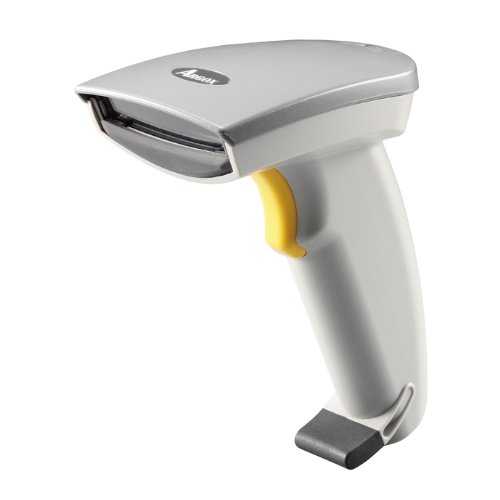
Slika 1: Sprednja stran view of the Argox AS-8250U Barcode Scanner. This image shows the scanner's ergonomic design, scanning window, and trigger button.
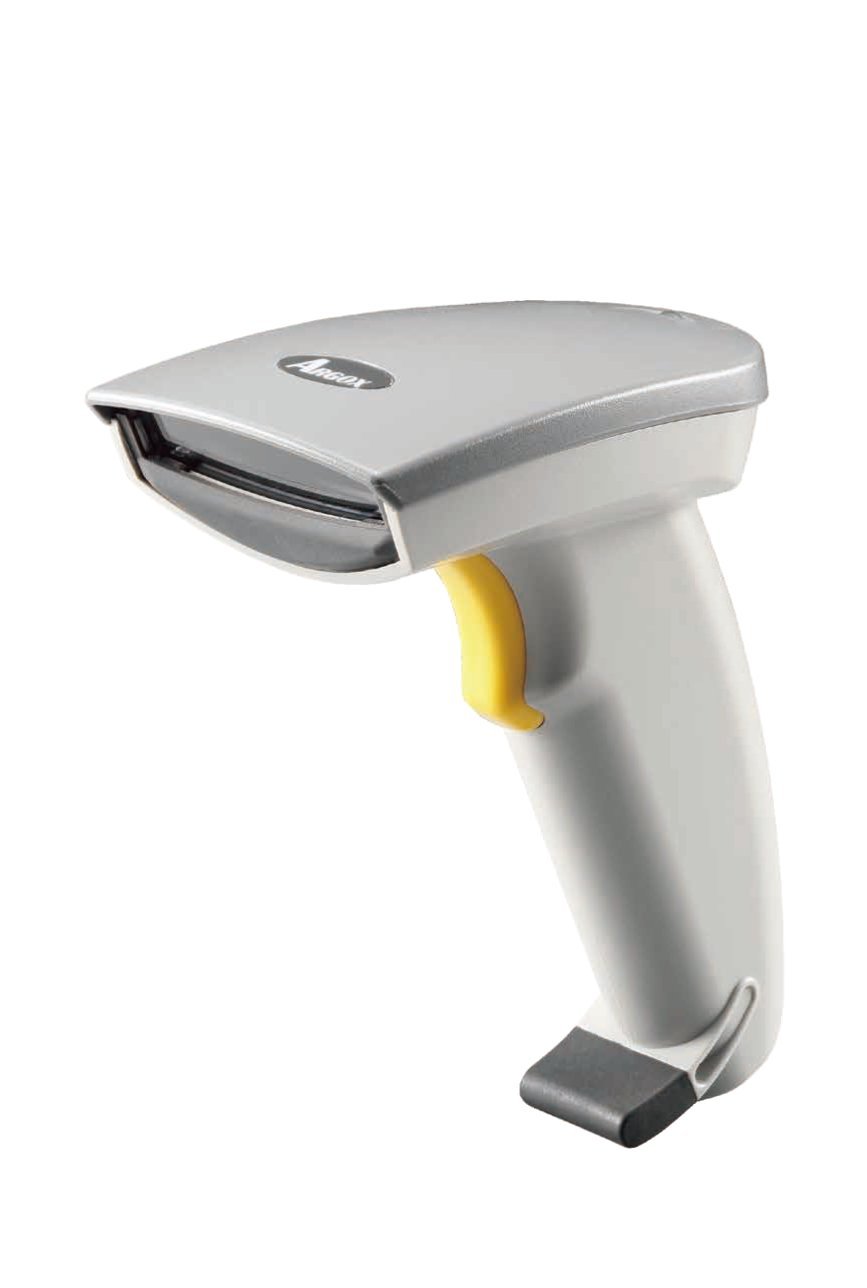
Slika 2: Pod kotom view of the Argox AS-8250U Barcode Scanner, highlighting its compact form factor and the Argox logo.
Ključne komponente:
- Okno za skeniranje: Emits and receives the laser beam for barcode reading.
- Sprožilni gumb: Aktivira postopek skeniranja.
- Indikatorska lučka: Provides feedback on scanning status (e.g., successful read).
- Interface Port: Connects the scanner to the host device via USB, RS-232, or Keyboard Wedge (KBW).
5. Nastavitev
5.1 Priključitev skenerja
- Identify Interface: Determine the interface type required by your host system (USB, RS-232, or Keyboard Wedge). The AS-8250U supports all popular interfaces.
- Priključni kabel: Plug one end of the interface cable into the scanner's interface port.
- Poveži se z gostiteljem: Plug the other end of the interface cable into the corresponding port on your computer or POS system.
- USB: Connect to an available USB port. The scanner is typically plug-and-play, and Windows will automatically install necessary drivers.
- RS-232: Connect to a serial port. You may need to configure serial port settings on your host system.
- Keyboard Wedge (KBW): Connect between your keyboard and the computer's keyboard port.
- Vklop: Once connected, the scanner should power on automatically. The indicator light may illuminate briefly.
5.2 Driver Installation (for USB)
For USB connections, the Argox AS-8250U is designed for plug-and-play functionality with Windows operating systems. Typically, no manual driver installation is required. Upon connecting the scanner to a USB port, your operating system should automatically detect and install the necessary drivers. If prompted, follow the on-screen instructions. A Windows utility is included for advanced configuration if needed.
6. Upravljanje skenerja
6.1 Osnovni postopek skeniranja
- Priprava na skeniranje: Ensure the scanner is connected and powered on. Open an application on your host system where you want the barcode data to appear (e.g., a text editor, spreadsheet, or POS software).
- Usmerite skener: Point the scanning window of the AS-8250U at the barcode you wish to read. The optimal scanning distance ranges from contact up to 250mm, depending on the barcode density.
- Press Trigger: Press and hold the trigger button. A red laser line will emit from the scanning window.
- Skenirajte črtno kodo: Position the laser line across the entire barcode. Once a successful read occurs, the scanner will typically emit an audible beep and/or the indicator light will flash. The barcode data will then be transmitted to your host system.
- Sprožilec za sprostitev: Po uspešnem skeniranju spustite sprožilni gumb.
6.2 Podprte simbologije črtne kode
The AS-8250U is capable of reading a wide range of barcode types, including:
- PDF codes
- Koda 16K
- All standard linear (1D) symbologies (e.g., UPC/EAN/JAN, Code 39, Code 128, Interleaved 2 of 5, Codabar, etc.)
7. Vzdrževanje
7.1 Čiščenje skenerja
- Okno za skeniranje: Uporabite mehko krpo, ki ne pušča vlaken dampened with a mild, non-abrasive cleaner (e.g., glass cleaner) to gently wipe the scanning window. Avoid harsh chemicals or abrasive materials that could scratch the surface.
- Zunanjost Casing: Zunanjost skenerja obrišite z mehko,amp cloth. Do not allow liquids to enter the scanner's internal components.
- Kabli: Inspect cables regularly for any signs of damage.
7.2 Shranjevanje
When not in use, store the scanner in a clean, dry environment, away from direct sunlight and extreme temperatures. Protect it from dust and physical damage.
8. Odpravljanje težav
| Težava | Možen vzrok | rešitev |
|---|---|---|
| Skener se ne vklopi. | Kabel ni pravilno priključen ali je poškodovan. | Check cable connections at both the scanner and the host device. Try a different USB port or cable if available. |
| Skener ne bere črtnih kod. |
|
|
| Podatki črtne kode so napačni ali nepopolni. |
|
|
| Gostitelju niso bili poslani nobeni podatki. |
|
|
9. Specifikacije
| Funkcija | Podrobnost |
|---|---|
| Znamka | Argox |
| Model | AS-8250U |
| Proizvajalec | Argox Information Co., Ltd, Taiwan |
| Tehnologija povezljivosti | USB Cable (also supports RS-232, KBW) |
| Stopnja skeniranja | 200 skeniranj na sekundo |
| Delovno območje | Contact to 250mm on medium density barcodes |
| Podprte simbolike | PDF codes, Code 16K, all standard linear (1D) symbologies |
| Združljivost operacijskega sistema | Windows |
| Združljive naprave | Namizni računalnik, prenosni računalnik |
| Vir napajanja | Električni na kabel |
| Teža predmeta | 420 g |
| Dimenzije paketa | 22.8 x 11.8 x 11 cm |
10. Garancija in podpora
For warranty information and technical support, please refer to the warranty card included with your product or visit the official Argox webspletnega mesta. Račun shranite kot dokazilo o nakupu za uveljavljanje garancije.
For further assistance, please contact Argox customer support through their official channels.
Ask a question about this manual
Ask about setup, troubleshooting, compatibility, parts, safety, or missing instructions. Manuals+ will review the question and use this page’s manual context to help answer it.