1. Uvod
This manual provides comprehensive instructions for the setup, operation, maintenance, and troubleshooting of your Xerox DocuMate 3125 Duplex Document Scanner. Please read this manual thoroughly before using the device to ensure proper functionality and to maximize its performance.
The Xerox DocuMate 3125 is designed for efficient document management, offering fast duplex scanning, a 50-page Automatic Document Feeder (ADF), and compatibility with both PC and Mac operating systems. It features Visioneer Acuity technology for enhanced image clarity and One Touch scanning for simplified workflows.
2. Vsebina paketa
Preverite, ali so v paketu prisotni vsi elementi:
- Xerox DocuMate 3125 Scanner Unit
- USB kabel
- Napajalni adapter
- Software Installation Disc (or download instructions)
- Vodnik za hiter začetek
3. Navodila za namestitev
3.1 Unpacking and Physical Setup
Carefully remove the scanner from its packaging. Place the scanner on a stable, flat surface with adequate space for document feeding and output.
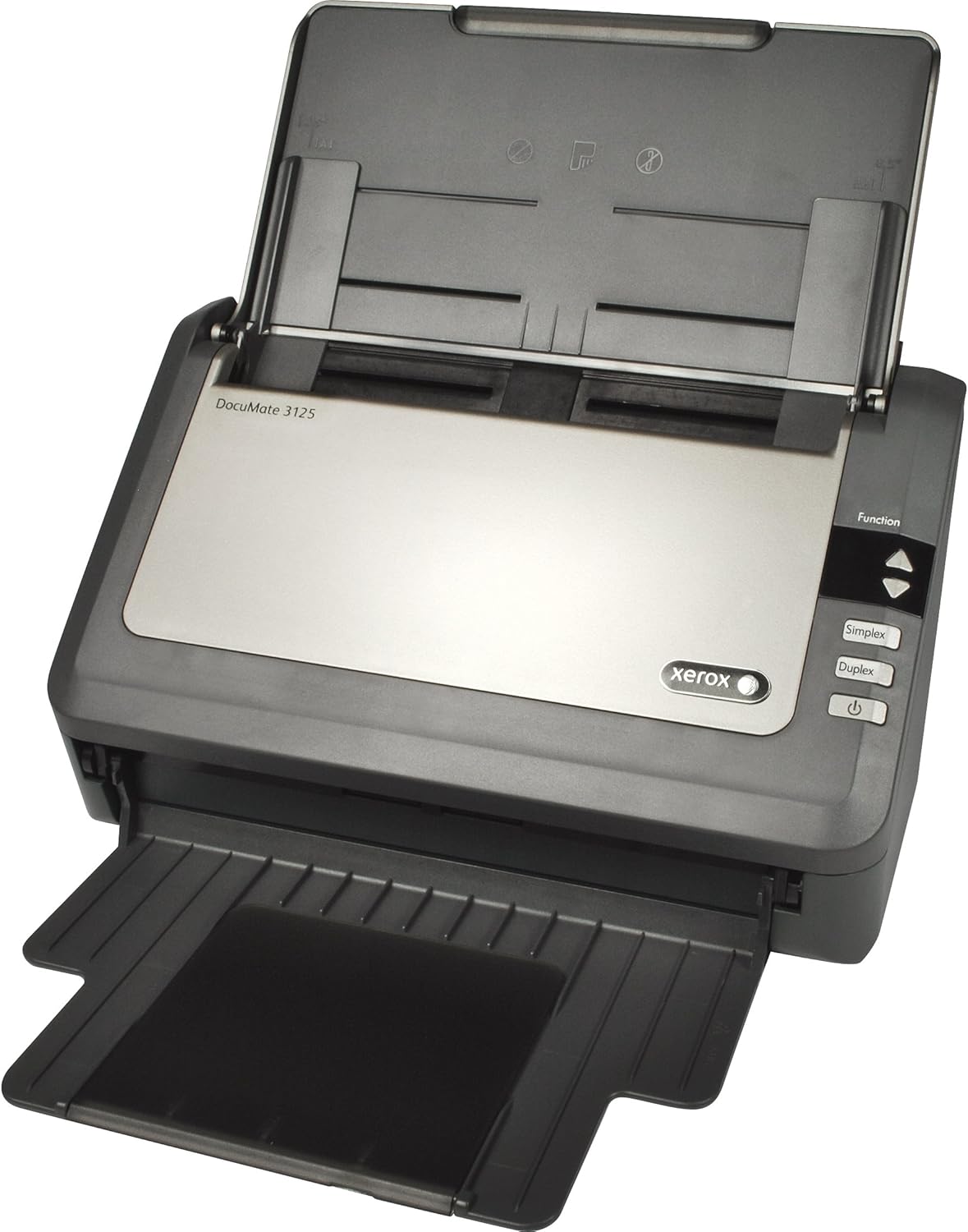
Figure 1: Xerox DocuMate 3125 Scanner with open lid and extended trays.
Extend the input and output trays as shown in Figure 1 to prepare the scanner for operation.
3.2 Priključitev skenerja
- Napajalnik priključite na vhod za napajanje skenerja in nato na električno vtičnico.
- Connect the USB cable to the scanner's USB port and then to an available USB port on your computer (PC or Mac).
3.3 Namestitev programske opreme
Before using the scanner, install the necessary drivers and software. This typically includes the scanner driver, Visioneer OneTouch software, and other utility applications.
- Insert the provided installation disc into your computer's optical drive, or download the latest software package from the official Xerox support webmesto.
- Follow the on-screen instructions to complete the installation. Restart your computer if prompted.

Figure 2: The scanner is compatible with both PC (Windows) and Mac operating systems.
4. Upravljanje skenerja
4.1 Nalaganje dokumentov
Open the Automatic Document Feeder (ADF) cover and extend the input tray. Fan the edges of your documents to prevent misfeeds. Place the documents face down in the ADF, ensuring they are aligned with the document guides. The ADF can hold up to 50 pages.
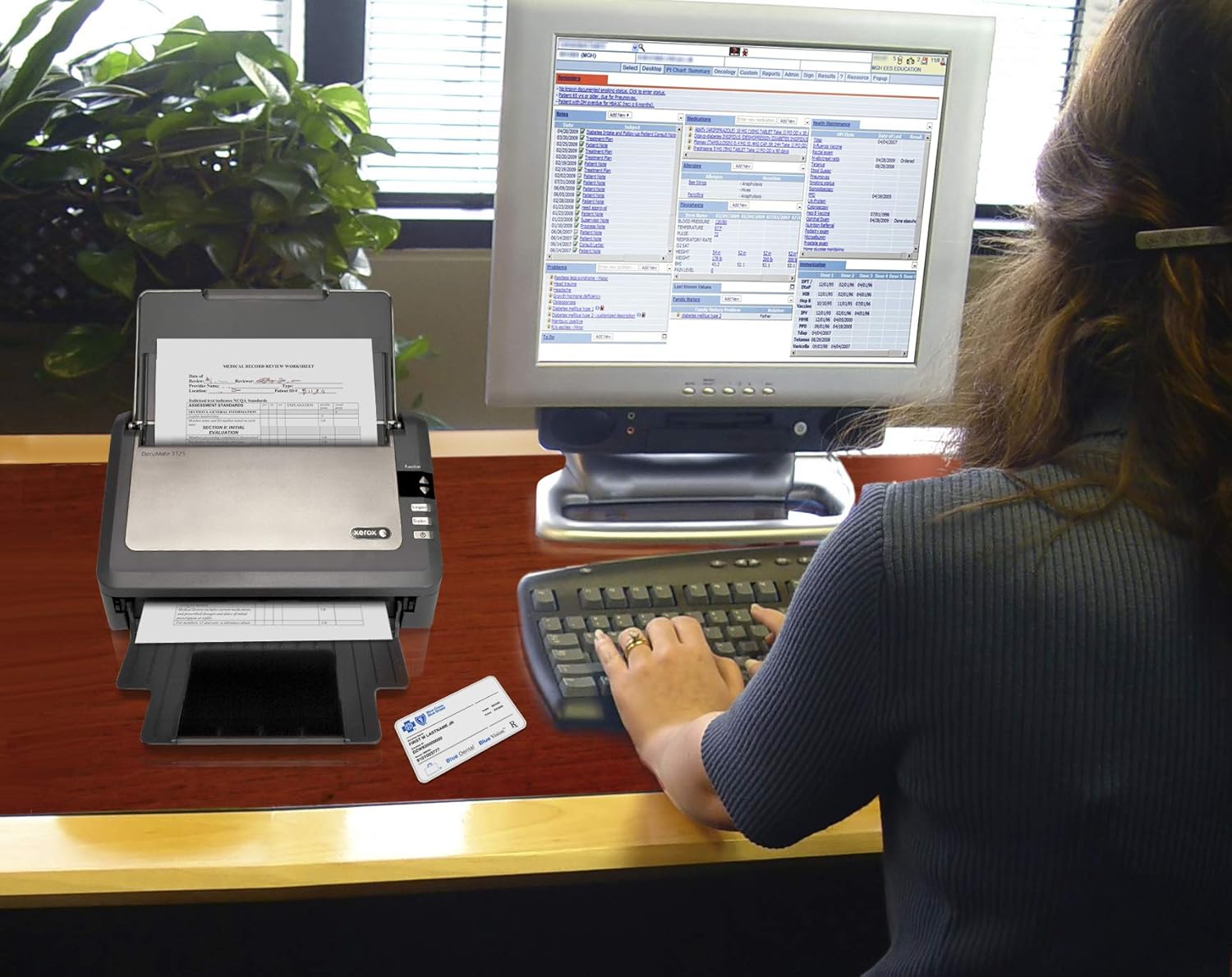
Figure 3: Document scanning in progress with the Xerox DocuMate 3125.
The scanner supports various media types, including standard documents, photos, receipts, and embossed plastic cards.
4.2 One Touch Scanning
The DocuMate 3125 features One Touch scanning, allowing you to initiate scans and send them to predefined destinations with a single button press. These destinations can include searchable PDF files, email attachments, or cloud storage services.
Figure 4: Control panel with Simplex and Duplex scan options.
- Simplex Scanning: Press the "Simplex" button to scan one side of a document.
- Dvostransko skeniranje: Press the "Duplex" button to scan both sides of a document simultaneously.
- Profi po merifiles can be configured via the Visioneer OneTouch software to specify scan settings (color, resolution, file format) and destinations.

Figure 5: Scanned documents can be saved to various cloud services.
5. Vzdrževanje
Redno vzdrževanje zagotavlja optimalno delovanje in podaljšuje življenjsko dobo vašega skenerja.
5.1 Čiščenje skenerja
- Zunanjost: Obrišite zunanje površine z mehko damp krpo. Izogibajte se abrazivnim čistilom.
- Valji samodejnega podajalnika dokumentov: Periodically clean the ADF rollers with a lint-free cloth lightly dampened with isopropyl alcohol to prevent paper jams and improve feeding accuracy.
- Glass Strip: Clean the glass strip inside the scanner with a soft, lint-free cloth and a non-abrasive glass cleaner. Dust or smudges on the glass can appear as lines on scanned images.
Always power off and unplug the scanner before performing any cleaning procedures.
6. Odpravljanje težav
Ta razdelek obravnava pogoste težave, na katere lahko naletite pri uporabi skenerja.
| Težava | Možen vzrok | rešitev |
|---|---|---|
| Optičnega bralnika računalnik ne prepozna | Loose USB cable, driver not installed, power off | Preverite povezavo USB, prepričajte se, da je skener vklopljen, in znova namestite gonilnike. |
| Paper jams in ADF | Misaligned documents, worn rollers, too many pages | Remove jammed paper, fan documents, clean rollers, reduce page count. |
| Scanned images have lines or streaks | Dust or smudges on glass strip or rollers | Clean the glass strip and ADF rollers. |
| Slow scanning speed | High resolution settings, computer performance | Reduce scan resolution, close other applications on your computer. |
If you encounter issues not covered here, refer to the comprehensive troubleshooting guide available on the Xerox support webspletno mesto ali se obrnite na podporo strankam.
7. Specifikacije
| Funkcija | Podrobnost |
|---|---|
| Ime modela | Xerox DocuMate 3125 |
| Vrsta optičnega bralnika | Document, Sheetfed, Duplex |
| Povezljivost | USB |
| Hitrost skeniranja | Up to 40 ppm / 70 ipm (at 200 dpi) |
| Zmogljivost samodejnega podajalnika dokumentov (ADF) | 50 listov |
| Dnevni delovni cikel | 3,000 pages/day |
| Optična ločljivost | 600 dpi |
| Izhodna bitna globina | 24-bit Color, 8-bit Grayscale, 1-bit Black & White |
| Dimenzije izdelka | 6.5 x 11.2 x 6.7 palcev |
| Teža predmeta | 5.41 funtov |
| Poraba energije | 30 vatov (delovanje) |
| Minimalne sistemske zahteve | Windows 7 (or newer), Mac OS X (specific version may vary with driver updates) |
8. Garancija in podpora
The Xerox DocuMate 3125 scanner typically comes with a manufacturer's warranty. Please refer to the warranty card included with your product or visit the official Xerox support webza podrobne garancijske pogoje.
For technical assistance, driver downloads, or further support, please visit the official Xerox support portal. Contact information for customer service is usually available on the support webmesto.


