1. Introduction to Samsung Galaxy Devices
Samsung Galaxy devices are designed with advanced technology and sleek aesthetics. This manual provides detailed instructions to help you understand and utilize the full capabilities of your device. From initial setup to advanced features and troubleshooting, this guide aims to enhance your user experience.
Smartphones and tablets are sophisticated devices. Their design combines aesthetic appeal with robust functionality. The sheer amount of functionality integrated into their compact units is remarkable. This guide will outline exactly why you'll find it hard to put your Galaxy device down.
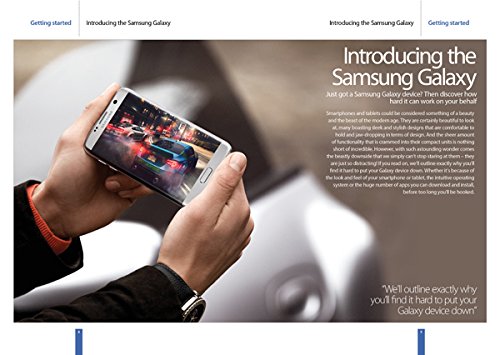
Figure 1.1: A Samsung Galaxy device showcasing its display. This image illustrates the device's design and screen quality.
2. Začetna nastavitev
This section guides you through the initial steps to power on and configure your Samsung Galaxy device for first-time use.
- Vklop: Pritisnite in držite gumb za vklop, dokler se ne prikaže logotip Samsung.
- Izbira jezika: Na seznamu izberite želeni jezik in tapnite »Začni«.
- Povezava Wi-Fi: Select your Wi-Fi network and enter the password if prompted. Tap "Connect".
- Pogoji in določila: Za nadaljevanje preberite in sprejmite licenčno pogodbo za končnega uporabnika in pravilnik o zasebnosti.
- Nastavitev Google Računa: Prijavite se s svojim Google Računom ali ustvarite novega. To je bistveno za dostop do Googlovih storitev in Trgovine Play.
- Prenos podatkov (neobvezno): If you have a previous device, follow the on-screen instructions to transfer data.
- Varnostna nastavitev: Za varnost naprave nastavite zaklepanje zaslona (PIN, vzorec, geslo, prstni odtis ali prepoznavanje obraza).
- Popolna namestitev: Follow any remaining prompts to finalize the setup process. Your device is now ready for use.
3. Upravljanje vaše naprave
This section covers the basic operations and navigation of your Samsung Galaxy device.
3.1. Navigation Basics
- Domači zaslon: Osrednje središče za vaše aplikacije in pripomočke. Za dostop do dodatnih zaslonov podrsajte levo ali desno.
- Predal za aplikacije: Povlecite navzgor z začetnega zaslona do view vse nameščene aplikacije.
- Obvestilna plošča: Za dostop do obvestil in hitrih nastavitev povlecite navzdol z vrha zaslona.
- Nedavne aplikacije: Tapnite gumb Nedavne aplikacije (običajno kvadratna ikona), da view in preklapljajte med nedavno uporabljenimi aplikacijami.
- Gumb za nazaj: Tap the Back button (usually a triangle or arrow icon) to return to the previous screen.
4. Upravljanje aplikacij
Your Samsung Galaxy device comes with a variety of pre-installed applications, and you can download many more from the Google Play Store. This section explains how to manage them.
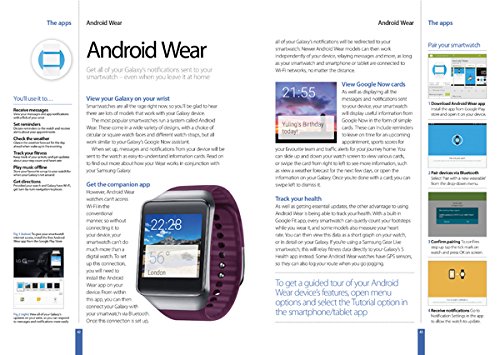
Slika 4.1: Prekoview of app management and Android Wear integration on Samsung Galaxy.
4.1. Installing and Uninstalling Apps
- Namesti: Open the "Play Store" app, search for the desired app, and tap "Install".
- Odstrani: Go to "Settings" > "Apps", select the app, and tap "Uninstall". Alternatively, long-press the app icon on the home screen or app drawer and drag it to the "Uninstall" option.
4.2. App Permissions
Manage what information and device features apps can access. Go to "Settings" > "Apps", select an app, then tap "Permissions" to review and adjust access.
5. Android Wear Integration
Your Samsung Galaxy device can seamlessly integrate with Android Wear smartwatches, allowing you to receive notifications and manage certain functions directly from your wrist.
5.1. Getting Started with Android Wear
- Prenesite aplikacijo: Download the "Android Wear" app from the Google Play Store on your Galaxy device.
- Seznanjanje: Open the Android Wear app and follow the on-screen instructions to pair your smartwatch via Bluetooth. Ensure Bluetooth is enabled on both devices.
- Obvestila: Once paired, all notifications from your Galaxy device will be redirected to your smartwatch. This includes calls, messages, and app alerts.
5.2. Ključne značilnosti
- View Google Now Cards: Receive timely information such as weather updates, traffic alerts, and calendar reminders directly on your smartwatch.
- Track Your Health: Many Android Wear devices include fitness tracking capabilities. Sync your smartwatch with Google Fit or other health apps on your Galaxy device to monitor steps, heart rate, and more.
- Odgovori na sporočila: Reply to messages using voice commands or pre-set responses directly from your wrist.
6. Vzdrževanje naprave
Proper maintenance ensures the longevity and optimal performance of your Samsung Galaxy device.
- Posodobitve programske opreme: Regularly check for and install software updates. Go to "Settings" > "Software update" > "Download and install".
- Vzdrževanje baterije: Avoid extreme temperatures. Do not let the battery drain completely often, and avoid overcharging.
- Čiščenje: Za čiščenje zaslona in ohišja uporabljajte mehko krpo, ki ne pušča vlaken. Izogibajte se agresivnim kemikalijam.
- Upravljanje shranjevanja: Občasno očistite nepotrebne files and uninstall unused apps to free up storage space. Go to "Settings" > "Device care" > "Storage".
- Varnostni podatki: Redno varnostno kopirajte pomembne podatke v Samsung Cloud, Google Drive ali računalnik, da preprečite izgubo podatkov.
7. Odpravljanje pogostih težav
Ta razdelek obravnava pogoste težave, na katere lahko naletite, in ponuja rešitve.
7.1. Naprava se ne odziva
- Ponovni zagon: Hkrati pritisnite in držite gumb za vklop in gumb za zmanjšanje glasnosti približno 7–10 sekund, da napravo prisilno ponovno zaženete.
- Polnjenje: Ensure the device has sufficient battery charge. Connect it to a charger and wait a few minutes before attempting to power on.
7.2. Težave z omrežjem Wi-Fi
- Preklopi Wi-Fi: Turn Wi-Fi off and then on again from the Quick Settings panel.
- Znova zaženite usmerjevalnik: Znova zaženite usmerjevalnik Wi-Fi.
- Pozabi omrežje: Go to "Settings" > "Connections" > "Wi-Fi", tap the gear icon next to the problematic network, and select "Forget". Then, reconnect.
7.3. App Crashing
- Počisti predpomnilnik: Go to "Settings" > "Apps", select the problematic app, then "Storage" > "Clear cache".
- Posodobi aplikacijo: Ensure the app is updated to its latest version via the Google Play Store.
- Ponovno namestite aplikacijo: Odstranite in nato znova namestite aplikacijo.
8. Specifikacije izdelka
Key technical details for the Samsung Galaxy: The Complete Manual.
| Funkcija | Podrobnost |
|---|---|
| Založnik | Imagine Publishing Ltd |
| Izdaja | 13. izdaja |
| Jezik | angleščina |
| ISBN-10 | 1785464140 |
| ISBN-13 | 978-1785464140 |
| Teža predmeta | 7.1 unč |
9. Garancija in podpora
For specific warranty information regarding your Samsung Galaxy device, please refer to the documentation included with your product at the time of purchase or visit the official Samsung support webmesto.
Podpora strankam: If you encounter issues not covered in this manual or require further assistance, please contact Samsung customer support through their official website or designated service centers. Have your device's model number and serial number ready for faster service.
Spletni viri: Additional guides, FAQs, and software downloads are often available on the official Samsung support portal.